英語のページから翻訳したものです。基準は英語のページです。英語で見る。
Fast Script ユーザーガイド¶
短いコマンドをひとつずつ、BIM と ERP に。アプリ自身の答えがそのまま返ってきます。同じ言葉が、ターミナルのあなたにも AI にも使えます。
SQL のステロイド版だと考えてください。一行でレコードを読んだり変更したりしますが、どの行もウィンドウと同じルールを通り、何をしたかを表示します。入力するのは、ひとつのプロンプト red1 に打つ短い言葉だけです。どの言葉も、実行する完全な行を(→ のあとに)表示するので、長い形を使いながら覚えられます。中に AI はありません。
良い答えが意味しないこと
問題のない答えは 安全・適合・良好を決して意味しません。どの答えも、確認されなかったことを一覧にし、確認されないことでもう一度述べます。最終判断は構造技術者が行います。
インストール方法¶
Node 18 以降が必要です(これらの手順は Node 18.19 で実行しました)。入り口は二つあります。
フルチェックアウトなら、red1、BIM、ERP、Viewer、以下のすべてが使えます。クローンして、最上位のフォルダーから red1 を起動します:
git clone https://github.com/red1oon/bim-ootb
cd bim-ootb
node common/door/red1.js
exit で終了します。どこからでも red1 だけで起動したいときは、そのフォルダーで一度 npm link を実行します。動作確認には、バージョン行を表示させます:
$ node common/door/red1.js --version | sed -e 's/^Copyright[^·]*· //' -e 's/ · [0-9a-f]\{8\}$//'
red1 1.0.0 · 78 verbs · 30 words
六ファイルのダウンロードは、チェックアウトなしで、ドアと Modeller 動詞だけを使う場合のものです。空のフォルダーを作り、Modeller が必要とするブラウザーエンジンをインストールして、六つのファイルを取得します:
mkdir fastscript && cd fastscript
npm init -y
npm install puppeteer@24
curl -O https://red1oon.github.io/bim-ootb/modeller/tools/edit_cli.js
curl -O https://red1oon.github.io/bim-ootb/modeller/tools/bim_mcp.js
curl -O https://red1oon.github.io/bim-ootb/common/door/door.js
curl -O https://red1oon.github.io/bim-ootb/common/door/verbs.json
curl -O https://red1oon.github.io/bim-ootb/common/door/msg_core.js
curl -O https://red1oon.github.io/bim-ootb/common/door/vocab/messages.json
六つを同じフォルダーに置いてください。door.js は動詞の一覧を verbs.json から、メッセージを messages.json(msg_core.js 経由)から読み、edit_cli.js を実行して、ウィンドウなしでライブの Modeller ページを開きます。ファイルが欠けていると、ドアはどれかを示し、その curl 行を表示します。このページのそれ以外はすべてチェックアウトが必要です。どの動詞に何が必要かは動詞の表に載っています。
まず red1 から¶
ターミナルでは、red1 は一度だけあいさつをして、プロンプトで待ちます。次が表示される内容そのままです(バージョン行の末尾のコミットは、コミットごとに変わるため切り取ってあります):
$ (sleep 4; printf 'exit\r') | RED1_LOG=/tmp/fast_guide_greet.log RED1_HISTORY=/tmp/fast_guide_greet.hist BIM_DOOR_JOURNAL=/tmp/fast_guide_greet.journal script -qec 'node common/door/red1.js' /dev/null | tr -d '\r' | sed -e 's/\x1b\[[0-9;?]*[a-zA-Z]//g' -e 's/ · [0-9a-f]\{8\}$//'
Welcome to red1, the scripting door into BIM and ERP, stored in SQLite.
REMEMBER THE NAME.
Copyright (c) 2026 Redhuan D. OON · red1 1.0.0 · 78 verbs · 30 words
Type help for the list of commands (or bim, mis, erp for one group).
Tip: type level student for fuller help on each word (red1 --fast opens without tips).

red1> exit
このページのブロックの読み方。 $ の後の行は、このページのテストがコマンドを実行する方法です。使い捨てのファイルを使い(事前に空にするので、実行があなた自身のデータに触れることはありません)、所要時間を切り取り、ログを隠します。自分のプロンプトでは、cd Duplex のように単語だけを入力します。その下が、red1 が出力したそのままの内容です。
地図として読んでください。バージョン行は、red1 にドア動詞(長い形)と短い言葉がいくつあるかを示します。help は短い言葉を三つのグループで表示します。help bim、help mis、help erp で、そのグループを見られます:
| グループ | 何のためか | 最初に打つもの |
|---|---|---|
| bim | 建物とモデル:数える、干渉、コスト、工程、Modeller | cd Duplex |
| mis | レコード、テーブル、ファイル、Ninja ブック:一覧、作成、変更、読み込み | cd Order |
| erp | 伝票とプロセス:完了、無効、クローズ、プロセスの実行、建物を注文へ転記 | cd Order |
$ node common/door/red1.js help 2>/dev/null
red1: type a short word; red1 prints the full line it runs (→ …), then runs it.
  bim   buildings and models            start with: cd Duplex   (16 words)
  mis   records, tables, files, Ninja   start with: cd Order   (11 words)
  erp   documents and processes         start with: cd Order   (8 words)
  everywhere: cd <place> · #<number> · pwd · role <id> · login <user> · history [N] · report · exit
Type bim, mis or erp for its words · help <word> for one word (level student first for the full explanation) · help verbs for the full door lines.
グループは、その言葉を、打てる例とともに一覧にします。いちばん短いのは erp です:
$ node common/door/red1.js 'help erp' 2>/dev/null
erp: documents and processes (start with: cd Order)
 in a building:
  post discipline=ARC  post the building's priced selection to its ERP Project Order
  vo discipline=ARC    issue the change between the model and the Project Order as a Variation Order
 in an ERP kind:
  status                                              a Project's earned value (PV, EV, AC, SPI, CPI per phase)
  claim                                               bill the project's completed phases not yet billed
  do CO 50000                                         a document action
  run "Set Project Type" 990000 C_ProjectType_ID=103  run a process of the dictionary
  next 50000                                          what a document may do next
  ask "How do I close a Sales Order?"                 ask the help a question, in your language
グループ名だけを入力すると(bim、mis、erp)、同じ一覧が表示され、そのグループの中に入ります。プロンプトは red1 erp> になり、help、Tab、灰色の候補はそのグループの言葉だけを出します。行の実行を止めることはありません。完全なドアの行は、どのグループからでもそのまま実行されます。cd .. で一歩戻り(場所から出て、次にグループから出る)、Shift+Tab でも同じです(red1 は → cd .. と表示するので、セッションはテキストとして読めます)。
help はドア動詞を表示せず、言葉だけを表示します。help verbs は、すべてのドア動詞を完全な行で一覧にします。ひとつの言葉についてさらに詳しい説明が必要なら、Student レベルに切り替えます。セッションでは level student、一行なら --level student を使い、そのあと help <word> で、その言葉が何をするか、何を打つか、red1 が今いる場所から何を取るか、そして例が示されます。テキストは動詞自身の説明なので、末尾の表からずれることはありません:
$ node common/door/red1.js --level student 'help cost' 2>/dev/null
cost: the cost of a selection: cost [phase|task|storey|discipline|class] [column=value …]
  in a building: cost discipline   → viewer.cost
    what it does: Price a selection of a building's elements as the Viewer's Find panel does: quantities from the model × the rate pack, grouped by 4D phase, task, storey…
    you type: by (phase (default), task, storey, discipline or class.)
    taken from where you are: building
    e.g. in Duplex: viewer.cost building=Duplex by=discipline
自分の言語でヘルプ。 ask "<question>" は、ブラウザ版 ERP の質問ボックスと同じヘルプに、ふつうの言葉で質問します。ERP の種類の中(cd Order)で使えます。答えは、ウィンドウ、一致するものがあればメニューのプロセスまたはレポート(ブラウザのボックスと同じ)、ドキュメントアクションとそれが許されるステータス、それを行うコマンドライン、ガイドの節を示します。辞書と公開されている iDempiere の言語パックから読み取ります。中に AI はなく、読むだけです。言語は lang=zh_CN で選んだもの、なければログインしているときの保存された設定(login)、なければ端末の LANG、なければシステムのものです。パックにない文は、レガシーと同じく英語のままです(下のアクションの説明)。ここでは端末が中国語です:
$ printf 'cd Order\nask "如何关闭销售订单?"\n' | LANG=zh_CN.UTF-8 node common/door/red1.js 2>/dev/null | sed 's/ · [0-9]* ms//'
→ mis.describe kind=Order
Order: 93 properties; ls shows C_Order_ID, DocumentNo, DocStatus, Processed, POReference, Description
→ erp.ask question=如何关闭销售订单?
ok · erp.ask
窗口: 销售订单
进程: 由费用产生销售订单
文档动作: 结束 — Finally close this transaction. It cannot be re-activated.
  单据处于以下状态时可用: 完成, 等候付款
CLI: erp.close kind=Order number=<Document No>
指南: 1 · 销售订单 https://red1oon.github.io/BIMCompiler/ERPUserGuide/#1-sales-order

从菜单(⌂ → 销售)打开销售订单,建一两行,然后按处理按钮(§6)→ 完成。完成不只是改变状态:completeIt 会在同一个已签名的操作组里,接着生成后面的出货单和发票。
(由构建会话翻译,未经母语者审校)
ブラウザ版 ERP にも、すべての項目のヘルプ、How To の手順、質問ボックスが、ヘッダーで選んだ言語であります:ERP ユーザーガイドの Help on every field, and a question box を見てください。
では、ひとつの言葉を。cd は今いる場所を覚えているので、繰り返す必要はありません。cd Duplex と cd Element のあとの count には、新しい部分だけが必要です。→ の行は red1 がドアに送ったものです。その行が、その言葉の長い形です:
$ node common/door/red1.js 'cd Duplex; cd Element; count discipline=ARC' 2>&1 | grep '^→'
→ object.describe building=Duplex kind=Element
→ object.count building=Duplex kind=Element discipline=ARC
言葉・場所・列を打っている間、カーソルの後ろに灰色の文字が現れます。辞書からの候補です。Tab または → で受け入れ、Return は常に、打ったものを実行します(候補は決して実行しません)。綴りの間違いにはヒントが出るだけで、黙って直されることはありません(ls Valu=… は拒否され、Value を示します)。
よく使う言葉¶
以下の各部分では、これから何をするのか、なぜなのかを述べ、実際の実行と、その中で見るべき点を示します。
bim:建物とモデル¶
列で数える。 cd Duplex に続けて cd Element で建物の要素へ移動し、group storey で列ごとに数えます。グループとその件数、そして言葉の裏にあるドア動詞を示す → の行を見てください:
$ printf 'cd Duplex\ncd Element\ngroup storey\n' | node common/door/red1.js 2>/dev/null | sed 's/ · [0-9]* ms//'
building Duplex
→ object.describe building=Duplex kind=Element
Duplex/Element: 9 properties; ls shows elements_meta_uu, guid, ifc_class, element_name
→ object.group building=Duplex kind=Element by=storey
ok · object.group
5 groups over 1193 Element
storey   count
Unknown  1026
Level 2  83
Level 1  62
T/FDN    14
Roof     8
ワイルドカードで探す。 ls はここにあるものを一覧します。column=value を付けると絞り込めます。* は任意の文字列、? は一文字、[abc] はそのうちの一文字で、大文字小文字は区別しません。shown 6 of 6 を見てください。red1 は、いくつの行が一致し、いくつ表示しているかを示します。
$ printf 'cd Duplex\ncd Element\nls element_name=*bath*\n' | node common/door/red1.js 2>/dev/null | sed 's/ · [0-9]* ms//'
building Duplex
→ object.describe building=Duplex kind=Element
Duplex/Element: 9 properties; ls shows elements_meta_uu, guid, ifc_class, element_name
→ object.list building=Duplex kind=Element columns=elements_meta_uu,guid,ifc_class,element_name limit=20 element_name=*bath*
ok · object.list
shown 6 of 6 Element
elements_meta_uu        guid                    ifc_class        element_name
0BTBFw6f90Nfh9rP1dlXre  0BTBFw6f90Nfh9rP1dlXre  IfcSpace         Bathroom 2
0BTBFw6f90Nfh9rP1dlXru  0BTBFw6f90Nfh9rP1dlXru  IfcSpace         Bathroom 1
0BTBFw6f90Nfh9rP1dl_3C  0BTBFw6f90Nfh9rP1dl_3C  IfcSpace         Bathroom 2
0BTBFw6f90Nfh9rP1dl_3P  0BTBFw6f90Nfh9rP1dl_3P  IfcSpace         Bathroom 1
1YLPoi73z0fvdanmaXQreg  1YLPoi73z0fvdanmaXQreg  IfcFlowTerminal  M_Bath Tub:1525 mmx760 mm - Private:1525 mmx760 mm - Private:582924
2h405XijT83A$BX7w5ki4b  2h405XijT83A$BX7w5ki4b  IfcFlowTerminal  M_Bath Tub:1525 mmx760 mm - Private:1525 mmx760 mm - Private:582931
干渉。 clash ARC MEP は、二つの専門分野の間の重なりを Viewer に尋ね、答え自身の数字をじょうご型で描きます。単独で打つと、clash は建物の専門分野のメニューを開きます。そのあと ls が、同じ答えから393行を、再度尋ねることなく一覧します。各部分がどう合計されるかを見てください:393 = 291 + 102。
$ printf 'cd Duplex\nclash ARC MEP\n' | node common/door/red1.js 2>/dev/null | sed 's/ · [0-9]* ms//'
building Duplex
→ viewer.clashes building=Duplex discA=ARC discB=MEP rows=all
ok · viewer.clashes
393 box overlaps  ARC x MEP  (at 25 mm)
├─ 291 clash at mesh level
│    └─ 156 of them one inside the other
├─ 102 cleared by the shape tests
│    ├─  76 turned boxes do not touch
│    └─  26 triangles do not touch
└─   0 not judged
ls lists the 393 rows
コスト。 cost discipline は、Viewer の Find パネルと同じ方法で建物の要素に値段を付けます。モデルからの数量に単価パックを掛けます。その実行は 建物からその注文へ にあり、そこから注文へと続きます。
mis:レコード、テーブル、ファイル¶
レコードを探す。 Business Partner のような ERP の種類でも、建物と同じ言葉が使えます。ls、count、cat、同じワイルドカードです。cd には種類の名前を渡し、空白を含む場合は引用符で囲みます。
一件作って一件変更する。 new は、ウィンドウと同じ方法でレコードを作ります。知っている列を渡せば、残り(既定値や連番)はエンジンが埋め、辞書にない列は、実際の列を一覧にして拒否されます。set <id> Column=value で一件を変更します。id の答えにある new(次に set が使うもの)、二つ目の答えの changed、そして最後の一覧を見てください。(答えには、埋めた列すべてと行った変更も一覧されますが、ここでは省いています。)
$ printf 'cd "Business Partner"\nnew Value=GD100 Name="Guide Partner One"\nset 1600010 Description="first supplier"\nls Value=GD*\n' | BIM_OBJECT_OPLOG=/tmp/fast_guide_mis2.ops node common/door/red1.js 2>/dev/null | sed 's/ · [0-9]* ms//' | grep -E '^(→|ok|refused|id|changed|shown|C_BPartner_ID|[0-9]{7} )'
→ mis.describe kind="Business Partner"
→ mis.new kind="Business Partner" Value=GD100 Name="Guide Partner One"
ok · mis.new
id: 1600010
→ mis.update kind="Business Partner" id=1600010 Description="first supplier"
ok · mis.update
id: 1600010
changed: ["description"]
→ mis.list kind="Business Partner" columns=C_BPartner_ID,Value,Name,Logo_ID,C_BP_Group_ID limit=20 names=Y Value=GD*
ok · mis.list
shown 1 of 1 Business Partner
C_BPartner_ID  Value  Name               Logo_ID  C_BP_Group_ID
1600010        GD100  Guide Partner One           Standard Customers
rm <id> は一件を削除し、load <file.csv> と diff <file.csv> は、ファイルから行を読み込み、ファイルとレコードを比較します。リファレンスに、それぞれの出力が載っています。
erp:伝票とプロセス¶
伝票を作って完了する。 Order で new を使うと注文の下書きが作られ、その番号が出力されます。プロンプトでは完全なドア行も使えるので、注文の明細は mis.new(製品と数量)で追加します。next <number> は伝票が今できることを描き、単語を持つ各アクションについて、それを実行する行を示します。do CO <number> で完了します。レガシーの DocAction コードは CO 完了、PR 準備、VO 無効化、CL クローズ、RC 取消、RE 再アクティブ化です(do complete、do void … も使えます)。new が出力する番号、各 next ツリーのステータス、CO の後に変わったアクションを見てください。(grep はそれらの行だけを残します。完全な回答には、埋められた全ての列も並びます。)
$ printf 'cd Order\nnew issotrx=Y C_DocTypeTarget_ID=132 C_BPartner_ID=112 SalesRep_ID=101\nmis.new kind=C_OrderLine order=50000 m_product_id=137 qtyentered=2\nnext 50000\ndo CO 50000\nnext 50000\n' | BIM_OBJECT_OPLOG=/tmp/fast_guide_erp.ops node common/door/red1.js 2>/dev/null | sed 's/ · [0-9]* ms//' | grep -E '^(→|ok|refused|number|Order [0-9]|[├└])'
→ mis.describe kind=Order
→ mis.new kind=Order issotrx=Y C_DocTypeTarget_ID=132 C_BPartner_ID=112 SalesRep_ID=101
ok · mis.new
number: 50000
→ mis.new kind=C_OrderLine order=50000 m_product_id=137 qtyentered=2
ok · mis.new
→ erp.actions kind=Order number=50000
ok · erp.actions
Order 50000  status DR
├─ CO  → do complete 50000
├─ PR  → do prepare 50000
└─ VO  → do void 50000
→ erp.complete kind=Order number=50000
ok · erp.complete
→ erp.actions kind=Order number=50000
ok · erp.actions
Order 50000  status CO
├─ CL  → do close 50000
├─ VO  → do void 50000
└─ RE  → do reactivate 50000
プロセスを実行する。 run "<process>" は、ウィンドウのボタンと同じように、ERP 辞書のプロセスを一つ実行します。打たなかったパラメーターは、プロセス自身のパラメーター行の順に、ひとつずつ尋ねられます(Return で既定値を採用。ルックアップは、列の検証ルールで絞り込まれた選択リストを開き、(leave it out) は任意項目を飛ばします)。そのあと red1 は完全な → erp.process … の行を表示して実行します。要約には、作られた伝票とプロセスログが、従来のプロセスダイアログと同様に示されます。ここではプロジェクトを入力し、ほかの三つの質問は Return で答えています。(ターミナルでは各質問が選択リストを描きます。grep は質問と答えだけを残します。)正直な答えを見てください。シードの Hospital プロジェクトには仕入先価格がないので、発注書は作られず、ログがその理由を各行について述べます:
$ printf 'cd Project\nrun "Generate PO from Project" C_Project_ID=990000\n\n\n\n' | BIM_OBJECT_OPLOG=/tmp/fast_guide_erp2.ops node common/door/red1.js 2>/dev/null | sed 's/ · [0-9]* ms//' | grep -E '^(→|run:|C_|Consolidate|ok|refused|Generate|  Product)'
→ mis.describe kind=Project
→ mis.list kind=AD_Process_Para columns=ColumnName,Name,IsMandatory,DefaultValue,SeqNo,AD_Reference_ID sort=SeqNo limit=50 master="Process/Generate PO from Project"
→ mis.lookup column=C_ProjectPhase_ID process="Generate PO from Project" limit=50 C_Project_ID=990000
run: pick Project Phase (C_ProjectPhase_ID, 7)
C_ProjectPhase_ID: left out
→ mis.lookup column=C_ProjectLine_ID process="Generate PO from Project" limit=50 C_Project_ID=990000
run: pick Project Line (C_ProjectLine_ID, 28)
C_ProjectLine_ID: left out
Consolidate to one Document (ConsolidateDocument)? [Y]
→ erp.process name="Generate PO from Project" kind=Project C_Project_ID=990000 ConsolidateDocument=Y
ok · erp.process
Generate PO from Project: done · no document made
  Product has no PO record  (×28)
単発の行や AI の場合は何も尋ねられません。必須パラメーターが欠けていれば、それを名指しする拒否になります。ツインにまだポートがないプロセスは、そのクラス名とともに拒否され、red1 がそう伝えます。
メニューと、場所としてのレコード。 menu は ERP のメニューを場所として表示します。cd <folder> で中に入り(その名前で始まる項目が一つだけなら名前の先頭だけで足ります)、ウィンドウの項目はその種類へ移動し、cd ..(または Shift+Tab)で一つ上のフォルダーへ戻ります。プロンプトにはパスが表示されます。各項目には印があります。▸ フォルダー(含まれる項目の数)、W ウィンドウ(とそのテーブル)、P プロセス、R レポート、X フォーム、F ワークフロー。red1 menu 単独では、引き続きメニューを全画面で開きます。
$ printf 'menu\ncd Quote\ncd "Sales Orders"\ncd "Sales Order"\npwd\n' | node common/door/red1.js 2>/dev/null
→ mis.menu
menu: 15 entries; cd <name> goes in, cd .. goes back
  ▸ System Admin (6)
  ▸ Application Dictionary (40)
  ▸ Partner Relations (7)
  ▸ Quote-to-Invoice (Sales) (6)
  ▸ Requisition-to-Invoice (Purchasing) (16)
  ▸ Returns (5)
  ▸ Open Items (Financial Movements and Aging) (32)
  ▸ Material Management and Pricing (22)
  ▸ Project Management (14)
  ▸ Performance Analysis and Accounting (17)
  ▸ Assets (6)
  ▸ Manufacturing (10)
  ▸ Maintenance Request (3)
  W Cost Center · C_CostCenter
  W Department · C_Department
Quote-to-Invoice (Sales): 6 entries; cd <name> goes in, cd .. goes back
  ▸ Sales and Marketing (9)
  ▸ Sales Orders (13)
  ▸ Shipments (7)
  ▸ Sales Invoices (5)
  ▸ Invoice Inquiry (13)
  ▸ Sales Management (6)
Quote-to-Invoice (Sales)/Sales Orders: 13 entries; cd <name> goes in, cd .. goes back
  W Sales Order · C_Order
  R Order Detail
  R Open Orders
  R Order Transactions
  P Quote convert
  P RePrice Order/Invoice
  P Generate PO from Sales Order
  P Reopen Order
  P Order Batch Process
  W POS Key Layout · C_POSKeyLayout
  P POS Key Generate
  W POS Terminal · C_POS
  W POS Payment · C_POSPayment
→ mis.describe kind=C_Order
Order: 93 properties; ls shows C_Order_ID, DocumentNo, DocStatus, Processed, POReference, Description
menu="Quote-to-Invoice (Sales)/Sales Orders" kind=Order
種類の中で cd <number> を使うとそのレコードに入り、プロンプトはメニューのパスを保ちます。cd .. で外に戻ります(どこからでも cd Order 100 で同じことができます)。レコードの中では、red1 が提示するのはそのレコードのもので、そのウィンドウ用の辞書から読み取られます。do の後には、あなたのロールで今実行できるアクションだけが、ウィンドウ自身のボタンの順に出ます。cd の後にはそのタブ、run の後にはそれ自身のプロセスボタン(run Co は "Copy Lines" に補完されます)、そしてそのフィールドが Column= キーとして出ます。do と next はレコードを ID で指すので、二つのレコードが同じ番号を持っていても(ここでは 80000)問題になりません。アクションは何をしたかを出力します。ステータスの変化、触れた伝票、保持した変更の数、そしてレコードが今できることです。その後 do の後の Tab は、それらの新しいコードを提示します。下のブロックではフォルダーの一覧を省いています。
$ rm -f /tmp/fast_guide_walkrec.ops; printf 'menu\ncd Quote\ncd "Sales Orders"\ncd "Sales Order"\ncd 100\npwd\ndo RE\ndo CO\n' | BIM_OBJECT_OPLOG=/tmp/fast_guide_walkrec.ops BIM_DOOR_JOURNAL=/tmp/fast_guide_walkrec.journal node common/door/red1.js 2>/dev/null | sed 's/ · [0-9]* ms//' | grep -vE '^  [▸WRPXF] '
→ mis.menu
menu: 15 entries; cd <name> goes in, cd .. goes back
Quote-to-Invoice (Sales): 6 entries; cd <name> goes in, cd .. goes back
Quote-to-Invoice (Sales)/Sales Orders: 13 entries; cd <name> goes in, cd .. goes back
→ mis.describe kind=C_Order
Order: 93 properties; ls shows C_Order_ID, DocumentNo, DocStatus, Processed, POReference, Description
→ mis.read kind=Order id=100
Order 80000: 4 tabs (Order Line, Order Tax, Payment Schedule, POS Payment); ls shows them, cd <tab> opens one, cat reads the record
→ erp.actions kind=Order id=100
it may do: CL, VO, RE (do <code>; next shows the tree)
menu="Quote-to-Invoice (Sales)/Sales Orders" kind=Order id=100
→ erp.reactivate kind=Order id=100
ok · erp.reactivate
Re-activate: done · Order 80000 CO → IP (In Progress) · grand total 50.35
  related: Invoice 2 (RE 2) · Shipment/Receipt 2 (RE 2)
86 change(s) kept · it may do: CO, PR, VO
→ erp.complete kind=Order id=100
ok · erp.complete
Complete: done · Order 80000 IP → CO (Completed) · grand total 50.35
  related: Invoice 3 (RE 2, CO 1) · Shipment/Receipt 3 (RE 2, CO 1)
59 change(s) kept · it may do: CL, VO, RE
# は番号で伝票を探します。 #80000 は iDempiere の伝票検索です(そのグローバル検索ボックスでは /80000 と入力します。ここでは / がパスなので # を使います)。どの場所からでも使えます。番号は前方一致で、ログインしたクライアントの中だけ、ロールが開けるウィンドウの中だけを探します。伝票が一件だけ見つかればそれを開きます。複数見つかったときは、それぞれをそのウィンドウの下に、開くための行と一緒に並べるので、受注と発注を取り違えることはありません。前にコードを付けると別の検索になります:#O 80000 は受発注、#BP Joe は取引先。@ は予約済みです。bash ではこの行を引用符で囲んでください。そこでは # がコメントの始まりです。
$ rm -f /tmp/fast_guide_hash.ops; BIM_OBJECT_OPLOG=/tmp/fast_guide_hash.ops node common/door/red1.js '#80000' 2>&1 | grep -v '^§'
→ erp.search text=80000
#80000: 4 documents in 2 window(s); none is opened, enter one with its line:
  Sales Order window (Order, Order Search):
    Order 80000  →  cd Order 100
  Purchase Order window (Order, Order Search):
    Order 800000  →  cd Order 104
    Order 800001  →  cd Order 105
    Order 800002  →  cd Order 106
不足を報告する。 答えの中には、あなたの打ち間違いではなく、red1 に何かが足りないと告げるものがあります。エンジンがそれに印を付け、セッションでは red1 が答えのあとに一行表示します。打ち間違いや従来の拒否は不足ではなく、余計な表示はありません。report はそのあと下書き(行、理由、red1 のバージョン、プラットフォーム、最後のログ行、パスは伏せ字)を示し、GitHub の issue かメールを提案します。red1 自身は何も送らず、送るのはあなたのブラウザーまたはメールソフトです:
$ printf 'cd Project\nrun "Renumber"\n' | node common/door/red1.js 2>/dev/null | sed 's/ · [0-9]* ms//'
→ mis.describe kind=Project
Project: 48 properties; ls shows C_Project_ID, Value, Name, Processed, SalesRep_ID
→ mis.list kind=AD_Process_Para columns=ColumnName,Name,IsMandatory,DefaultValue,SeqNo,AD_Reference_ID sort=SeqNo limit=50 master=Process/Renumber
run: Renumber has no parameter to ask (none in the dictionary)
→ erp.process name=Renumber kind=Project
refused · erp.process · Renumber was not run: it has no JS port yet (class org.compiere.process.DiscountSchemaReSeq)
This is a gap in red1, not your mistake. Type report to send it to us (email or GitHub issue).
建物から注文へ:コスト、提案、転記¶
これは、建物をその ERP のプロジェクト注文へと運ぶ流れです。cost discipline はまずグループを出力し、次に件数と合計を出力します。ls は値段の付いた行を並べ、コストは phase、task、storey、class でもグループ化できます。建物にはまだ ERP の注文がないので、最後に提案 Ready to post to ERP Project Order? y/N が出て、その後に実行する正確な行が続きます。この提案はエンジン自身の次の一歩で、手で入力されたものではありません。セッションでは y でその行がそのまま実行され、n または空の Return では何も実行されません。一回限りの行や AI の場合は何も尋ねず、その行は回答の next に入ります。y と答えることは post です。建物の値段付きの選択を、建物の 4D 工程とプロジェクト明細から取ったフェーズとタスクとともに、一つの変更グループとして(またはまったくなしで)プロジェクト注文へまとめます。作られたものと、二つ目の提案 cd project を見てください。
$ rm -f /tmp/fast_guide_chain.ops; printf 'cd Duplex\ncost discipline\ny\nn\n' | BIM_OBJECT_OPLOG=/tmp/fast_guide_chain.ops BIM_DOOR_JOURNAL=/tmp/fast_guide_chain.journal node common/door/red1.js 2>/dev/null | sed 's/ · [0-9]* ms//'
building Duplex
→ viewer.cost building=Duplex by=discipline
ok · viewer.cost
1190 elements · 1054482.08 total (71 with no rate); 3 with no size, not priced
discipline  elements  cost
ARC         267       532431.14
ELEC        81        283500.00
MEP         809       153825.40
PLB         14        49000.00
STR         19        35725.55
ls lists the 49 priced rows
Ready to post to ERP Project Order? y/N → erp.process name="Fold from BIM" Building=Duplex
→ erp.process name="Fold from BIM" Building=Duplex
ok · erp.process
Posted Duplex: Project 990001, PlannedAmt 1054482.08284, 81 change(s) · no document made
81 change(s) kept: create:c_project 1, create:c_projectphase 8, create:c_projecttask 19, create:c_projectline 43, create:m_product 7, create:m_product_category 1, create:m_product_category_acct 2
Open the project? y/N → cd project
not done: cd project
転記された金額 1054482.08284 は、注文自身の明細ルール(単価×数量、丸めなし)です。cost は同じ明細で計算し、注文の通貨のセントまで表示します(1054482.08)。つまり post の前に見る数字が、注文に入る金額です。post という言葉は、前に cost がなくても同じことをし、先に run it? y/N と尋ねます。すでに注文にある建物を転記しても、何も変わりません。新しいプロジェクトから見ると、run "Generate PO from Project" が購買側で、上の Hospital プロジェクトと同じように答えます。転記で作られた商品には仕入先価格がありません。これらの手順と出力はリファレンスにあります。
すべての言葉¶
上の言葉が、最初に覚えるものです。残りは、それぞれドア動詞の短い形です(help <word> でその行を見られます):
| 言葉 | 何をするか |
|---|---|
pwd · cd .. · history · !! · !3 · role <id> · login <user> |
今いる場所、戻る、入力した行(以前のセッションの分も、番号付き)、最後の行をもう一度実行、3 行目を実行、ロールとして動く、自分が誰かを伝える(メールを持つユーザーが複数いるクライアントでだけ求められる。新しいレコードにはあなたのユーザーが記録される) |
sum <column> · cat <id> · rm <id> |
列を合計する、レコードを一件表示する、一件削除する |
ninja <file> · load <file.csv> · diff <file.csv> |
Ninja ブックまたは CSV を用意する、ファイルから行を読み込む、ファイルとレコードを比較する |
bim · mis · erp |
グループに入る:help、Tab、候補はその言葉だけを出す(cd .. または Shift+Tab で出る) |
menu |
ERP メニューを cd でフォルダーのようにたどる。red1 menu は全画面で開く |
cd Project 990000 · cd 100 · ls · cd Phase |
レコードを場所として開く(その種類の中で cd <number>、メニューを歩いた先からも):ls はそのタブをレコード件数とともに一覧し、cd <tab> でタブを開き、cd .. で上へ戻る |
status |
プロジェクトの中で:そのアーンドバリュー(フェーズごとの PV、EV、AC、SPI、CPI) |
vo |
建物の中で:モデルとそのプロジェクトオーダーの差分を、変更指示(Variation Order)として発行する(y/N を確認;承認は do CO <number>) |
claim |
プロジェクトの中で:完了してまだ請求していないフェーズを請求する。請求書の下書きと、その会計仕訳のプレビュー(y/N を確認) |
grid · walk FP · day 5 · compare 24 |
建物の通り芯、専門分野をたどる、ある日の工程、二日の比較 |
open marked · bay high · undo · save shed.db · close |
行の間も開いたままの Modeller |
help <word> · help verbs · level student · report · exit |
ヘルプ、すべてのドア動詞、より詳しい説明、オーナーへの不足報告、終了 |
確認されないこと¶
答えは、その確認がカバーしなかったことを一覧にします。同じ言葉がどの答えにも当てはまります。重なりはまずバウンディングボックスであり、確認は動いたものだけをカバーし、耐荷重は決して確認されません。赤のない答えは、決して安全を意味しません。Modeller の編集レポートの完全な一覧はリファレンスにあります。
トラブルシューティング¶
| 見えるもの | すること |
|---|---|
edit_cli is not at … |
六つのファイルのうちひとつが足りません。メッセージがcurlの行を表示します |
puppeteer not found |
同じフォルダでnpm install puppeteer@24を実行します |
unknown verb |
メッセージがすべての動詞を一覧します。表と綴りを照らし合わせてください |
missing input: … |
その動詞にはそのキーが必要です。表に入力が一覧されています |
The Viewer tools need a bim-ootb checkout |
完全なチェックアウトからnode common/door/door.jsとして実行します |
exit 1と Chrome のメッセージ |
Linux で Chrome のシステムライブラリが足りません。Puppeteer のトラブルシューティングページに一覧があります |
計画しておくべき制限。 Modeller の呼び出しは、そのつど建物全体を開きます。HospitalGarage で約 10〜40 秒です。これは測定ツールであり、稼働時間を保証するサービスではありません。Modeller の行が複数あるスクリプトは、行ごとに建物を一度開きます。 red1> で作ったものは、今のところ red1 自身の変更ログにだけ残ります。 プロンプトで作った注文はブラウザーの ERP ウィンドウには表示されず、ウィンドウで作った注文もプロンプトでは見えません。この二つをつなぐことが次の段階です。
開発者向け¶
ドアの行。 どの言葉も一行のドアの行 app.verb key=value key=value になり、red1 が → のあとに表示します。ドアの行をプロンプトに直接打つことも、単発で実行することもできます。red1 'object.count building=Duplex kind=Element' は答えを表示し、--json はエンベロープ全体を表示します。単発の行に複数の言葉を入れるときは ; で区切ります(red1 'cd Duplex; count')。red1 -f FILE は行のファイルを実行し、-- で始まる行はコメント、--dry は先に試します。ドアは、すべての行を固定の動詞一覧と照合し、アプリ自身のコードを呼び、確認されなかったことを添えて答えを返します。どの動詞にも合わない行は、推測されることなく、質問として返ります。
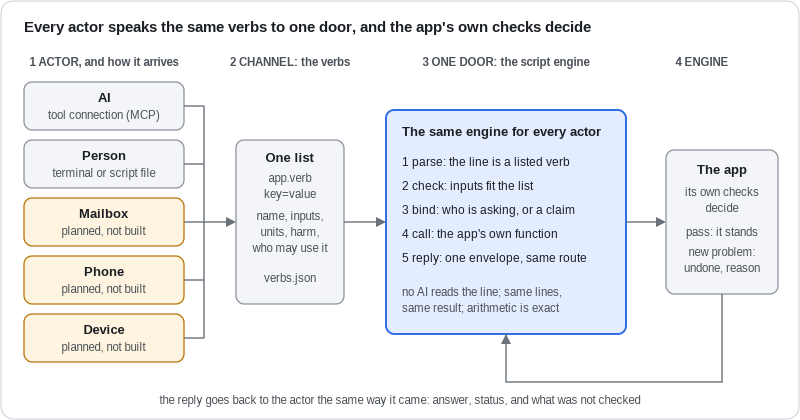
図は左から右へ読みます。主体(ターミナルの人、またはツール接続経由の AI)、チャネル(動詞の一覧。それぞれに平易な説明、入力、危害クラスがある)、ドア(解析し、確認し、行を尋ねた人に結び付け、呼び出し、返答する)、アプリ(自身の確認が決める。新しい問題を増やす変更は理由とともに元に戻される)。AI の接続方法は AI 提案ガイドにあります。
各動詞には 影響クラス(harm class)があります:read(何も変更しない)、trial(使い捨てのコピー上で行い、判定し、保存しない変更)、writes、posts、sends。クラスは動詞一覧に一度だけ書かれるので、どのアクターも言葉でそれを回避できません。ターミナルの人はすべてのクラスで信頼されます。AI は read と trial だけなので、AI からの writes や posts の行は、人が確認する申し出(claim)として保留されます(リファレンス に例があります)。
JavaScript からは、同じ動詞がひとつのオブジェクトになっており、語彙から生成されます(新しい動詞に新しいコードは要りません):
$ node -e "require('./common/door/red1.js').api().object.count({building:'Duplex',kind:'Element'}).then(e=>{console.log(e.line+' -> '+e.answer.summary);process.exit(0)})" 2>/dev/null
object.count building=Duplex kind=Element -> 1193 Element
制限。 オブジェクトの言葉(cd Element、ls、group)には、オブジェクト辞書を持つモデルが必要です。ここにある建物のうち、持っているのは Duplex だけです。端末より長い一覧は、ページごとに止まります(Space、q)。パイプには、すべての行が渡されます。
リファレンス。 各コマンドとその実際の出力、Modeller の物語(アプリ自身の理由で拒否された 13 m のスパン)、名前付きの結果をもつスクリプト、Ninja ブック、MIS ターミナル、従来システムとの比較、クレームと確認の流れは、Fast Script リファレンスにあります。
動詞¶
この表は、語彙ファイル(common/door/verbs.json)から生成され、テストが、動詞ごとに一致していることを確認します。AI のツールメニューが作られる元と同じ一覧です。Harm(影響)は上で説明しました。Needs(必要なもの)は、二つのダウンロードのどちらがその動詞を実行するかを示します。
| 動詞 | できること | 入力 | 影響 | 使える人 | 必要なもの |
|---|---|---|---|---|---|
modeller.lines |
グリッドを読む | building |
read | human, ai | 6ファイルのダウンロード |
modeller.try_shift |
グリッド線のずらしを試す | building, line, move (メートル) |
trial | human, ai | 6ファイルのダウンロード |
viewer.counts |
要素を数える | building, by (任意) |
read | human, ai | 6ファイル + Viewer の 2ファイル |
viewer.clashes |
二つの分野の間の衝突を一覧する | building, discA, discB, rows (任意) |
read | human, ai | 6ファイル + Viewer の 2ファイル |
viewer.film_path |
フィルムパスの可視性 | db, path (任意) |
read | human, ai | bim-ootb のチェックアウト |
viewer.schedule_at |
ある日のスケジュールの状態 | building, day (日数) |
read | human, ai | bim-ootb のチェックアウト |
viewer.schedule_compare |
スケジュールエンジンを基準と比べる | building, shift_hours (時間) (任意) |
read | human, ai | bim-ootb のチェックアウト |
modeller.widen_bay |
ベイを目標の幅に広げる | building, from, to, target (メートル) |
trial | human, ai | 6ファイルのダウンロード |
modeller.walk |
ウォーカーが何を配置するか | building, discipline |
read | human, ai | bim-ootb のチェックアウト |
object.describe |
オブジェクトの種類を説明する | building, kind, uu (任意) |
read | human, ai | bim-ootb のチェックアウト |
object.read |
オブジェクトを読む | building, kind, uu |
read | human, ai | bim-ootb のチェックアウト |
object.history |
オブジェクトの履歴 | building, kind, uu |
read | human, ai | bim-ootb のチェックアウト |
object.update |
オブジェクトのプロパティをひとつ変更する | building, kind, uu, column, value |
writes | human, ai | bim-ootb のチェックアウト |
object.attach |
オブジェクトにファイルやメモを添付する | building, kind, uu, file (任意), text (任意) |
writes | human, ai | bim-ootb のチェックアウト |
object.count |
ある種類のレコードを数える | building, kind, その他のcolumn=valueフィルタ(任意) |
read | human, ai | bim-ootb のチェックアウト |
object.list |
ある種類のレコードを一覧する | building, kind, columns (任意), sort (任意), limit (任意), offset (任意), その他のcolumn=valueフィルタ(任意) |
read | human, ai | bim-ootb のチェックアウト |
object.sum |
列を合計する | building, kind, column, その他のcolumn=valueフィルタ(任意) |
read | human, ai | bim-ootb のチェックアウト |
object.group |
列で数える | building, kind, by, その他のcolumn=valueフィルタ(任意) |
read | human, ai | bim-ootb のチェックアウト |
witness.run |
ウィットネスを実行し、その判定を読む | name |
trial | human, ai | bim-ootb のチェックアウト |
witness.last |
最後に記録されたウィットネスの実行を読む | name |
read | human, ai | bim-ootb のチェックアウト |
legacy.status |
レガシーのテストスタックは動いているか | なし | read | human, ai | bim-ootb のチェックアウト |
legacy.query |
レガシーのテーブルの行を読む | table, columns (任意), sort (任意), limit (任意), その他のcolumn=valueフィルタ(任意) |
read | human, ai | bim-ootb のチェックアウト |
mis.column |
列は誰が埋めるか:ツインとレガシーを並べて | kind, column |
read | human, ai | bim-ootb のチェックアウト |
legacy.compare |
ツインとレガシーのひとつのレコードを比べる | kind, number, legacy (任意) |
read | human, ai | bim-ootb のチェックアウト |
idempiere.where |
iDempiere のソースから名前を探す | symbol, in (任意), limit (任意) |
read | human, ai | bim-ootb のチェックアウト |
mis.pack |
データモデルのワークブックから 2Pack の zip を作る | book, version, out (任意), java (任意), package (任意) |
writes | human, ai | bim-ootb のチェックアウト |
legacy.up |
レガシーのテストスタック用の共有 docker Postgres を起動する | なし | writes | human, ai | bim-ootb のチェックアウト |
legacy.refresh |
基本のシードからレガシーのテスト環境を更新する | なし | writes | human, ai | bim-ootb のチェックアウト |
legacy.witness |
レガシーのテスト環境でサーバー内のウィットネスを実行する | なし | trial | human, ai | bim-ootb のチェックアウト |
legacy.check |
ワークブックの行をレガシーのテストデータベースで確認する | book, version (任意) |
read | human, ai | bim-ootb のチェックアウト |
legacy.plugin |
データモデルのプラグインをレガシーのテスト環境に載せ、そこで確認する | book, version |
writes | human, ai | bim-ootb のチェックアウト |
model.open |
Modeller で 2D のシートを開く | sheets, type (任意), file (任意) |
trial | human, ai | bim-ootb のチェックアウト |
model.convert |
開いているシートを 3D モデルに変換する | なし | trial | human, ai | bim-ootb のチェックアウト |
model.addbay |
モデルにベイを加える | end |
trial | human, ai | bim-ootb のチェックアウト |
model.undo |
モデルの直前の変更を元に戻す | なし | trial | human, ai | bim-ootb のチェックアウト |
model.save |
開いているモデルを保存する | file (任意) |
writes | human, ai | bim-ootb のチェックアウト |
model.close |
Modeller のセッションを閉じる | discard (任意) |
trial | human, ai | bim-ootb のチェックアウト |
erp.process |
辞書のプロセスを実行する | name, record (任意), kind (任意), dry (任意), role (任意), その他のcolumn=valueフィルタ(任意) |
writes | human, ai | bim-ootb のチェックアウト |
erp.order_state |
建物の選択について ERP が持っているものと、次に許されること | building, その他のcolumn=valueフィルタ(任意) |
read | human, ai | bim-ootb のチェックアウト |
erp.project_status |
プロジェクトのアーンドバリューの状況 | id (任意), number (任意), asof (任意) |
read | human, ai | bim-ootb のチェックアウト |
erp.ask |
ヘルプに質問する | question, lang (任意), role (任意) |
read | human, ai | bim-ootb のチェックアウト |
mis.lookup |
列またはプロセスのパラメータに使える値 | column, kind (任意), process (任意), id (任意), limit (任意), role (任意), その他のcolumn=valueフィルタ(任意) |
read | human, ai | bim-ootb のチェックアウト |
viewer.cost |
建物の中で選んだ部分のコスト | building, by (任意), その他のcolumn=valueフィルタ(任意) |
read | human, ai | bim-ootb のチェックアウト |
erp.find |
伝票を探す | kind, number |
read | human, ai | bim-ootb のチェックアウト |
erp.search |
番号で伝票を検索する | text, role (任意) |
read | human, ai | bim-ootb のチェックアウト |
erp.actions |
伝票に対してできること | kind, id (任意), number (任意), role (任意) |
read | human, ai | bim-ootb のチェックアウト |
erp.complete |
伝票を完了する | kind, id (任意), number (任意), role (任意) |
posts | human, ai | bim-ootb のチェックアウト |
erp.void |
伝票を無効にする | kind, id (任意), number (任意), role (任意) |
writes | human, ai | bim-ootb のチェックアウト |
erp.close |
伝票をクローズする | kind, id (任意), number (任意), role (任意) |
writes | human, ai | bim-ootb のチェックアウト |
erp.reverse |
伝票を取り消す(修正する) | kind, id (任意), number (任意), role (任意) |
posts | human, ai | bim-ootb のチェックアウト |
erp.prepare |
伝票を準備する | kind, id (任意), number (任意), role (任意) |
writes | human, ai | bim-ootb のチェックアウト |
erp.reactivate |
伝票を再有効化する | kind, id (任意), number (任意), role (任意) |
writes | human, ai | bim-ootb のチェックアウト |
mis.describe |
ERP レコードの種類を説明する | kind, role (任意) |
read | human, ai | bim-ootb のチェックアウト |
mis.read |
ERP レコードを読む | kind, id (任意), number (任意), role (任意) |
read | human, ai | bim-ootb のチェックアウト |
mis.list |
レコードを一覧する | kind, columns (任意), sort (任意), limit (任意), offset (任意), names (任意), role (任意), その他のcolumn=valueフィルタ(任意) |
read | human, ai | bim-ootb のチェックアウト |
mis.sum |
列を合計する | kind, column, role (任意), その他のcolumn=valueフィルタ(任意) |
read | human, ai | bim-ootb のチェックアウト |
mis.group |
列で数える | kind, by, role (任意), window (任意), その他のcolumn=valueフィルタ(任意) |
read | human, ai | bim-ootb のチェックアウト |
mis.new |
レコードを作る | kind, dry (任意), role (任意), window (任意), その他のcolumn=valueフィルタ(任意) |
writes | human, ai | bim-ootb のチェックアウト |
mis.update |
レコードを変更する | kind, id (任意), number (任意), role (任意), window (任意), その他のcolumn=valueフィルタ(任意) |
writes | human, ai | bim-ootb のチェックアウト |
mis.delete |
レコードを削除する | kind, id (任意), number (任意), role (任意), window (任意) |
writes | human, ai | bim-ootb のチェックアウト |
mis.load |
CSV からレコードを読み込む | kind, file, dry (任意) |
writes | human, ai | bim-ootb のチェックアウト |
mis.add_window |
CSV からウィンドウを加える | file, table (任意), workflow (任意), dry (任意), master (任意) |
writes | human, ai | bim-ootb のチェックアウト |
ninja.exec |
Ninja ワークブックを実行する | file, dry (任意), data (任意), table (任意) |
writes | human, ai | bim-ootb のチェックアウト |
ninja.workflow |
テーブルに伝票の列を与える | table, dry (任意) |
writes | human, ai | bim-ootb のチェックアウト |
mis.diff |
CSV をテーブルと比べる | kind, file, key (任意) |
read | human, ai | bim-ootb のチェックアウト |
mis.menu |
メニューを読む | role (任意), find (任意) |
read | human, ai | bim-ootb のチェックアウト |
ninja.rollback |
Ninja バンドルを元に戻す | bundle, dry (任意) |
writes | human, ai | bim-ootb のチェックアウト |
ninja.export |
Ninja バンドルをワークブックとして書き戻す | bundle (任意), window (任意), table (任意), file |
writes | human, ai | bim-ootb のチェックアウト |
引き続き動く古い名前(それぞれ指し示す動詞と同じです):erp.column → mis.column · erp.compare → legacy.compare · erp.pack → mis.pack · erp.legacy_plugin → legacy.plugin · erp.describe → mis.describe · erp.read → mis.read · erp.list → mis.list · erp.sum → mis.sum · erp.group → mis.group · erp.new → mis.new
現在の対象範囲。 このリストは意図的に小さくしています。68 の動詞が、Modeller のグリッド編集、そのウォーカー、行の間で開いたままの Modeller、Viewer へのいくつかの質問、スケジュール、オブジェクトの汎用的な読み取り・集計・書き込み、選択範囲のコスト、ERP の伝票動詞、そして移植のある ERP 辞書の全てのプロセスをカバーします。Viewer には人が押せるアクションが 64 あり、ドアは 6 の Viewer 動詞を提供します。ERP には 1158 の伝票とプロセスがあり、ドアは伝票のライフサイクル用に 13 の ERP 動詞と、どのテーブルでも動く 15 の MIS 動詞を提供し、以前の行が引き続き動くよう 10 の古い名前を残しています(バージョン行の数にはそれらも含まれます)。つまりこれは始まりであって、メニュー全体ではありません。
このページが正しさを保つ仕組み¶
このページとリファレンスの灰色のブロックにあるコマンドはすべて実行されており、その下の出力は、コマンドが実際に表示したものです。bim-ootb リポジトリのテスト W-FAST-SCRIPT-GUIDE が、ダウンロードとチェックアウトからそれらを再実行し、このページのすべての数字を実行結果と照合し、動詞の表が verbs.json と等しいことを確認します。ここの数字が古くなれば、そのテストは失敗します。
関連:AI Proposer ガイド(同じドアに AI をつなぐ方法と、AI がチェックで何をしたか)、そしてModeller ガイド。