Kernel-ERP — iDempiere-faithful Browser ERP — User Guide¶
← Back to the User Guide · Home
The browser kernel renders the full iDempiere Application Dictionary from SQLite — no Java, no server, no install. This guide walks from first load to POS sale to financial report.
New here? Start at the BIM OOTB User Guide for the full picture.
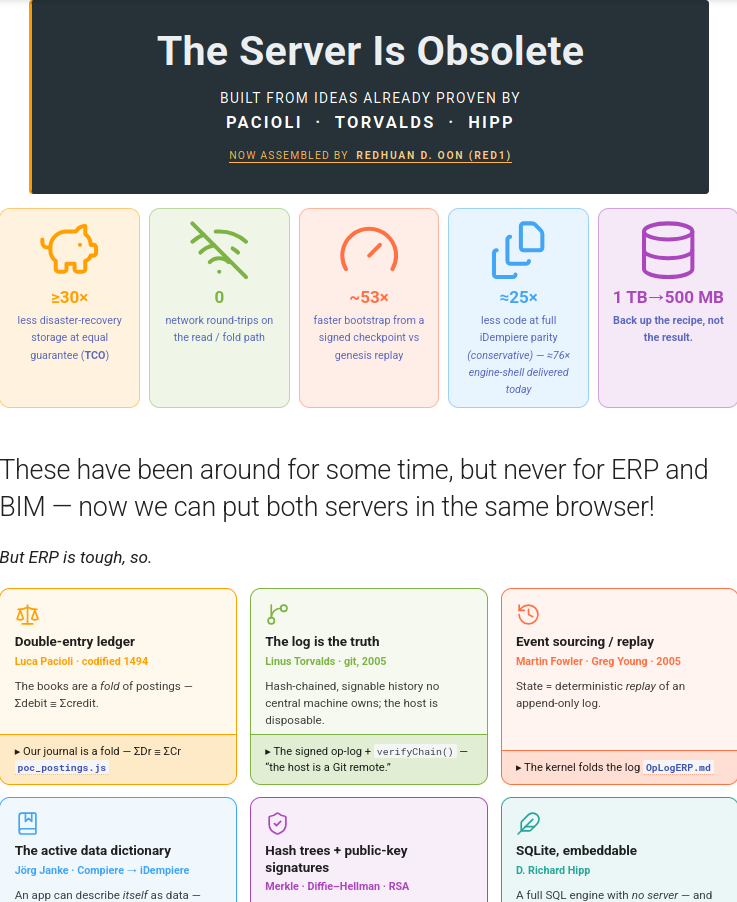
Where to read the full concept: the landing page links to Migrate & Compare (ERP) — start with the six pillars (double-entry ledger · log-is-truth · event-sourcing · active dictionary · hash-trees · SQLite embeddable), then the Roadmap section for POS and warehouse-walk. The paper is the architectural rationale; this guide is the operating manual.
Quick start — the bubbles front door¶
The ERP opens at erp.html — the bubble launcher (from the Matrix front door pick the ERP door). It is not a form yet: it's a slowly-rotating constellation where each bubble is an Application-Dictionary entity — Business Partners, Products, Orders, Warehouses, and the rest — rendered live from the seed.
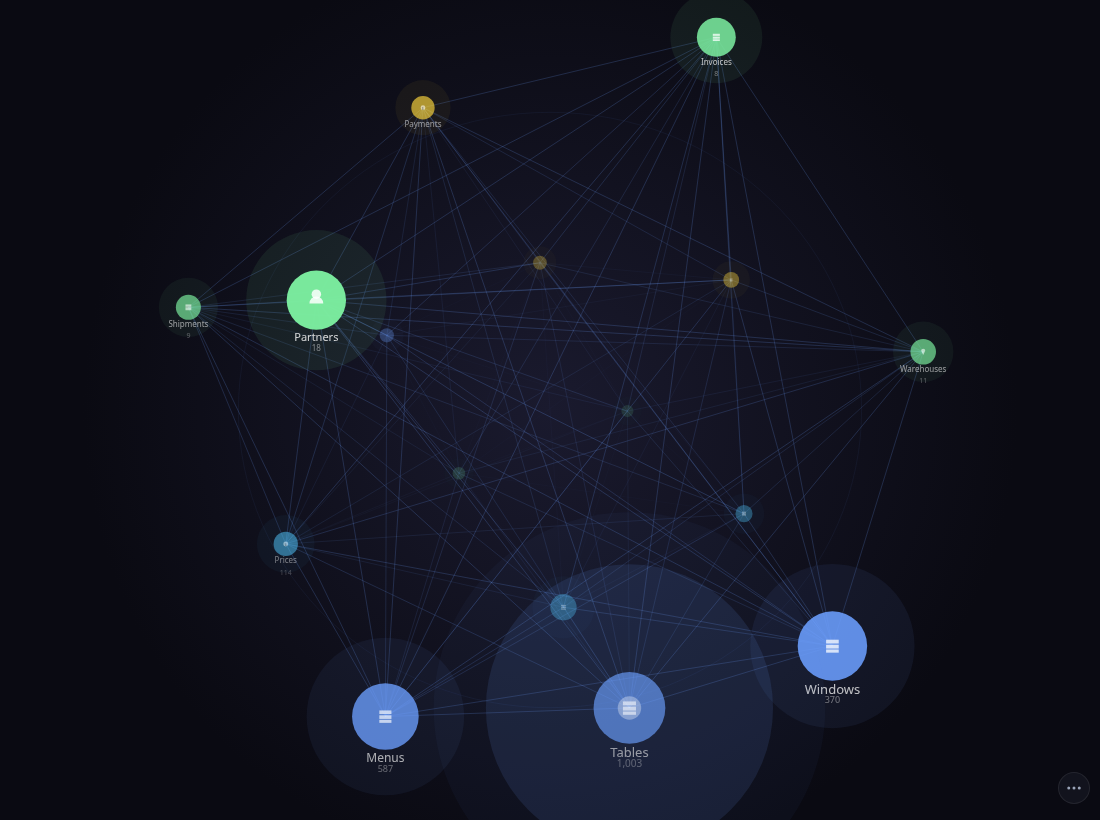
How you move through it (verified in ad_graph.js):
| Gesture on a bubble | What happens |
|---|---|
| Drag empty space | Orbit the constellation |
| Tap a table bubble | Flies in and dives into that entity's records — still inside the globe |
| Tap a record bubble | Expands it / fans out its related records |
| Long-press (~½ s) a bubble | Opens that window (or record) in the real iDempiere renderer — idempiere.html → the login card |
| Double-tap a bubble | Shortcut: opens all records of that table in iDempiere |
So a long-press (or double-tap) is the bridge from the playful launcher into the faithful iDempiere window described in the rest of this guide. A bubble with no iDempiere window just reports that honestly.
The ⋯ rail (bottom-right three-dots — the only non-iDempiere chrome) reveals the two concept
lenses over the same engine:
- Glass (
glassbowl.html) — the engine-as-data "glass bowl" lens. - Gravity (
glassbowl_gravity.html) — a central-mass / orbiting-satellites view.
Both are marked CONCEPT and run fully offline.
Skip straight to the forms: if you just want the classic ERP, open idempiere.html directly (or long-press any bubble). A login card appears immediately — no credentials, just pick a role.
The lay of the land¶
Before the window-by-window detail, here is the map: what's where, and why. Every box below is a real surface with its own section later in this guide — this is navigation only, not a feature tour.
flowchart TD
    A["bubbles front door<br/>(erp.html)"] -->|long-press / double-tap| B["Login<br/>(§1) — pick a role"]
    B --> C["Bottom Pill Bar<br/>(§3) — the one entry point for every tool"]
    C --> D["Windows / Tabs / Fields<br/>(§4, §5) — role-pruned menu → records → forms"]
    D --> E["the Process Button<br/>(§6) — the ▶ on any doc-bearing form"]
    E --> F["where documents live<br/>Sales Order · Purchase Order · Shipment · Invoice · Payment"]
    F --> G["where the books live<br/>Posting Preview · Trial Balance · Financial Reports (§8)"]
How to read it, left to right:
- The front door (§Quick start above) is the bubble launcher — playful, but every bubble is a real
AD entity. A long-press or double-tap is the bridge into the classic renderer described below; if you
don't want the bubbles at all, open
idempiere.htmldirectly and skip straight there. - Login (§1) picks the role — GardenUser, Admin, WebService — and the menu you see next is pruned
live by that role's real
AD_Window_Access/AD_Process_Accessgrants, not a mock. - The Bottom Pill Bar (§3) is the one control surface you return to for everything else: opening the menu (⌂), finding a record (🔍), the process/plugin/history tools, and Help. Everything past this point is reached FROM the pill bar, not around it.
- Windows → Tabs → Fields (§4, §5) is the drill-down: a role-pruned window list, a record list per
window, a detail form per record, tabs/fields on that form driven by real
AD_Tab/AD_Fieldrows (DisplayLogic, mandatory flags — nothing hand-styled). - The Process Button (§6) is how a document moves — Complete, Void, Close, whatever the current
AD_Docfsmstate legally allows. This is the same button whether you're on a Sales Order, a Purchase Order, a Payment, or a GL Journal — one dispatch spine, not one-off per window. - Where documents live is simply "which window": Sales Order, Purchase Order, Shipment (
M_InOut), Invoice (C_Invoice), Payment (C_Payment) — each a normal AD window reached via ⌂, nothing special about its URL or location. - Where the books live is the destination every document eventually posts to: open Posting Preview on any completed document to see its journal before/after it posts, or jump straight to Trial Balance/the Financial Reports (§8) to see the ledger as a whole. "The standard flow" section below walks this entire left-to-right path as one continuous story, with the demo data.
Initial Tenant Setup — born a new client (LIVE)¶
This is iDempiere's Initial Client Setup, on our engine. Open genesis.html, give the new tenant a name, a currency, and an admin user — three inputs — then press ⚡ Birth tenant.
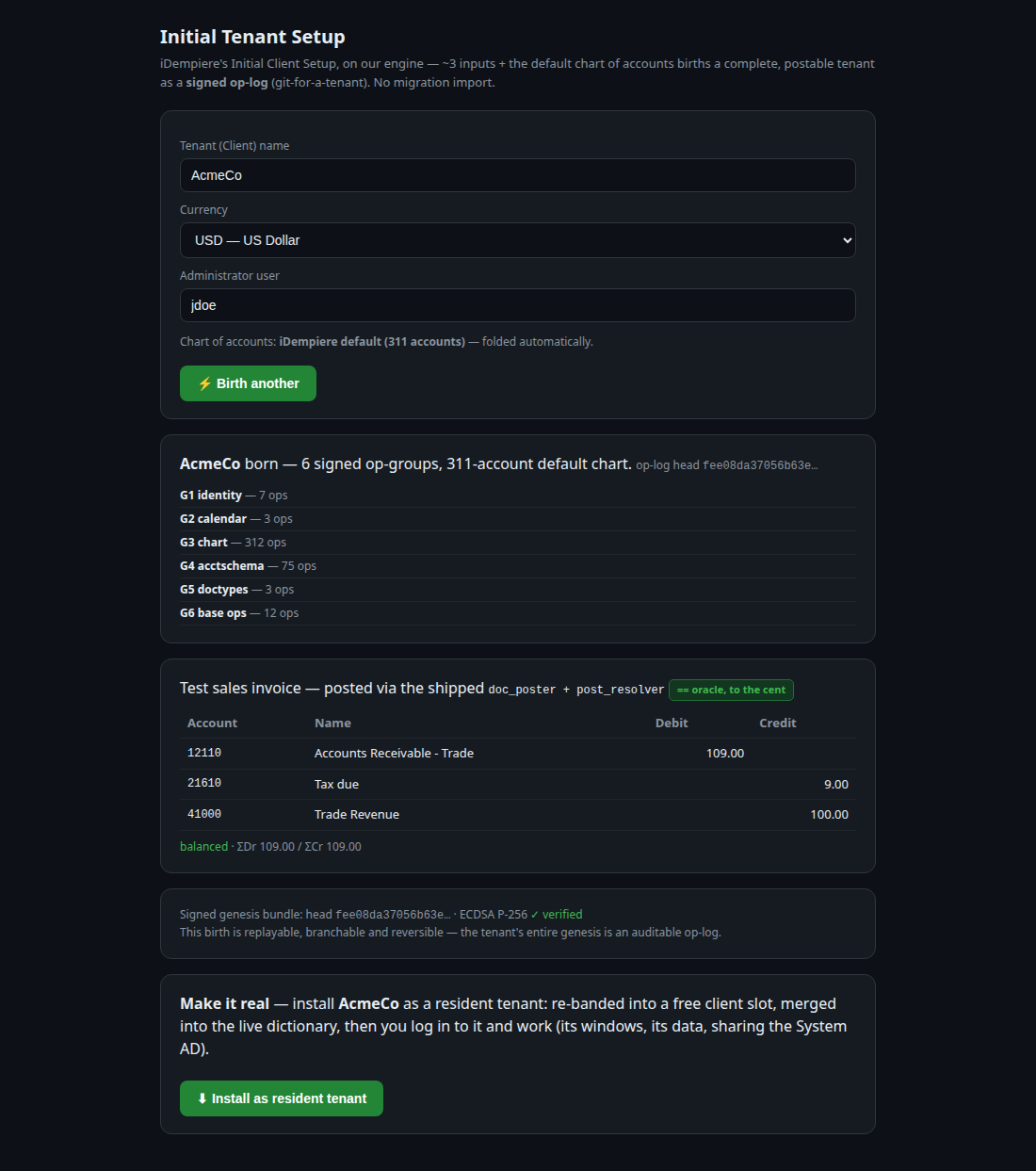
What you get, instantly:
- A complete, postable tenant expressed as a signed op-log (git-for-a-tenant) — 6 op-groups (identity, calendar, the full 311-account default chart, acctschema + default-account wiring, doctypes, base masters). No migration import.
- Proof before it's permanent — a test sales invoice is posted through the same shipped
doc_poster+post_resolververbs the live Posting-Preview uses, and the journal matches the iDempiere oracle to the cent (DR 12110 Receivable / CR 41000 Revenue / CR 21610 Tax-due, balanced). - The whole birth is replayable, branchable, reversible — and ECDSA-signed.
Press ⬇ Install as resident tenant to make it real: the tenant is re-banded into a free client slot, merged into the live dictionary (sharing the System AD), its admin role granted the standard windows, and persisted. You're dropped at the login switcher — the new tenant is now listed and you log in to it and work (its windows, its data). It survives a reload.
1. Login¶
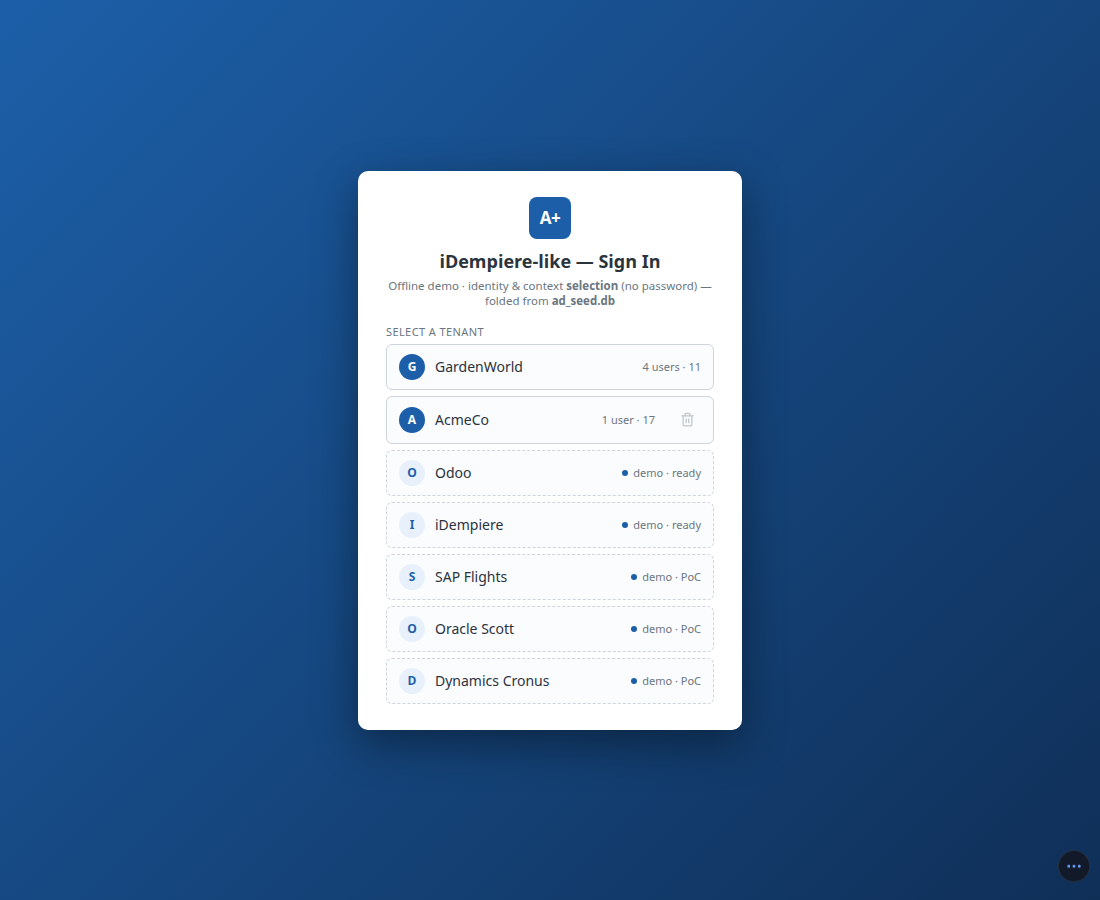
The login card lists all AD roles in the seed. Pick one and tap it:
| Role | Use |
|---|---|
| GardenUser | The default demo persona — access to Sales, Purchasing, Inventory, POS |
| Admin (GardenAdmin) | Full menu (294 / 332 windows); sees all process / form leaves |
| WebService | 0 windows — confirms the access-gate works (empty menu is correct) |
The menu is pruned immediately by real AD_Window_Access / AD_Process_Access grants from the seed —
if a window is absent for your role, that is correct, not a bug.
2. Bring your data in — the DIY box (Help → Run it yourself)¶
Migration is delegate-to-install: the browser never connects to your database. The Help pill opens one About / Run it yourself (DIY) box. On the DIY tab you pick your source ERP → download its self-contained agent zip → run the commands its README gives you, in your own terminal → load the one file it writes back here. Your credentials never leave your machine; every value is a recorded row (nothing is faked). The README is the single "what to run" — you copy-paste from it, not from the UI.
| Source | Agent (extract YOUR data) | Resident demo tenant (login front door) |
|---|---|---|
| Odoo | odoo_agent.zip → cd odoo_agent && npm install && node agent.js → writes odoo_chain.json (the browser re-folds + verifies it) |
Client 12 — the full migrated Odoo catalog (38 partners · 35 products · 27 sale orders, 12-odoo.db), books diffed to the cent |
| iDempiere | idempiere_agent.zip → cd idempiere_agent && npm install && node migrate_agent.js --masters → writes ad_masters.db |
Client 13 — real PG-agent extraction, PKs re-banded |
| SAP | on the roadmap (greyed "under construction") | Client 14 "SAP Flights" — PoC: the documented SFLIGHT flight-booking reference model (carriers → Business Partners, connections → Products) |
| Oracle | on the roadmap | Client 15 "Oracle Scott" — PoC: the canonical EMP/DEPT (SCOTT) schema (departments → BP Groups, employees → Business Partners) |
| MS Dynamics | on the roadmap | Client 16 "Dynamics Cronus" — PoC: the Business Central CRONUS demo company (items → Products, customers → Business Partners) |
Point an agent at your own server with environment variables (defaults shown — every value is real):
- Odoo —
ODOO_HOST=localhost ODOO_PORT=8069 ODOO_DB=odoodemo ODOO_LOGIN=admin ODOO_PASSWORD=admin ODOO_SO=S00023 node agent.js - iDempiere —
ERP_PG_CONTAINER=postgres ERP_PG_DB=idempiere ERP_PG_USER=adempiere ERP_PG_SCHEMA=adempiere node migrate_agent.js --masters(also--list-clientsto enumerate tenants,ERP_OUT=…for the output path)
The three PoC tenants carry each vendor's documented public demo model — reference data labeled as
such, proving the master-table mapping; a delegate agent (like Odoo's) is the production path for real
extractions. The DIY box also self-hosts the whole app: one install script downloads BIM OOTB and
serves the landing on localhost:8080 — BIM and ERP, your domain, your branding.
What a resident tenant leaves behind: it is merged into the seed in browser IndexedDB — it survives a plain reload, re-install is a guarded no-op, and the install appears as a dot on the W world-history timeline.
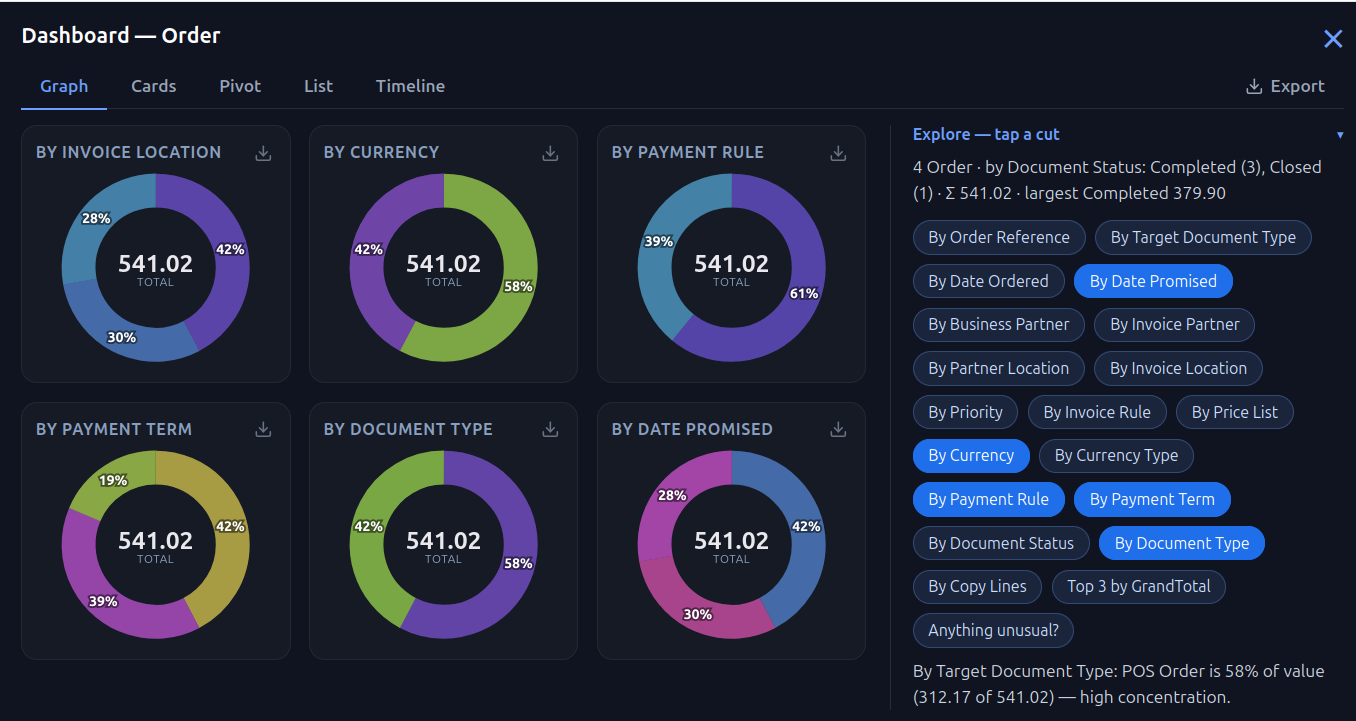
Reading the Dashboard. The Dashboard pill (on the ⋯ rail) opens the current window's records as one surface with five tabs — Graph · Cards · Pivot · List · Timeline — all folding the same live records:
- Graph is a grid of donuts, one per dimension (status, partner, location, date…) — the % sits on the arc, the centre shows the total. Long-press to drill to the records behind any segment: one record opens its form, several narrow the window grid with a Show all to step back. A plain tap/hover only previews; double-tap a donut to flip it to a plain table. The same long-press drills from any tab — a List row, a Timeline or Cards tile, or a Pivot cell.
- The Explore panel on the right lists every dimension as a chip. The chips already drawn on the left are highlighted — tap a lit one to remove its chart, tap any other to add one. Top 3 and Anything unusual? answer in a sentence.
- Pivot cross-tabs any two dimensions by a measure (count / amount / qty); foreign-key columns read their real names (e.g. Manufacturing Order, Business Partner) and a cell lists its records.
- List is the grid distilled; Timeline scrubs the records along their dates (a date-less window such as Business Partner falls back to Created / Updated).
- Export (top-right, plus the ⤓ on each donut) writes the real folds out as CSV, or a donut as SVG / PNG — nothing invented, just the numbers on screen.
A window with few, uniform records — say three demo Projects all of one type — honestly shows near-single donuts: there is simply no spread to chart. The same window on a real tenant fans into full segments.
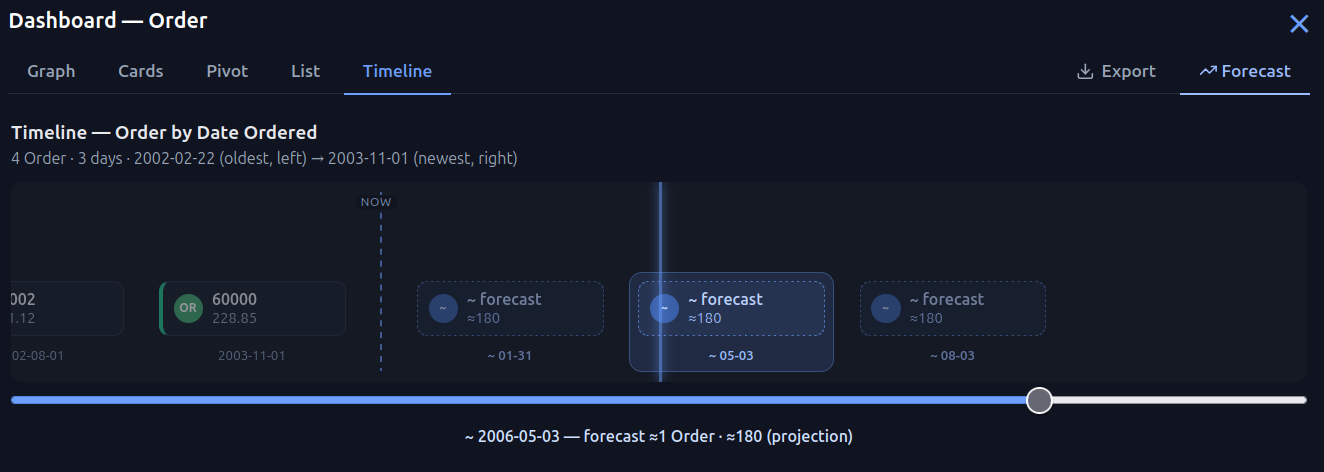
Forecast — reading the future. The Forecast toggle at the top-right of the Dashboard projects a run-rate future onto the two time-axis tabs and leaves the others untouched (a donut or a kanban has no future tense). On Graph a cumulative S-curve card shows the running total to date — a real fold; switch Forecast on and a dashed-blue tail extends it past a now marker, the average of the recent run-rate, drawn dashed so it is never mistaken for an actual. Timeline gains the same — dashed projected columns past a now divider that the slider scrubs into. On a Project window the S-curve reads as a variance curve instead: the planned baseline (the contract) against the committed outturn, with the Δ (e.g. the Hospital plan, planned 64.7M → committed 87.4M, +35%). Every dashed point is a labelled extrapolation of the real folds — nothing invented; the committed baseline is extracted, not modelled. (The interactive schedule what-if — dragging a phase to slip and folding the ripple on a reversible blue branch — lives on the 4D Time Machine, not the Dashboard.)
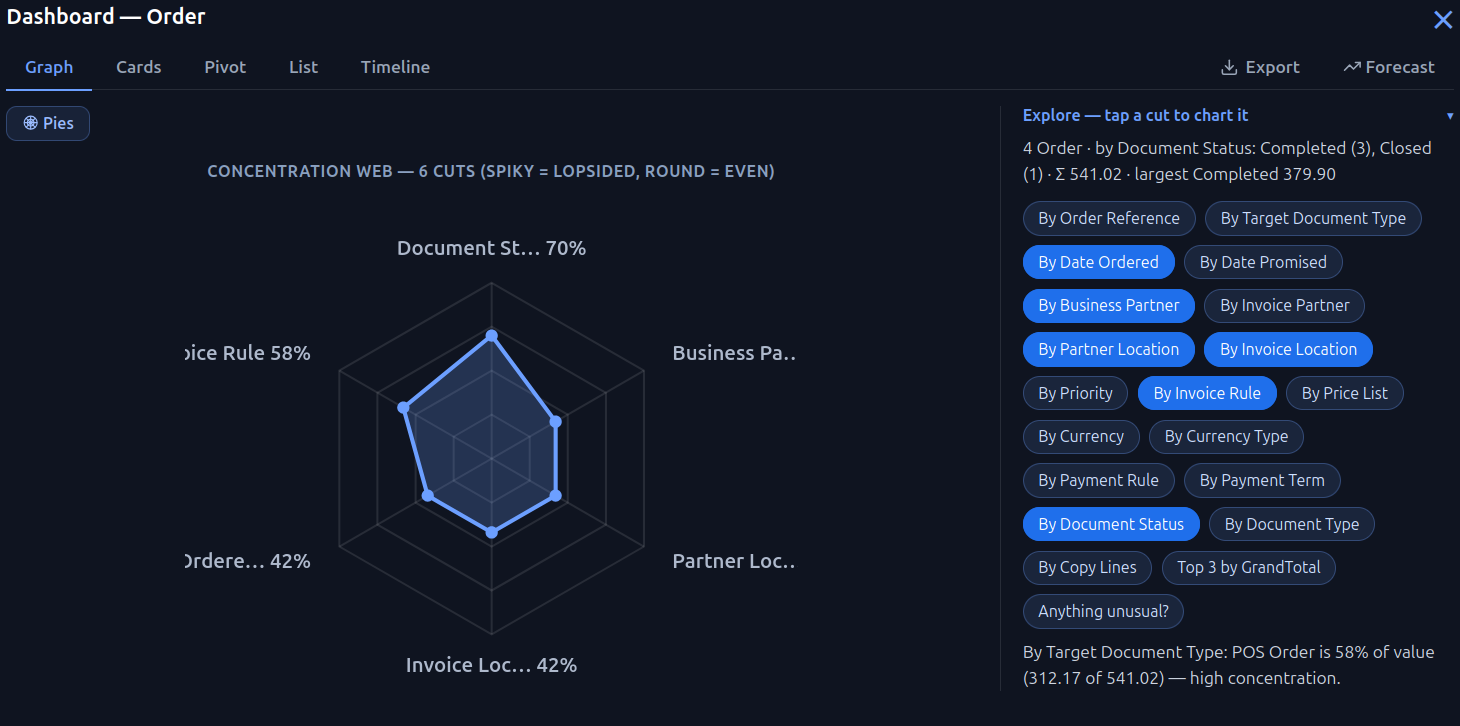
Two more reads sit on the same tabs. On Pivot, each cell is shaded by its size — darker = higher — so the busy spots stand out without reading every number. On Graph, a Web button folds the pies you have on the board into one radar: each pie becomes a spoke, reaching out by how lopsided it is (its biggest slice's share). A spiky web flags a cut dominated by one value; a round web means it is evenly spread — a fast way to see which cut is worth a look, then tap Pies to flip back and drill. Because it reads the live pies, adding or removing a cut with the Explore chips reshapes the web.
Choosing a tenant at login — the front door: the login card opens on a five-tenant front door.
Even on a cold seed it lists GardenWorld plus five migrated demo tenants (Odoo · iDempiere · SAP ·
Oracle · Dynamics), each tagged demo · ready or demo · PoC (the login step unions the resident
tenants with the demo manifest). Picking a demo tenant lazy-installs its shard on the spot — no
dialog, no ?shard=, no server. Once installed it survives a reload and joins the
resident list (System, GardenWorld, and every installed tenant). Each tenant is entered through its
own Admin user (e.g. SAP Flights Admin); the System user belongs to the System(0) client only.
(In-tenant test links that skip the picker enter via ?client=garden.)
Working at the same time — many tabs, many people (LIVE)¶
Most ERPs put a database server between you and everyone else, so every save waits on the network and the server referees who wins. This one has no server in the middle. Each browser holds its own signed op-log — a tamper-evident chain of every change — and works at local speed whether you are online, on a plane, or on hospital Wi‑Fi. Your work is yours, on your device, immediately.
That design invites the honest question: if two of us — or two of my own windows — edit the same order at once, whose change wins, and does anyone's work quietly disappear? Here is the answer, and you can see it for yourself.
Your work is never silently lost¶
Open the same record in two windows and edit both. Put an order's header in one tab and its lines in another, or just keep two copies open. Save in either — both edits are kept. Every save appends to the log; nothing is overwritten, so one window can never erase what another just saved. If two people change the same field, the later change shows as the current value — but the earlier one is still recorded in the history, not gone. Nothing vanishes behind a reassuring "saved (signed)."
Try it. Open the same order in two browser tabs. In tab 1 change the Description; in tab 2 change the Grand Total. Save both, then reload. Both changes are there. This is checked on every release — most recently with ten windows editing at once: 10 of 10 edits survived, the signed chain intact.
Bringing several people together — Sync¶
Everyone starts out working independently and offline-first — full local speed, no spinner, no
dropped work when the connection does. When you want your separate copies to become one shared set of
books, point each person at a shared relay and press Sync (the ⟳ pill on the bar, or open the
app with ?relay=<url>).
Sync folds every device's log into one identical signed history on all of them — the order of events is decided by the chain itself, not by who happened to save last. Proven with ten devices editing the same order and all ten converging to a single signed history, zero edits lost.
| You want to… | Do this | You get |
|---|---|---|
| Use several windows yourself | Nothing — it is on by default | Every edit kept, always |
| Work with no connection | Just keep working | Local-speed edits; Sync later when you reconnect |
| Share one set of books across people | Point each at a relay → ⟳ Sync | Every device folds to one identical signed history |
Setting up the relay. The relay is a deliberately dumb post office: it only receives, orders, and hands back logs — it holds no business logic and makes no accounting decisions. Run it once, give each person its URL, and everyone keeps logging in as their own real user. The relay carries only the log; the accounting still folds from that log on each device, identical to single-user.
Where the attribution trail stands — read this before you rely on it for approvals. Every device now signs its own edits with its own device key, and that signature survives a cross-device sync intact — proven with two real devices, real edits, real sync: each edit is independently verifiable back to the device that actually made it, and a forged attribution is rejected, not silently accepted. Two honest limits remain, both about reach, not the signing mechanism itself: 1. Checking a signature today means comparing it against a roster of device public keys you assemble yourself — there is no built-in "share my device with the team" step yet, so this is a capability proven to work, not yet a one-click feature in the app. 2. This has been proven on field edits (change a value → save → sync). Document actions — Complete / Void / Close and similar workflow steps — use the identical signing mechanism, so we expect it to carry the same guarantee, but that specific case has not yet been separately confirmed live (blocked by an unrelated rendering issue on the Complete button in this build, not by the signing mechanism). Everything on a single device is, and always was, unaffected by either limit. We would rather tell you where the edge of what's proven sits than have you find it during an audit.
For auditors & compliance officers. How this serverless, hash-chained model maps to SOX §404 / PCAOB, COSO (2013), and ISO/IEC 27001:2022 control objectives — what is strengthened, what relocates, and the open items disclosed above (including the two limits just above) — is set out in a companion control-objective map: Times Have Changed — And So Must ISO for ERP (a control-mapping position paper, not a certification).
Spatial BIM → ERP — Find a selection → Project Order (LIVE)¶
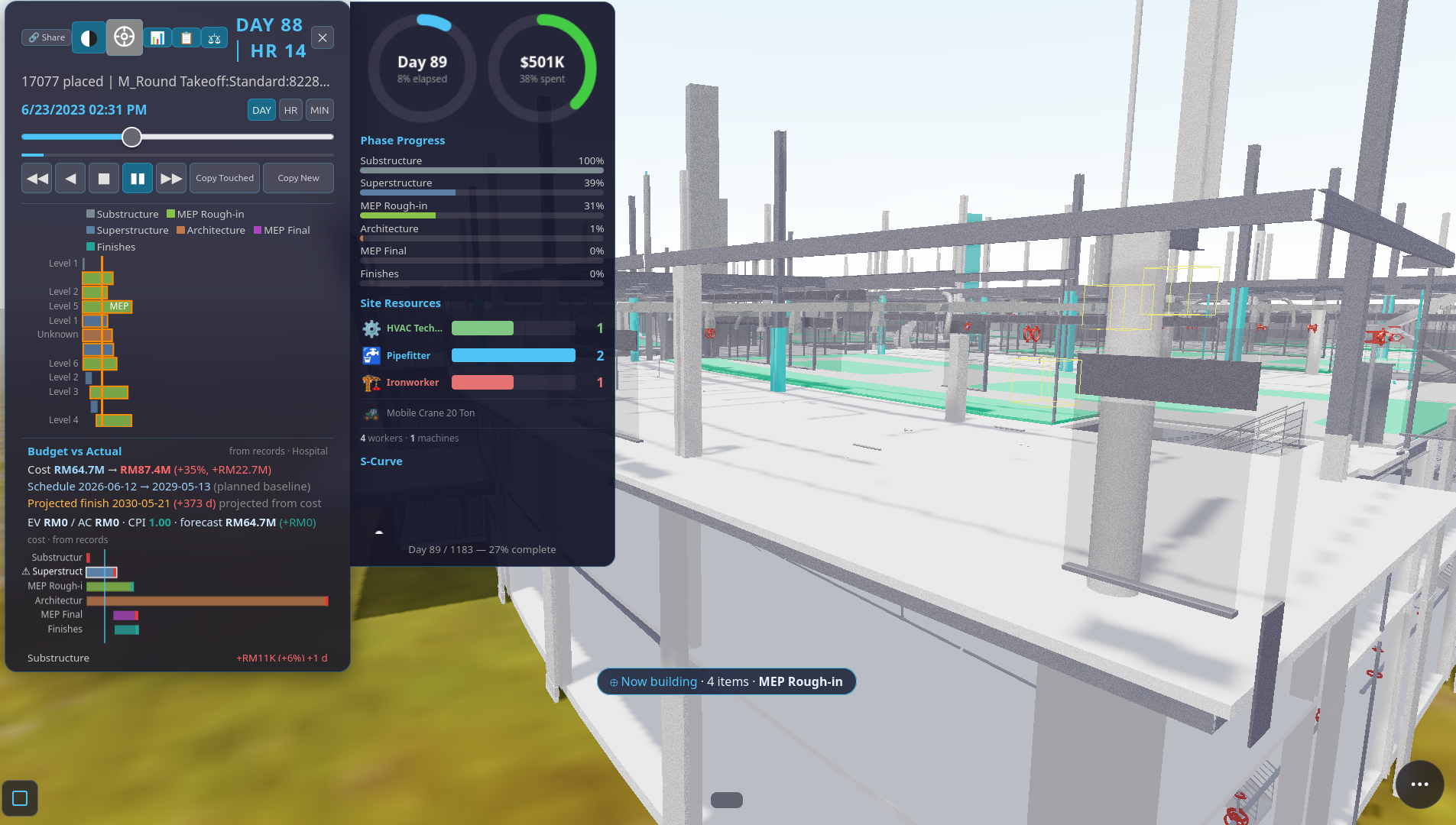
The BIM viewer can fold a priced building selection straight into a real iDempiere C_Project
tree — phases, tasks, and priced lines — that this ERP then reads in its standard Project windows. The
whole building, or any slice you select, becomes work to be done.
How. In the viewer's Find panel select a scope (whole building, a storey, a discipline, or a
type). The selected bar shows its indicative 5D cost in the active rate pack. Tap › ERP to push
it. The fold (proj_fold.js):
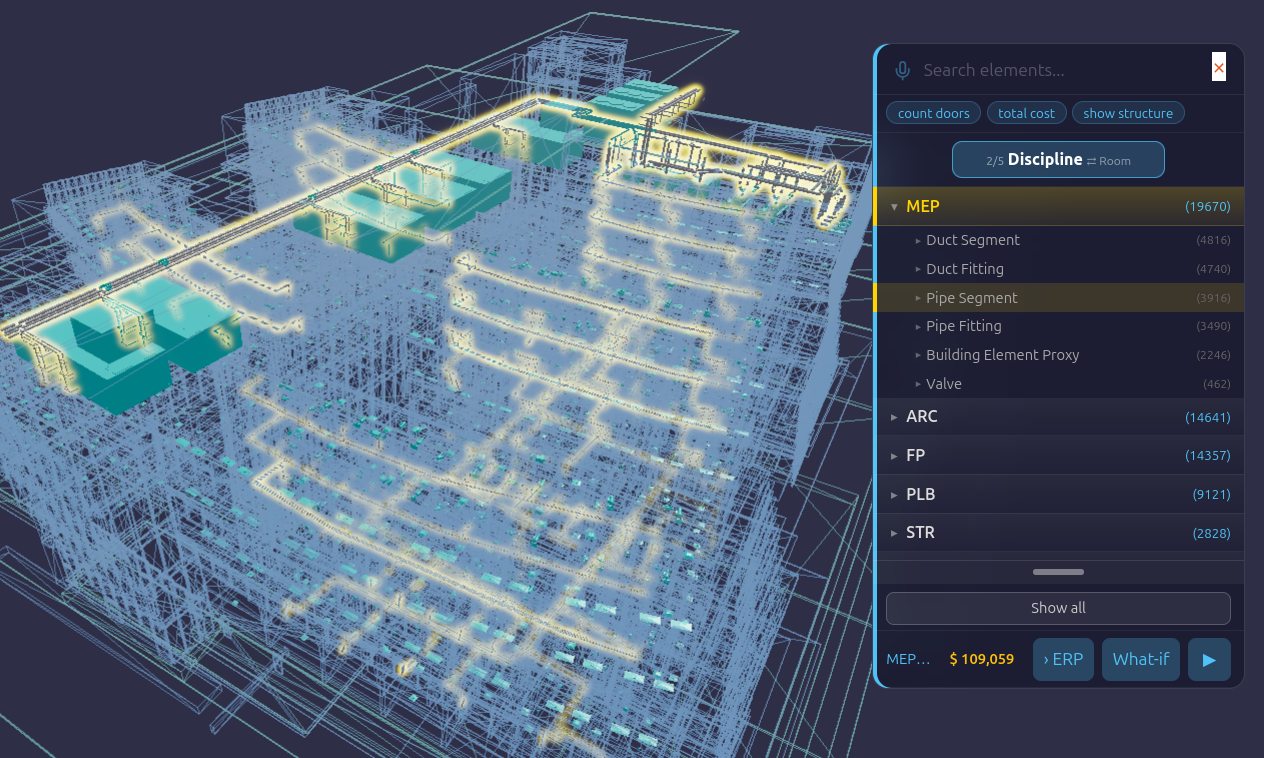
| What you selected | becomes |
|---|---|
| whole building | a C_Project (header, span, planned amount) |
| storey / discipline | a C_ProjectPhase (name + SeqNo + dates from the 4D rules) |
| type | a C_ProjectLine (qty × rate, find-or-creating its M_Product) |
| category | the M_Product_Category grouping those lines |
Phases, sequence, and dates come from sequence_rules.json (the same 4D rules the Time Machine plays);
price from the active 5D rate pack; quantity from the model's QTO. Nothing is invented — amounts
fold via BigDecimal. A Purchase Order is generated only if the phase carries a supplier; otherwise
it stays a plan-only project (the non-invent gate). The push is idempotent (a second push adds zero
rows) and persists to the same browser origin as this ERP, so the folded project appears in the standard
C_Project / C_Order windows on the next boot — round-trip complete.
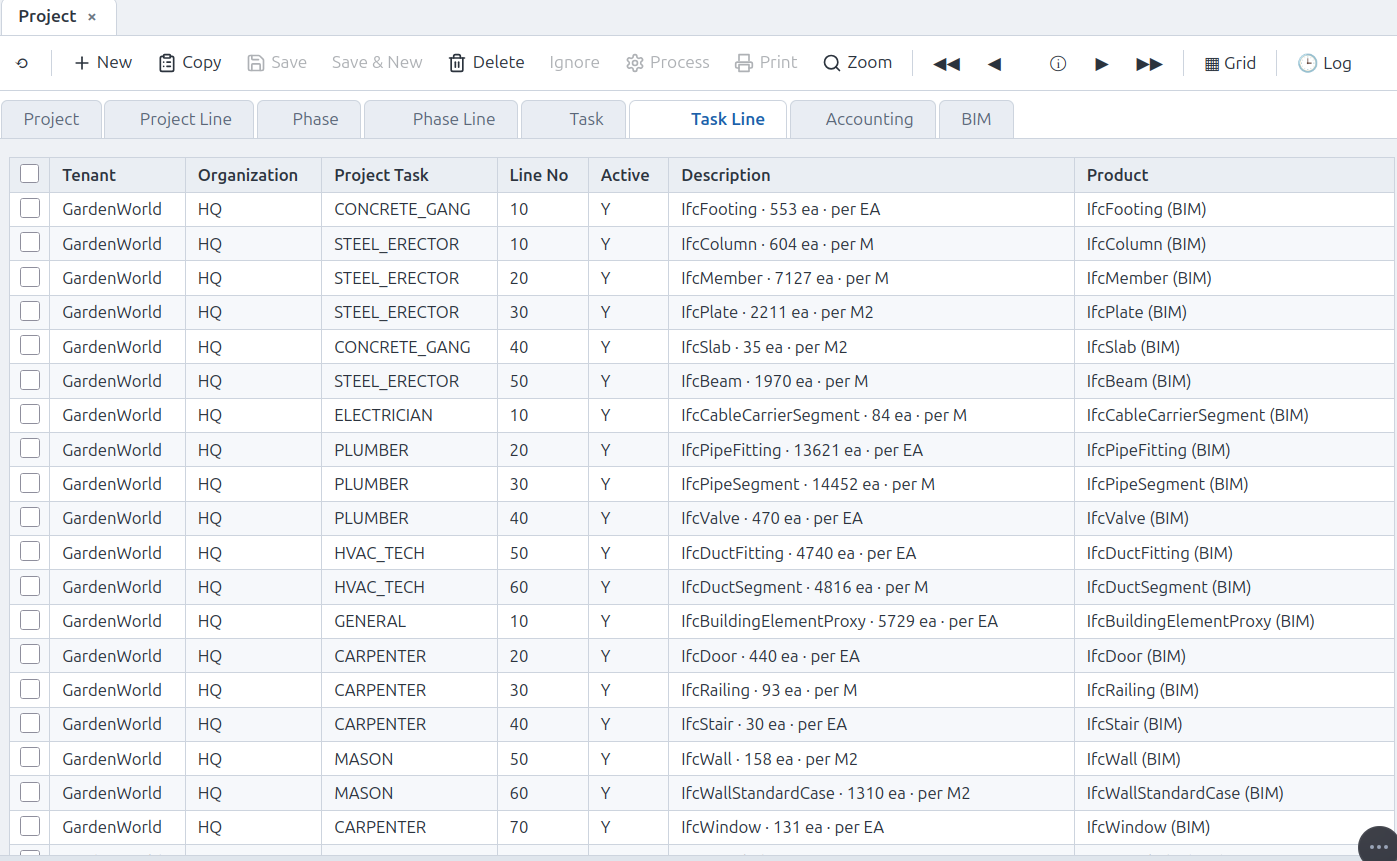
Verified on the Duplex: 6 phases · 9 tasks · 16 lines, PlannedAmt folding to the 5D golden to
the cent, every phase SeqNo tracing to sequence_rules.json. See the BIM → Project blueprint.
A sibling
› VObutton (in the model-diff panel) folds a model revision into a signedC_Ordervariation amendment against the same project.
Authoring, editing, and importing the 4D/5D schedule¶
The Time Machine's own topic — authoring a schedule (✎), the box-cube LOD toggle for large
buildings, What-if slips, direct Gantt editing (drag / resize / link / marquee-group-move /
⏪ Pull Back), the standalone Schedule Editor, and Primavera P6 / MS Project import — is now
documented on its own page:
→ Time Machine — the 4D construction timeline
Tenancy — lease the actual geometry (ALPHA — HR_BIM_Asset demonstrator)¶
⚠ DEMONSTRATOR, NOT OFFICIAL. Tenancy lives in the HR_BIM_Asset module (the building's operate phase). Every screen and generated output carries the
CONTOH — TIDAK RASMI/SAMPLE — NOT OFFICIALwatermark. Demo values only; no statutory/contract figure is asserted.This page is the money + contract side (lease → rent run → AR). The spatial side — the FM/Operate lenses (Occupancy · Presence · Unit class · Assets) and the dashboard, on the building — is in the HR / Tenancy / Operate Module guide.
Collaborate on any ERP window — the Teams overlay. Toggle it on and each document row grows who-dots (who touched it, a
+Nfor a crowd), a Teams Outliner pane opens (Tree / Chat / Dashboard), and the involvement · flow · gate · post-it-aging graphs fold from the same signed log — every value read, never typed. → Teams Overlay guide (with screenshots).
Most property tools treat a unit as a database row. Here a unit is a room in the model — so a lease binds to real geometry, and the ERP's money cycle runs against it. One lease threads three apps over one signed op-log:
| App | Contributes | On the kernel |
|---|---|---|
| Viewer (BIM) | the WHERE — the unit lit on the model; the Tenancy lens colors units occupied / vacant / expiring (see the Viewer guide → Find lenses) | unit_guid → a real IfcSpace room |
| ERP (this app) | the DEAL + MONEY — the lease as an agreement, and the rent run → AR | C_BPartner (tenant) · C_Invoice (ARI) → C_Payment (ARR) → allocation → GL |
| HR | the PEOPLE + ACCESS — tenant party, signed check-in / access to the leased zone | C_BPartner · signed kernel_op |
Rent run = the payroll engine inverted. HR_BIM_Asset has one generic periodic RUN —
(period × parties × element-rules) → signed lines → GL post — and tenancy is just profile #2: a RENTRUN
emits one rent invoice per active lease (cash IN, AR), where payroll emits payslips (cash OUT). Same
deterministic, glass-box, tamper-evident engine; same balanced journal. The GL dotted line lights up only
when this ERP is present — standalone, HR_BIM_Asset runs the full cycle on its own seed.
Non-invent binding. A demo lease references a real IfcSpace guid extracted from the building (e.g. an
≈ Level 1 room on the office demo). The join hits → the unit lights up; a non-matching guid is honestly shown
un-linked — never a fabricated binding.
Witnessed (alpha, node): the rent run filters to in-term leases and posts a balanced AR journal
(§HBA P-tenancy-term, P-tenancy-gl); one engine serves payroll · tenancy · strata · maintenance
(P-one-engine). Spec: prompts/RESUME_HR_BIM_ASSET.md (§PILLAR-4, §CROSS-APP, §BINDING).
Siblings on the same engine: strata (charge owners — profile #4) and asset maintenance (profile #3, a derived 4D PM timeline off
next_due/pm_cycle) — the building's 7D operate cockpit.
Occupancy & Availability — the room as a bookable Resource (ALPHA — HR_BIM_Asset demonstrator)¶
Rent answers how much; occupancy answers who and when-free. Here a room is modelled exactly as
iDempiere does a bookable thing: a S_Resource (which IS-A M_Product), and a lease/booking is a
S_ResourceAssignment over AssignDateFrom→AssignDateTo. The live availability is a replay of a signed
op-log — ASSIGN / RELEASE (early move-out) / UNAVAIL (the S_ResourceUnAvailable blackout) — so each
room resolves to occupied · expiring · vacant · unavailable at any period. Non-invent: a room only
enters the graph through a real IfcSpace guid (a phantom room is REFUSED), and vacancy is the absence of
an assignment — never a fabricated tenant. The demo populates HHS Office across its 14 real rooms.
Requests / Tickets — service on the same geometry (ALPHA)¶
A maintenance job or tenant issue is an R_Request whose status is a signed FSM
(OPEN→ASSIGN→START→RESOLVE→CLOSE, with REOPEN; an illegal jump is REFUSED) and whose target is the same
room/asset guid. That shared guid is the join: byResource lists every ticket on a unit, aging and
myWork give the SLA and deskless-queue views, and a request drives availability — a maintenance ticket
emits the UNAVAIL blackout, a move-out a RELEASE, a move-in an ASSIGN — closing the loop between the
help-desk and the occupancy graph.
The occupancy dashboard — the pivot, rendered free¶
S_Resource/S_ResourceAssignment pivots into an interesting display for free: the same replayed data
becomes a per-storey utilization bar, a room-availability-over-time stacked bar, and an open-ticket
aging doughnut (+ KPIs: rooms · avg utilization · open tickets). Every series is read from the logs (no
invented numbers), rendered by the charting library already bundled in the viewer. Demo pane:
hr_bim_asset/demo/occupancy_dashboard.html.
(Alpha.) See also the Viewer guide → Find lenses for the on-model Occupancy lens.
3. The Bottom Pill Bar (cheat sheet)¶
The pill is the single entry point for every tool. Left-to-right:
| Icon | Pill ID | What it opens |
|---|---|---|
| ⌂ | home |
Top-level AD menu (window list, role-pruned) |
| ⊙ | toggle / settings |
Settings panel (language, theme) |
| 🔍 | search (red circle) |
Record find / filter across the current window |
| 🔴 (ring) | redpill |
"Just the pill" ⟷ classic iDempiere look — master toggle (key ,) |
| 🔌 | plugin |
Plugin Engine — Install (PackIn) / Create (PackOut) your own models (§9) |
| W | history |
World history overlay — scrub the op-log timeline (‹ dots ›) |
| ❔ | showme |
Help — opens the shared About / Run it yourself (DIY) box (§2): the project at a glance + self-host + bring-your-data-in agents |
| ⋯ | more |
About · Tour · Read/Compare paper · help badges |
Tip: long-press the W pill to open the Z+bomb drawer (undo / fold-back to a past state). Long-press a history dot inside the W overlay to fork a Blue Future speculative branch — the built-in pre-release test harness (§15).
4. Navigating Windows¶
- Tap ⌂ — the menu tree opens (role-pruned).
- Browse by category (Sales, Purchasing, Inventory, …) or use the search leaf.
- Tap a window — the record list loads from the seed db.
- Tap a record row — the detail form opens with all AD tabs.
- Breadcrumb at the top shows
Window › Record. Tap any crumb to go back.
Keyboard shortcuts (desktop):
| Key | Action |
|---|---|
← / → |
Step back / forward in the history bar |
? |
Toggle help badges (ShowMe mode) |
5. Forms, Tabs, and Fields¶
- DisplayLogic is live: fields hide/show based on real
AD_Field.DisplayLogicexpressions (27 of 60 Sales-Order fields hidden by the evaluator —ad_evaluator.js). - DocAction bar: when a document is open the action chips at the top are the legal next actions
for its current DocStatus, derived from
ad_docfsm.js. Completed orders show Close / Void — never ReActivate unless the DocType allows it. - Editable fields: tap a field to edit. Changes are staged in a CRUD overlay. Hit Save to commit as a signed sidecar op.
6. The Process Button¶
When a menu leaf or a form has a ▶ Process button (type P/R in the menu), tapping it:
- The
ad_process.jsdispatch spine resolvesAD_Process.classname→ a registered handler. - If the process has
AD_Process_Pararows, a parameter dialog appears first — fields are validated (§PROC_PARAM_VALIDATE) before the handler fires. - The handler returns an op-group;
kernel_ops.commitGroupwrites it as a signed op to IDB. - The form re-reads and shows the updated status.
Does the record persist? Yes — every committed op is written to IDB as a signed op-log entry. The op-log is append-only: every change has a timestamp, a hash chain, and a reversible trail. No traditional row-update happens; the current state is the fold of all ops on that record.
Unregistered classnames show an honest "absent handler" card (the 333-falsifier) — 454 of the
476 SvrProcess handlers are named-deferred; the 5 registered ones cover the demo flows.
The standard flow — order to cash, procure to pay, books to reports¶
Everything above (§3-§6) is mechanism — the pill bar, the menu, the form, the process button. This section is the trade cycle itself, told once as a continuous story over the GardenWorld demo data: one sale pulls stock down, stock falling triggers a purchase, the purchase brings stock back, and every step along the way lands in the books. Each step below is already live and oracle-proven — the aside after each one names the witness that proves it, so this walkthrough inherits that credibility instead of re-arguing it. (Addon lenses — POS, Kitchen, Warehouse Walk, Tenancy, BIM-4D scheduling, Ninja mode — ride this SAME cycle from a friendlier surface; they are documented in their own sections and are not repeated here.)
flowchart LR
    SO["1 Sales Order"] --> SH["2 Shipment"]
    SH --> INV["3 Customer Invoice → AR"]
    INV --> AL["4 Receipt & Allocation"]
    SH -.on-hand falls.-> RP["5 Replenishment"]
    RP --> PO["6a Purchase Order"]
    PO --> RC["6b Receipt"]
    RC --> VI["6c Vendor Invoice"]
    VI --> MI["6d Match"]
    AL --> FA["7 Final accounts"]
    MI --> FA
    FA --> FR["8 Financial reporting"]
1 · Sales Order¶
Open Sales Order from the menu (⌂ → Sales), create a line or two, and press the Process button
(§6) → Complete. Completion is not just a status flip: completeIt fans out into the shipment and
invoice that follow it, in the SAME signed op-group.
Proven by W-FOLD-COMPLETE (
poc_fold_complete.js) — the whole Order→Ship→Invoice fan-out folds against the realm_inoutline/c_invoiceline/fact_acctrows,maxDiff=0c.
2 · Shipment¶
The Shipment (M_InOut) that Complete generated is a real window of its own (⌂ → Inventory →
Shipment) — open it to see the same document from the warehouse side. On-hand for every shipped product
drops immediately; the shipment also carries its own GL leg (Cost of Goods Sold against Inventory), not
just a paper movement.
Proven by W-FOLD-QTYONHAND (on-hand = the signed movement ledger, 28/28 real movements reconstructed,
maxDiff=0) and W-FOLD-INOUTGL (the shipment's COGS/Inventory posting, folded as part of W-FOLD-COMPLETE'sfact_acct(319)diff).
3 · Customer Invoice → AR¶
The Invoice the same Complete generated posts DR Receivable / CR Revenue (per line) / CR Tax Due. Open Posting Preview on the invoice (any completed document has this) to see that exact journal before you take our word for it — it is the SAME derivation the guide's Posting-Preview panel runs live, not a separate report-only calculation.
Proven by W-POST-HARDEN (4/4 sales invoices resolve iDempiere's exact accounts, 3/4 to the cent — the 4th is a named post-posting source edit, not a derivation gap) and W-DOC-POSTER (the shipped
derivePostingsverb Posting Preview actually calls, oracle-anchored tofact_acct(318)).
4 · Receipt & Allocation¶
Record the customer's Payment (⌂ → Sales → Payment) against the invoice, then run Allocation to match payment to invoice. A real allocation is rarely an exact match — it can carry a discount, a write-off, and (because tax rides the discounted portion too) a VAT correction, all in the same posting.
Proven by W-FOLD-PAYMENT (
Doc_Paymentreceipt,fact_acct(335)maxDiff=0c) and W-FOLD-ALLOC / W-FOLD-ALLOC-FX (the allocation incl. discount/write-off + the proportional tax-correction sub-cents,fact_acct(735)maxDiff=0cin both the home and the foreign-currency accounting schema).
5 · Replenishment¶
The sale just dropped on-hand. Rather than reorder on every sale, Replenishment is the staged, reviewable action that watches on-hand against each product's stock policy and proposes what to order — walked in detail in the POS section's §P-4 (the same engine, reached from a friendlier panel there; not repeated here).
Proven by W-FOLD-REPLENISH (the proposal == iDempiere's own
ReplenishReportformula-SQL, 8/8 products,maxDiff=0).
6 · Purchase Order → Receipt → Vendor Invoice → Match¶
Accepting a replenishment proposal (or creating one by hand, ⌂ → Purchasing → Purchase Order) and completing it is the buy-side mirror of step 1. It flows the same way in reverse:
- Purchase Order — completes; under this seed's configuration (commitment accounting off) it posts no commitment/reservation entry — an honest, config-derived ∅, not a gap.
- Receipt (
M_InOut, incoming) — stock arrives, on-hand rises. - Vendor Invoice — posts DR Inventory Clearing / CR Vendor Liability.
- Match (
M_MatchInv) — clears the Inventory-Clearing/Not-Invoiced-Receipts pair the receipt and invoice each opened, including any invoice-price-variance split against on-hand at match time.M_MatchPO's own leg stays an honest ∅ under this seed's Average costing (the variance-posting branch only fires under Standard costing) — a config fact, proven by flipping it in the witness, not assumed.
Proven by W-MORDER-POST (the PO's zero-set is config-derived, the order-posting chain diffs per fact line against the real oracle), W-FOLD-AP-INVOICE (4/4 vendor invoices, exact accounts,
maxDiff=0c), W-FOLD-MATCHINV / W-FOLD-MATCHINV-FX (18/18 matches incl. the IPV split, both accounting schemas,maxDiff=0c), and W-POST-TAIL (M_MatchPO's ∅ over all 37 real matched docs, falsified by flipping the costing method to prove the gate — not the witness — is what closes it).
7 · Final accounts¶
Two more postings close the period: a GL Journal for anything that isn't a document (a manual
accrual, an inter-org transfer) and a Bank Statement reconciling the bank's own records against
what the ledger expects. Once every document for the period is posted, the period's fact_acct is
the ledger — there is no separate "close" step that recomputes anything; Trial Balance is a live fold
of the same rows, and it balances to the cent.
Proven by W-FOLD-GLJOURNAL (manual journal incl. per-org intercompany balancing, both schemas,
maxDiff=0c) and W-POST-TAIL'sC_BankStatementband (the real 13-row statement,maxDiff=0cincl. the currency-balancing residual). Trial Balance:ΣDr==ΣCr=46574.97over the real GardenWorld ledger (test_report_fin.js).
8 · Financial reporting¶
From here, everything is read-only fold: Balance Sheet, Income Statement, Cash Flow, and Trial Balance are all oracle-equivalent to the real ledger (§8 Financial Reporting, below, has the per-report cell counts), and the same ledger is what the NinjaExcel workbook lens (§8, "Excel Report") binds into your own spreadsheet layout.
Also in the books: fixed assets and projects¶
Six more document classes — asset addition, transfer, revaluation, and disposal, plus depreciation
entries and project-issue postings — fold to the cent against the real compiled posters the same way
(oracle-generated on a scratch clone over a GardenWorld-model seed, since this demo tenant carries no
source documents for them out of the box). They ride the same Posting-Preview/Trial-Balance surfaces as
everything above; see docs/internal/ERP_COVERAGE_MATRIX.md (B-3, W-POST-B3) for the per-class detail —
this guide's walkthrough stays the trade cycle.
7. POS — Point of Sale¶
Prerequisite: log in as GardenUser (the POS station c_pos_id=1 is scoped to that role).
Tap the POS pill in the bottom bar (it appears only when the loaded db has a c_pos station).
POS screen layout (the killer-demo surface)¶
- Album cards — the product grid is a photo album: each card
from
c_poskey → m_product(the sealed keylayout) shows its photo (full-res from the device images folder → ledger thumbnail → placeholder glyph, honestly tiered) and its master price from the station's pricelist — you ring the master, not a manual price. - Floating payment panel — the cart pill summons a floating panel on its own layer; tap the cart pill again to dismiss it. The album keeps scrolling underneath; payment never squeezes the grid.
- Panel lifecycle — swipe-down to dismiss, and it follows the cart: when the cart empties — sale completed, or the last line removed — the panel dismisses itself. The cart pill re-summons it anytime. Dismissing is pure UI: it never touches the cart contents or a committed sale (the sale is sealed atomically at Complete, before the panel ever moves).
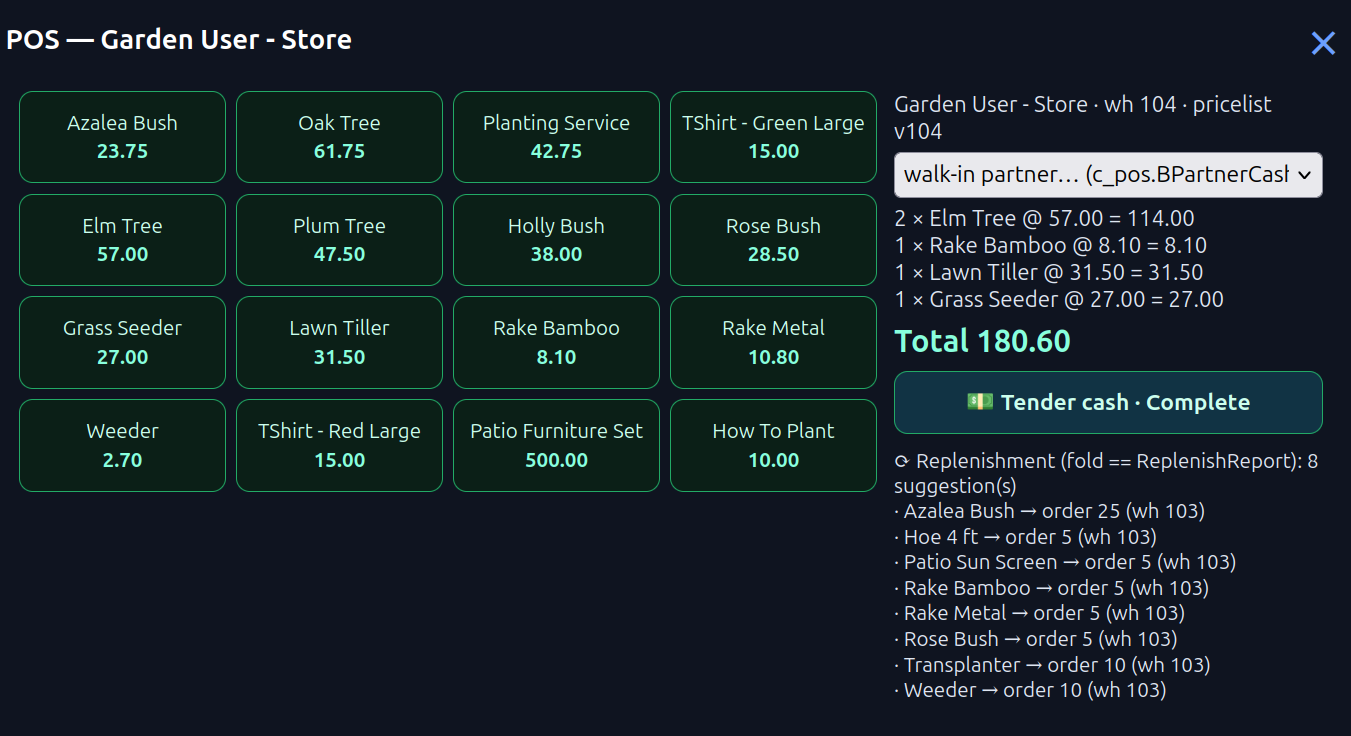
Payment panel layout (top-bar total + single Pay)¶
The panel is a draggable float, stripped to the essentials:
- Top bar — the running total. The top row shows the live cart total, updating as you ring items. The cart icon stays on the left (tap it to summon/dismiss the panel); the scan-QR button sits on the right (opens the barcode overlay to add an item).
- One Pay icon. A single Pay icon (right) completes the sale directly
— there is no pre-completion preview modal (the earlier orange/green rim drawers + receipt-preview
modal are retired). The walk-in partner is defaulted (the Standard business partner, else
first active —
§POS-PARTNER-DEFAULT), so Pay works out of the box. - Draggable. Grab the panel header to reposition it (
§POS-FLOAT-DRAG moved=Y); the album keeps scrolling underneath, payment never squeezes the grid. - ⋯ dock (bottom-right, reveal-up, taps-outside close it) — the secondary actions live here:
home, import (register a product — the
(+)glyph), receipt (re-open the last receipt, appears after a sale), and Deliver later (the WH-walkrouteglyph; dictionary-gated — present only when the loaded db has anSOdoctype — opens the warehouse walk in a new tab).
Making a sale¶
- Tap a product card (or scan from the top bar) → it is added to the cart at the sealed price.
- Tap again to increment qty, or edit qty in the line.
- Review the running total in the top bar (BigDecimal fold of line amounts, never a posted figure yet).
- Tap Pay (
#pos-float-tender) → the sale completes directly into one signed op-group (§POS-SALE … newVerbs=[] chainOk=Y— the receipt showssigned=Y). No partner prompt — the Standard partner is used unless you pick another. - The receipt opens in its own overlay (re-openable via the receipt entry in the ⋯ dock) and the payment panel dismisses itself — the sale is already closed: one signed op-group, nothing left pending.
Audio earcons
Subtle earcons sound on key POS actions — ring an item, Pay, sale-complete (§POS-AUDIO) — via the
shared synth engine reading sfx.json (data rows, ui_clicks:false so there is no per-button
spam). They no-op silently if the sound engine is absent.
Barcode scan distance
The scan overlay shows the hint "Hold steady · 10–15 cm from barcode" on open. Barcode scanning works best at 10–15 cm from the label. Some Android phones apply macro focus automatically (Chrome-only; Safari degrades silently — typed fallback always works).
Register a new product at the till — the Import pill (§P-9)¶
The Import pill opens the snap+scan+price flow: photograph the item (camera, downscaled to a
≤32KB ledger thumbnail; the full-res photo goes to the device images folder under a
sha256: content address — §POS-IMGKEY), scan or type its barcode, key the price. Register
commits ONE signed group of 4 CRUD_CREATE ops — M_Product, M_ProductPrice (station pricelist),
AD_Image, C_POSKey — every default EXTRACTED from the dictionary and the station's own rows.
The new card appears in the album and rings
immediately through the unchanged sale path. A duplicate barcode is refused and the existing
product handed back (propose-merge). Editing name/price/photo later rides the same signed path,
changed columns only.
Hold / recall (§P-13)¶
Hold parks the in-progress cart as a real DR C_Order — the same ledger row the Sales Order
window and Kanban read, not a private store (§POS-HOLD park order=… listed window=Y kanban=Y).
Recall is a plain query of the held orders; completing a recalled sale completes THE held
order (never a duplicate — exactly one C_Order exists, witnessed).
The "Complete" creates ONE signed op-group:
CREATE_DOCUMENT  C_Order  (the POS sale order)
CREATE_LINE      C_OrderLine  (one per cart line)
SET_STATUS       C_Order → CO
CREATE_DOCUMENT  M_InOut  (shipment, policy-gated)
CREATE_LINE      M_InOutLine
SET_STATUS       M_InOut → CO
CREATE_DOCUMENT  C_Invoice  (invoice, policy-gated)
SET_STATUS       C_Invoice → CO
CONSUME          M_Transaction P−  (one per BOM leaf, the backflush)
Kitchen Display¶
The Kitchen pill (visible at a POS station) shows every order currently waiting to be served — the same deliver-later shipments described in §S-2b, but for a kitchen counter rather than a warehouse pick. The queue is a live view of the ledger, not a separate list: as soon as a sale is rung with Deliver later, the ticket appears here, oldest first.
- Queue order is first-in-first-out — the ticket that's been waiting longest is always at the top.
- Tap Serve on a ticket once the order is ready. This completes the same shipment the Warehouse Walk would otherwise pick — serving from the kitchen and picking from the warehouse are two doors onto the same document, so a ticket can only be served once (a second tap is refused).
- Nothing here is a separate order type — no new sale action exists for "send to kitchen"; any deliver-later sale automatically becomes a kitchen ticket.
Backflush (§P-3)¶
If any product has a BOM (e.g. Patio Furniture Set), erp_engine.explodeBOM recursively
expands the recipe and adds a CONSUME P− op for every leaf component. The on-hand fold
(qtyOnHand) reflects the deduction immediately.
Replenishment (§P-4)¶
Replenishment is a staged, reviewable action — nothing reorders automatically after a sale.
- Tap Generate Replenishment in the POS panel. The system folds every sale and movement to
find current on-hand per product, compares it against each product's stock policy
(
Level_Min/Level_Max), and proposes an editable staging list — nothing is committed yet. - Review the list. Adjust the quantity on any row, or deselect a row you don't want ordered this round. Batch sizes round up to the product's packing quantity automatically.
- Tap Confirm to commit. Every accepted row goes out as one signed group: a Purchase Order for products sourced externally, or a stock Move for products sourced from another warehouse — routed automatically per product.
- Tapping Generate Replenishment again is safe to repeat: it only proposes what's still outstanding. Anything already ordered this round is never re-ordered, even if you generate again before it arrives.
(Screenshot pending — see docs/figs/pos_live.png for the general POS panel in the meantime.)
8. Financial Reporting¶
Tap ⌂ → Performance Analysis → Financial Report (or use the Statements pill from the Dictionary):
| Report | Status | Notes |
|---|---|---|
| Balance Sheet | ✅ oracle-equivalent | 108 cells, maxDiff=0c vs real GardenWorld fact_acct |
| Income Statement | ✅ oracle-equivalent | 148 cells |
| Cash Flow | ✅ oracle-equivalent | 140 cells |
| Trial Balance | ✅ oracle-equivalent | ΣDr==ΣCr=46574.97 (GardenWorld real ledger) |
| Invoice Print | ✅ oracle-equivalent | 8/8 invoices, 48 cells |
The ⎙ Print button on an invoice form opens a single-page print view generated from the real
AD_PrintFormat metadata — not a template, a fold of the dictionary's print format rows.
Excel Report — your workbook is the report (NinjaExcel)¶
Tap the Excel Report pill (grid icon ▦) on the iDempiere bottom bar. This lens turns any Excel workbook into a live report over the open tenant — Excel stays the designer (layout, formatting, subtotals, charts: zero learning curve, it is Excel); the lens is only the binder that fills the data cells from the database. No Jasper, no print-format authoring, no server.
One workbook, three sheets:
| Sheet | Role | Who writes it |
|---|---|---|
| BACKUP | a filled sample of the finished report — design-by-example | you (keep a real filled copy) |
| Input | the layout with @field_row_col@ holes where data goes, plus #1/#2 parameter cells |
scaffolded for you |
| Process | one row per data cell: SELECT / TABLE / JOIN / WHERE / ADDRESS — plain SQL in cells |
scaffolded, you finish it |
The flow:
- Try the sample first — the lens links a
ninja_sample.xlsx(GardenWorld invoice summary), runnable as-is: drop it back in and it fills from the open tenant. - MAKE — drop a workbook holding only your filled BACKUP sheet. The lens detects the data
grid by shape, proposes a SELECT for each cell from its column label, and hands back a scaffold.
A proposal is not an answer — open the Process sheet in Excel and finish the
TABLE/WHEREcolumns (this is where your SQL skill goes; everything else is already placed). - RUN — drop the finished workbook. Every Process row is folded over the loaded tenant db,
values land in their addressed cells, and you download the filled workbook. Your own
=SUM(...)subtotals are never computed by the engine — Excel recalculates them when you open the file.
Verify-by-example is the honesty gate: if the BACKUP sample travels with the workbook, every
folded value is compared against the sample to the cent — a wrong binding shows red, not
plausible. An incomplete workbook (empty TABLE, a #2 parameter with no value, a data hole no
Process row addresses) is refused before running with the exact list of what's missing — never
silently skipped.
| Status | Notes |
|---|---|
| ✅ LIVE | sample runs 9 cells maxDiff=0c against the seed; works on any installed/migrated tenant (one SQL dialect — SQLite) |
| ✅ LIVE | RULE tier — the lens's "Or describe a data point" box: type a business phrase (SUM GrandTotal of Invoices, completed, from 2002-01-01 to 2003-12-31), it compiles to SQL from the tenant's own dictionary; the sample falsifies wrong candidates to the cent; a tie is yours to pick (radio), then Apply & run writes the row and re-verifies the whole workbook |
| Phase 2 | bidirectional cells (< direction: an edited cell appends a signed op) — designed, not built |
9. Extending the ERP — Ninja mode (a friendlier Red1 Ninja)¶
This is Red1 Ninja — define an entire ERP module in one Excel sheet, no code — brought into the browser and made friendlier: no JVM, no 2Pack zip, no server restart; it installs live. The Plugin Engine pill (🔌 plug) is its home. Two faces, which map to iDempiere's PackIn / PackOut in spirit — but it's more than that: a spreadsheet becomes a running module.
- Install (≈ PackIn) — paste a bundle URL → one click → the model is live and navigable.
- Create (≈ PackOut) — turn a model into a shareable, editable artifact: a
.foldbundle.
Ninja mode ports Red1 Ninja (Redhuan D. Oon's iDempiere plugin — Excel-defines-the-model) into the browser. The friendlier truth under the PackOut/PackIn analogy.
A .foldbundle is a single ES module that carries both halves of a customization — its
structure (windows/tables/columns) and its behavior (rules). That is the whole point of the
format, and what makes it more than 2Pack (see below).
Create is two-way¶
Forward — author from a sheet (✅ live). Open the pill → Create tab → drop an .xlsx model
sheet. The lens previews the AD tables it derives (column chips name:refType, master ↳ detail),
shows any warnings, and Emit & Install stages them into the live tenant — the new window appears
in the menu immediately. Don't know the grammar? Download starter template gives you a filled
two-table shell to learn from and edit.
Reverse — export an existing window (🔧 proposed). Point at a window or menu already in the AD
and export its definition back into the same sheet/bundle, edit it in Excel, and re-emit. This is
the literal PackOut, and it's the more common need — most customizations start as "a window like
Business Partner, plus three fields," not a blank sheet. Status: designed, not yet built — the
extractModel(db, AD_Window_ID) → model verb (the clean inverse of the sheet parser).
One bundle = structure + behavior¶
The grammar of the sheet only describes structure — tables, columns, reference types,
master/detail. Behavior (a field rule) is plain JS you craft inside the bundle's activate().
The two halves are joined by exactly one line: the column's AD_Column.Callout names the JS
handler the engine should fire on a field change.
The dumb-simplest worked example (build/erp/fixtures/plugins/asset_status_callout.mjs) — a
one-table window whose Description becomes 'Ready' when IsActive is On and 'Starting' when
Off:
const HANDLER = 'com.acme.AssetCallout.statusFromActive';   // must match AD_Column.Callout on IsActive
export async function activate(ctx) {
  ctx.callout.registerHandler(HANDLER, function (c, info) {
    var r = info.record || {};
    var on = (r.IsActive != null ? r.IsActive : r.isactive) === 'Y';
    return { derived: { Description: on ? 'Ready' : 'Starting' } };   // a callout DERIVES, it does not validate
  });
}
A callout derives sibling-field values; it never validates (that is a separate rule layer). The
sample rule fires
through the real callout spine because AD_Column.Callout names it — structure without the JS derives
nothing, and the JS without that one wiring line never fires.
Why this replaces 2Pack¶
2Pack never actually carried behavior. It packaged the dictionary XML plus a reference
(AD_Column.Callout = "org.compiere.model.CalloutX"); the real logic lived in a JAR you dropped on
the classpath and restarted the server for. The honest equivalence:
one
.foldbundle≡ 2Pack (structure) + JAR (behavior) + classpath + restart
Four artifacts and a restart fold into one editable ES module that installs live. (Stated precisely: this is the fold-engine's JS callout layer — not a reimplementation of iDempiere's Java callout engine.)
Model backup ≠ oplog backup¶
Two different layers, both useful:
| Backup | What it captures | Artifact |
|---|---|---|
oplog (the W pill / kernel_ops) |
what happened to your data — the event history | replayable op-log |
model (a .foldbundle) |
the definition itself — structure + its JS rules | one small, git-diffable, editable file |
"Export my live window" produces one file that is simultaneously a distro artifact, a model backup, and a teaching sample — versionable in git, not a DB dump or an opaque zip.
| Status | Notes |
|---|---|
| ✅ LIVE | Install (PackIn) — paste a raw ES-module bundle URL → ACTIVE. |
| ✅ LIVE | Create (PackOut, forward) — drop sheet → preview → Emit & Install through the live writable handle. |
| ✅ Verified | the behavior sample fires through AdCallout via the AD_Column.Callout seam |
| 🔧 Proposed | reverse-export (extractModel) existing window → sheet; and a grammar token so the sheet itself can set AD_Column.Callout (today the bundle wires that one line by hand — the mechanism is proven, the live forward-path auto-wiring is the open gap) |
| ⚠ Caveat | the round-trip is structural — the grammar has tokens for table/column/ref-type/master-detail, not for the full behavioral richness of a real iDempiere window. Export reproduces the skeleton faithfully; behavior travels as the JS you craft, not as auto-extracted logic |
Not to be confused with the Excel Report lens (§8) — that's the reporting Ninja (a workbook reads the tenant). This is the model-authoring Ninja (a workbook defines the tenant). They share only the spreadsheet-reading code.
10. Warehouse Walk¶
The Warehouse pill (box icon ◫) on the iDempiere bottom bar opens the GardenWorld warehouse
as a live 3D spatial model — a new tab pointing at the short GH Pages URL
(viewer/viewer.html?db=../buildings/warehouse_gardenworld.db). No login required for the viewer;
the ⌂ home button in the top-left flies you back to iDempiere.
The warehouse db lives in the repo (GH Pages
buildings/— the old OCI bucket copy was retired). If your device ever opened the walk through the old OCI link, a bare viewer open used to resume that dead URL and show "Failed to fetch …"; since viewer sw v647 it self-heals: the stale resume key is cleared and the viewer returns to the landing page once (§PWA_RESUME_CLEAR). Opening through the Warehouse pill always works directly.
What you see¶
The warehouse is compiled from real m_locator records — 11 bins arranged in two rows on a
flat floor, each bin's position derived from the GardenWorld ERP inventory schema (not hand-drawn).
26 elements total: 11 bin boxes (IfcBuildingElementProxy, each GUID == m_locator_id) + ground slab.
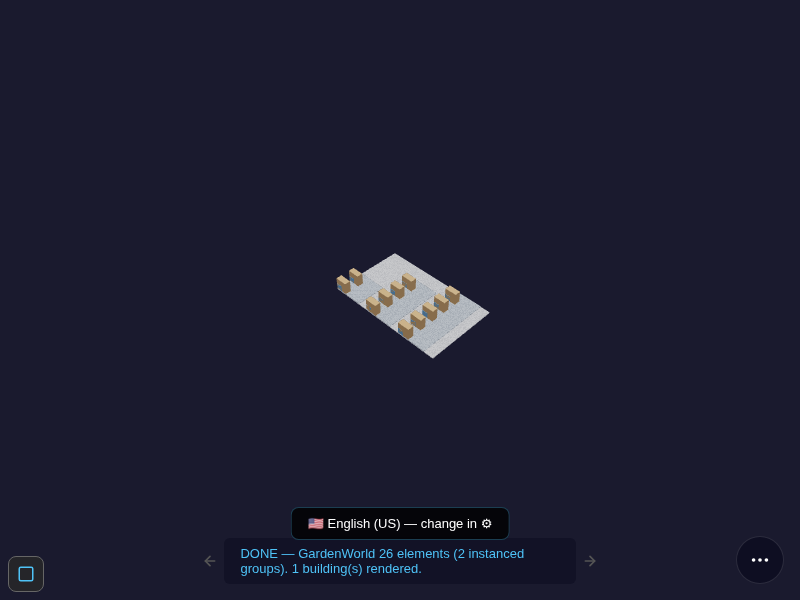
Controls (same as the BIM viewer): - Orbit — click-drag or one-finger drag - Zoom — scroll wheel or pinch - Pan — middle-drag or two-finger drag - Reset — double-tap / double-click
Warehouse Walk pill (inside the viewer)¶
The Walk pill (📦 bottom bar) appears only when the loaded db has locator-GUID bins — the §S-1
compile stamps both m_bom_line BIN rows and the element GUIDs with real m_locator_id values.
Any other building → the pill stays off the bar.
Walk flow:
- Open — tap the Walk pill. The engine builds a draft
M_Movementpick list from replenishment needs (qtyOnHandfold vsm_replenish.level_min). - Fly — the camera flies to the first bin; the target bin is highlighted bright blue; the rack group is shown as a solid overlay; all other geometry is ghosted (x-ray dim 0.1).
- Scan — tap Scan bin to:
- Use the device camera (
BarcodeDetector/getUserMedia) to scan the bin's QR label, or - Type the locator ID in the fallback field. Wrong bin is refused ("wrong bin, expected …"). Correct bin moves to the next step.
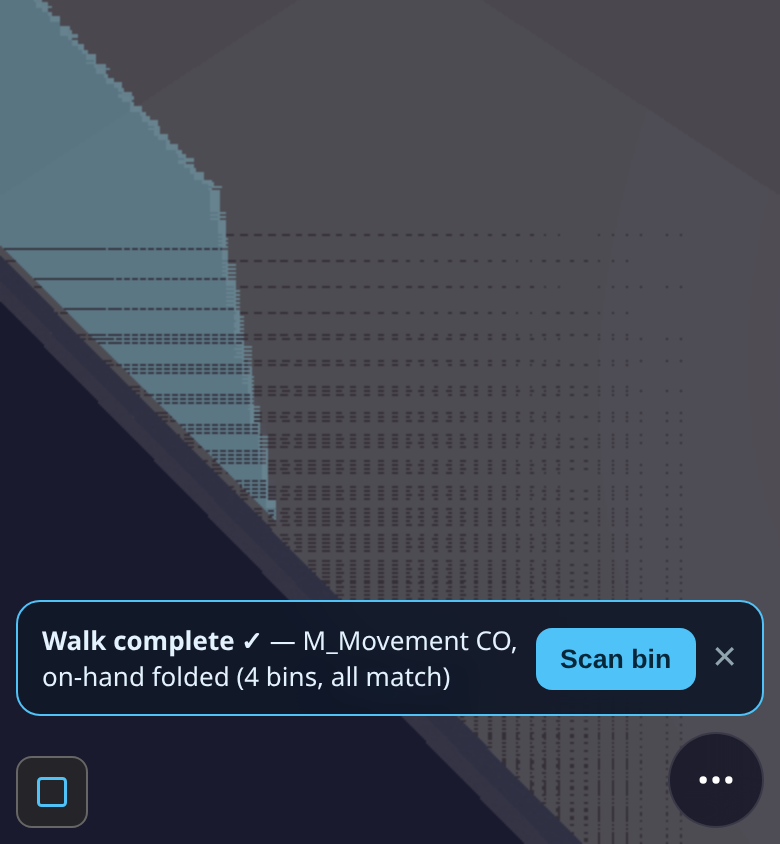
- Complete — after all bins the strip shows Walk complete ✓. A single signed
M_Movement COis committed throughKernelOps.commitGroup;qtyOnHandis folded from the op-log (no direct DB write).
Implementation status¶
| Step | Status | What |
|---|---|---|
| §S-1 ✅ | Compiled | Bins map to real m_locator_id; render gate green (61 KB db, GH Pages) |
| §S-2 ✅ | Route verb | wh_route.js sorts pick lines by spatial walk sequence (m_bom_line.ordinal) |
| §S-3 ✅ | Walk UI | Phone-first fly-to strip; depth model (ghost/rack/bin); step strip + camera easing |
| §S-4 ✅ | QR scan | BarcodeDetector + typed fallback; wrong-bin refusal gate |
| §S-5 ✅ | Signed op | M_Movement CO via KernelOps.commitGroup; on-hand folded from op-log |
| §S-2b ✅ LIVE | POS→pick loop | Sell deliver-later at the POS → the walk offers that open shipment → pick it to completion (on-hand moves at the pick). See §7 → Deliver later. |
Deliver later → pick at the warehouse (§S-2b)¶
The POS and the Warehouse Walk are one ledger, two lenses. When you ring a sale and choose
Deliver later · pick at warehouse (in the ⋯ dock — shown only when the tenant has a deliver-later
sale doctype, seed 132), the order completes (C_Order → CO) but the shipment is born DR (not
yet picked). As a demo convenience the Warehouse Walk opens in a new browser tab straight away
so you can pick immediately. That open shipment also appears as a
route source in the Warehouse Walk on any open: walk to the bin, scan/confirm, and the shipment
completes by the picked quantity — on-hand moves at the pick, not at the sale. Short-picks leave
the remainder open on the document. Once picked, the walk writes the completion back to the shared
ledger so the selector never re-offers a picked shipment. A "with-pick QA confirm" doctype (148) routes
completion through the warehouse-confirm gate first.
Share¶
Tap the ⌂ share route from the Warehouse pill action or the viewer share button to copy the short GH Pages URL for this walk session. The URL is self-contained — opening it on a phone immediately lands on the spatial model ready for the walk.
System Monitor — paradigm vitals & the deploy version (LIVE)¶
iDempiere ships a System Monitor (the /idempiere-monitor servlet) where an admin watches Memory,
Cache, Logs/Trace, Servers, Cluster and Database. Kernel-ERP keeps the same sections but on a serverless
browser kernel — so each one shows your real device value where one exists, and an honest "No longer
needed" badge where the server is simply gone (background processors, cluster nodes, the Postgres host).
Open it: on the login card, the info panel → System Monitor (it's also reachable in-session). Nothing
is faked — where the browser doesn't expose a number (e.g. JS heap on Firefox) the row says n/a.
Field health · paradigm vitals¶
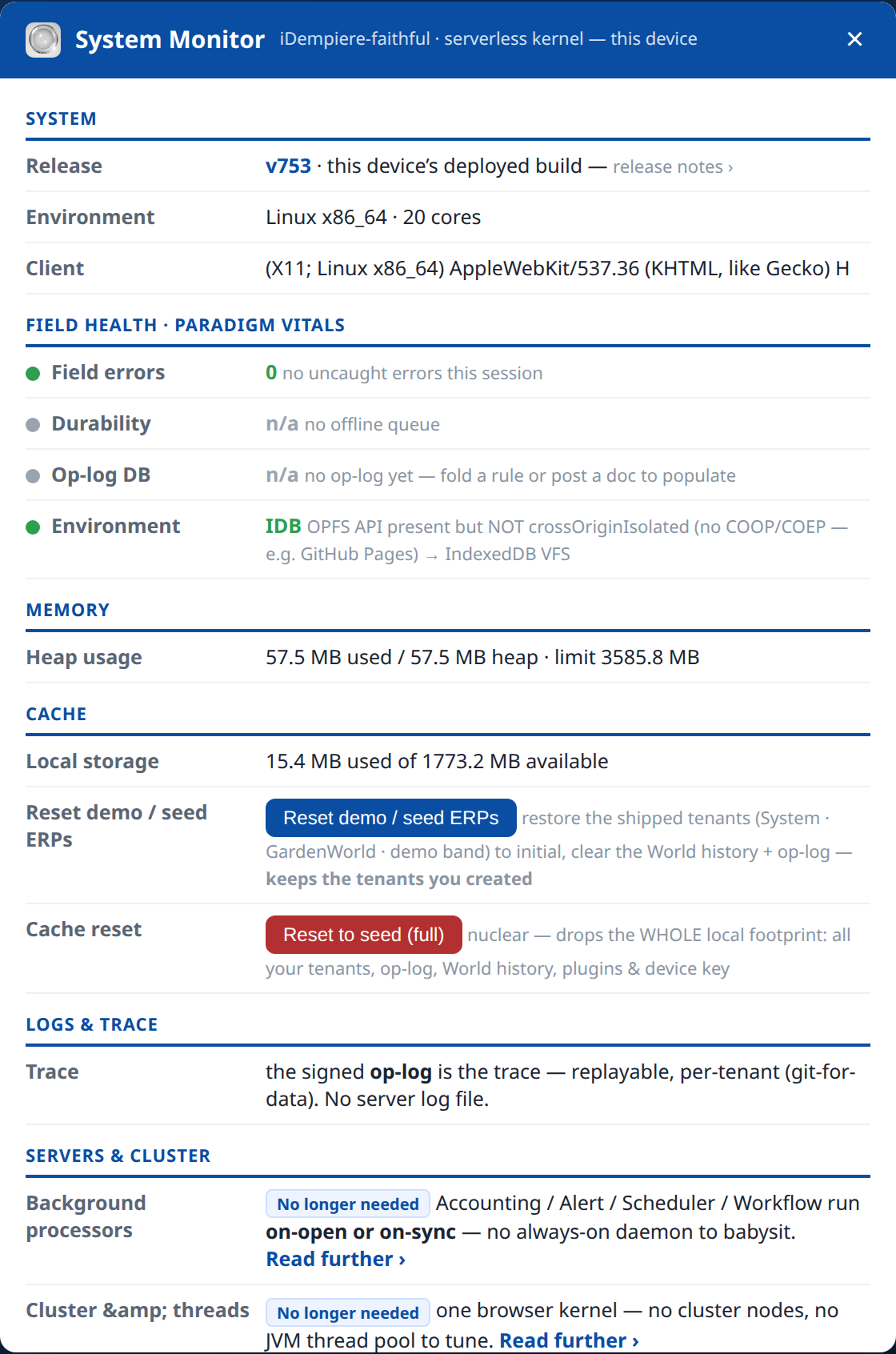
A classic ERP watches a server's vitals (CPU, heap, connection pool). With no server, you watch the paradigm's vitals instead — four widgets, each folded from a real live signal (never invented), each with a status dot. On open the four dots pulse amber "checking…" while the live signals are gathered, then settle — lighting up one-by-one to their real colour, so you can see the panel is genuinely polling the device, not painting a cached picture:
| Widget | What it tells the SysAdmin |
|---|---|
| Field errors | Uncaught errors captured this session (the G2 remedy — silent field failures are surfaced, not swallowed). Green 0 = a clean run. |
| Durability | The offline op queue: how many edits are relayed (durable) vs still in-flight. The A1 safety invariant holds — an unsynced op is never shown as "safe". |
| Op-log DB | The signed op-log's real size (PRAGMA page_count × page_size) against the in-memory 200 MB ceiling, with headroom — the reassuring "you're nowhere near the wall" optic. Reads n/a until a tenant has folded a rule or posted a doc. |
| Environment | The storage backend the device actually negotiated — OPFS when cross-origin-isolated, else IndexedDB (named honestly, e.g. "OPFS API present but NOT crossOriginIsolated → IndexedDB VFS" on GitHub Pages). |
Reading the dots — what each state means¶
The dot colour is a traffic light, and a widget shows grey when it simply has no signal yet — grey is not an error, it means "nothing to report" (e.g. an op-log that hasn't been written to). The header dot is the worst of the four.
| Dot | Meaning |
|---|---|
| 🟢 green (OK) | healthy — nothing to do |
| 🟠 amber (attention) | within limits but worth watching |
| 🔴 red (action) | a real problem — act now |
| ⚪ grey (n/a) | no signal yet — not an error |
What each widget shows in every state (so the panel reads the same on any device):
| Widget | 🟢 green | 🟠 amber | 🔴 red | ⚪ grey |
|---|---|---|---|---|
| Field errors | 0 — no uncaught errors this session |
a soft/resource error captured | a hard error (JS exception / rejected promise) this session | error beacon not installed |
| Durability | every queued edit relayed (inflight 0), within quota |
unsynced work exists (inflight > 0), or oldest unacked edit > 6 days, or storage > 70 % of quota |
unsynced edits and the browser hasn't granted persistent storage (eviction could lose them) | no offline queue this session |
| Op-log DB | ≤ 100 MB — shows headroom + "N× under the 200 MB ceiling" | > 100 MB — "compact recommended" | > 200 MB — at the in-memory ceiling | no op-log yet (fold a rule or post a doc to populate) |
| Environment | a named backend — OPFS (when cross-origin-isolated) or IDB (the correct choice on GitHub Pages) | a misconfiguration — e.g. IndexedDB on a COOP/COEP origin where OPFS was expected | genesis bootstrap — the local checkpoint was missing/corrupt and the tenant rebuilt from seed | storage backend not detected |
The screenshot above is a fresh, just-opened session: nothing has been queued and no op-log written yet, so Durability and Op-log DB honestly read grey
n/a(there is nothing to measure), while Field errors and Environment are green. Log in and post a document and you'll watch Op-log DB turn into a real megabyte figure and Durability start countingdurable@N · inflight M.
The Release row — the deployed build, linked to its release¶
The Release row reads the version that is actually deployed to this device (the service-worker
CACHE_VERSION, e.g. v753) and links to that build's GitHub Release page — the release notes are the
merge commit, so the link literally shows what was last shipped. Releases are cut automatically at deploy:
a new vNNN can't go live without its release page existing. (Earlier builds briefly showed "(uncontrolled)"
in the moment right after a service-worker update — before the page was controlled again; the version is now
stamped deterministically so the row always tells the truth.)
11. Clearing Cache / Resetting Demo Data¶
The app state lives in IndexedDB (key bim_erp_db, version 14). To reset to a clean demo:
Chrome / Edge / Firefox:
1. Open DevTools (F12) → Application (Chrome) or Storage (Firefox).
2. Find IndexedDB → bim_erp_db → right-click → Delete database.
3. Reload the page → the Install flow runs again from the bundled seed.
Quick reset via the browser console:
indexedDB.deleteDatabase('bim_erp_db');
location.reload();
Service Worker cache (if the app served a stale version):
DevTools → Application → Service Workers → Unregister
DevTools → Application → Cache Storage → Delete All
Then hard-reload (Ctrl+Shift+R). The sw version is bumped on every deploy so this is only
needed if you see an old CACHE_VERSION number in the console.
12. Pending Roadmap — known gaps and on-demand conditions¶
Data-gated (seed doesn't contain these yet)¶
| Gap | Condition | Fix |
|---|---|---|
Trial Balance shows 0 rows on default ad_seed.db |
fact_acct table not in seed (Postgres-only source) |
Load ?db=preview_demo.db or run prompts/MIGRATE_POSTING_CONFIG.md |
| Posting Preview empty | Same — acct linkage absent in default seed | Same fix |
| POS live ring to the cent | posting-config needed for the live ring | MIGRATE_POSTING_CONFIG.md |
| T_Aging / T_ReportStatement folds | 13 T_* temp-table folds not yet built |
Phase B §H-7..§H-11 (future) |
| Warehouse viewer: "Failed to fetch …oraclecloud…" on a bare open | OCI-era pwa_last_db resumed the retired bucket URL |
Fixed — self-heals to the landing; or clear site data once |
Engine-gated (code exists, not yet wired to live UI)¶
| Gap | Engine status | UI status |
|---|---|---|
AD_Callout derived fields on field-change |
✅ engine ready | Render-wiring parked |
AD_Val_Rule picklist filter |
✅ engine ready | Render-wiring parked |
AD_Workflow node-walk |
🟡 ad_workflow.js built, no seed activity oracle |
Parked |
| Column-level / Record-level access | AD_Column_Access / AD_Record_Access empty in seed |
n/a |
| 454 SvrProcess handlers | 5 registered, 454 named-deferred | Honest absent-handler card shown |
stale fork: report_overlay.js in bim-ootb |
256 vs 908 lines in build/erp — lacks foldStatement/foldPrint | Needs sync + sw bump |
Coverage matrix summary (2026-06-12)¶
✅  7  (live UI witnesses)
🟡 32  (headless-green, render-wiring pending)
⛔  3  (n/a-in-seed: AD_Rule SQL + 2 empty *_Access)
The 🟡 ceiling means: every behaviourally interpretable surface that has seed data is exercised — the remaining work is wiring headless-proven engines into live DOM.
13. Pill Quick-Reference (cheat sheet)¶
Bottom bar
  ⌂          Home — AD menu tree
  ⊙ / ▣      Settings
  🔍 (red)   Record search / filter
  🔴 (ring)  Red pill — "just the pill" ⟷ classic iDempiere look (key ,)
  🔌         Plugin Engine — Install (PackIn) / Create (PackOut) models
  W          History — world op-log scrubber
  ⋯          More: Install · Migrate · About · Tour · ShowMe

Inside a record form
  ▶ (Process) Run an AD_Process (parameter dialog if needed)
  DocAction chips  (Complete · Close · Void · …) — legal set only

Help
  ?            Toggle ShowMe badges
  Tap a badge  Context card with tip + screenshot
  ‹ · ›        Step through ShowMe sequence

History (W pill)
  Click a dot         Jump to that op in the log
  ← / →               Step back/forward one op
  Long-press W        Open Z+bomb drawer (undo / fold-back)
  Long-press dot      Enter Blue Future — speculative branch (§15)
  Long-press blue dot Accept blue branch up to here · Tap blue dot Zoom children
14. Testing & Verification¶
Two pills in the bottom bar prove the system works. Show them during demos — they signal a serious, verifiable foundation, not a mock.
Verify Ledger (checkList icon)¶
Reads your live op-log from IndexedDB and walks the SHA-256 hash chain sealing every operation.
Opens a card showing one summary row: ✓ N ops — chain intact or ✗ Tamper at op N — <reason>.
Tap the pill again to dismiss. Hover tooltip: "Verify Ledger — hash-chain tamper check on your live op-log".
Use it after running real transactions (sales, document completions). On a fresh seed with 0 transactions it reports "0 ops" — that is correct, not a failure.
What it proves: nobody modified, deleted, or injected rows in the audit trail. Each op's hash depends on the previous one; any change breaks the chain at that exact point.
Doc Cycle Validator (check / tick icon)¶
Bootstraps a fresh in-memory SQLite database on the spot, runs 13 engine unit-tests, and shows a ✓ / ✗ row per check. The footer turns green "✓ 13 / 13 PASS — doc cycle proven in-browser" when all pass. Tap again to dismiss. Hover tooltip: "Doc Cycle — 13 engine tests (always green)".
Both testing pills share the same card chrome — same glass panel, same tick/cross row style.
Use it any time — it never touches your real data and needs no network. Always green; deterministic.
What it proves (the 13 checks):
| Section | Checks |
|---|---|
| FSM legal-action sets | DR/CO/VO each return the correct legal action list |
| Strict transitions | CO-from-Closed, PR-from-Completed, CO-from-Voided all throw DocStateError |
| Forward progression | PR advances DR → IP correctly |
| Atomic ERP + BIM sync | Completing a receipt writes both fact_acct (DR Inventory + CR AP) and bim_element_status under one SAVEPOINT |
| SAVEPOINT rollback | A document with no lines triggers rollback: 0 fact_acct rows, docstatus reverted to DR |
| Falsifier | CO → CO is rejected as DocStateError, not silently passed |
The distinction¶
| Verify Ledger | Doc Cycle | |
|---|---|---|
| Input | Your live op-log (real user transactions) | Fresh in-memory seed (no user data) |
| Tests | Data integrity — was anything tampered? | Engine correctness — does the logic work? |
| Always green? | Only after real transactions | Yes — same result every run |
15. Blue Future — the speculative branch (built-in pre-release test harness)¶
Blue Future is non-obvious the first time, so read this once. It lets you fork the live ledger into an unofficial speculative branch, run real operations inside it, then either accept them into the official books or discard them atomically — the official books never move until you accept. It is the app's built-in pre-release test harness: drive a client's whole lifecycle in blue, decide go / no-go, accept or discard before go-live.
Entering it — the gesture¶
- Tap the W pill to open the world-history overlay (the dot rail).
- Long-press an official (white) history dot. You enter BLUE.
The whole surface switches to an unmistakably unofficial skin so you can never confuse it with the real books:
- a blue rim on every window (including the GL canvas),
- an UNOFFICIAL banner across the top,
- and a print watermark — anything you print or export from blue is stamped UNOFFICIAL.
What you do inside blue — real, not a mock¶
Everything you'd do for real, and it is real — just on the speculative branch. CompleteIt a
document with its full fan-out (shipment · invoice · the GL postings), create records, run
processes. Each op is a signed op-log entry carrying a branch_id, so it lands on the blue branch
and never touches the official tip. The official chrome filters to branch_id IS NULL, so your
real books read exactly as before while blue is open.
Closing the branch — accept or discard¶
| Gesture | Result |
|---|---|
| Long-press a blue dot | Accept up to here — the branch is rebased into the official books up to that point; what was speculative becomes the record |
| Long-press the white anchor dot (blue open) → confirm | Discard — the whole blue branch folds back atomically; the books never moved, so there is nothing to undo |
| Tap a blue dot | Zoom into its children (the fan-out that op produced) |
Why it is the test harness¶
Because blue runs the real engine — the same signed-commit fold, the same GL — a blue run is a faithful rehearsal, not a simulation. Take a freshly-migrated client through its entire first cycle (orders → ship → invoice → post → reports) in blue, read the consolidated result, then accept to go live or discard to try again. Nothing provisional ever reaches the official ledger.
Engine:
blue_future.js(window.BlueFuture) over the kernel op-logbranch_idlane.
Appendix — maintenance cost, a rough 5-year comparison¶
This is a planning estimate, not a measurement. Unlike the witness-cited claims throughout this guide, nothing here is benchmarked against a real deployment history on either side — there is no 10-user install of either stack with 5 years of support tickets to pull numbers from. Treat every figure below as order-of-magnitude, for internal planning, not a quotable external claim.
Scope: a 10-user shop, comparing this engine (static CDN + browser + signed op-log) against a self-hosted traditional stack (iDempiere/Odoo-shaped: a DB server + an app server, on-prem or a VM).
| Category | Traditional, self-hosted (mandays/yr) | This engine (mandays/yr) |
|---|---|---|
| OS/DB/app-server patching, restarts | 5–8 | 0 — no server exists to patch |
| Backup/DR + restore drills | 2 | 1 — exporting/verifying an op-log is a simpler shape, still needs discipline |
| Networking (VPN/reverse-proxy/TLS for remote access) | 1–2 | ~0 — the CDN handles TLS/DNS |
| Security fire-drills (amortized — e.g. a Log4Shell-class event) | 1–3 | ~1 — a much smaller vendored-JS surface, not zero |
| User/access admin, support tickets | 3–5 | 3–5 — same order; still 10 humans needing help |
| Device/key management (signed op-log needs per-device keys + revocation) | n/a to their model | 2–4 — a genuinely new admin task class |
| Browser/platform-drift watch (the COOP/COEP-class constraint) | n/a | 2–4 |
| Periodic major-version upgrade (real migrations run 10–30 mandays every 2–3 yrs, amortized) | 4–12 | ~0–2 — no server version to migrate off of |
| Async multi-writer fold, maturing to production-solid for 10 concurrent users | n/a — RDBMS row-locking transactions solved this decades ago, at no extra cost to them | front-loaded: ~20–60 mandays, mostly years 1–2 |
| Steady-state total/yr (years 3–5) | ≈ 16–30 | ≈ 9–17 |
| 5-year total | ≈ 80–150 | ≈ 65–110 (front-loaded, not flat) |
Where this favors the traditional stack, honestly: multi-writer conflict resolution is a solved problem in a row-locking RDBMS, and has been for decades, at zero incremental cost to them. Taking this engine's async signed op-log from single-writer to a mature 10-node fold is real, front-loaded engineering — not routine maintenance. That line is this engine paying now what row-locking databases already paid down in the 1980s; it is not minimized here just to make the table favorable.
Where this favors this engine: the entire server-ops block (patching, backup/DR of a live DB, networking, the version-upgrade treadmill) is not a discount — it is a cost category that does not exist when there is no server process to run.
The shape matters more than the 5-year sum. The traditional curve is close to flat forever, with recurring upgrade spikes every 2–3 years indefinitely (year 8 costs about what year 3 did). This engine's curve is a hump in years 1–2 (maturing the fold) that converts into a materially lighter tail — once the fold is solid, there is no server-upgrade treadmill to keep paying into. A 10-year window would separate the two curves more than this 5-year one does, since the traditional side's recurring tax does not decay and this engine's does.
For architecture details see ERP.md. For the coverage evidence see ERP_COVERAGE_MATRIX.md. For the migration story see MigrateComparisonPaper.md.