DAGeVu Modeller — User Guide¶
← Back to the User Guide · Home
DAGeVu is a browser BIM authoring surface that sits beside the read-only viewer. You don't edit a dead file — every action (drop a component, cut a window, route a duct, move a wall) is one signed operation folded into a verifiable hash-chain. The 3D you see is a pure fold of that operation log, so every edit is exact, reversible, and provable — never invented. The same signed-log engine drives the Kernel-ERP.
Open it: red1oon.github.io/bim-ootb/modeller/modeller.html (desktop — the B-rep kernel is heavy). The Home pill returns to the Matrix landing.
Every tool on this page is proven by a real-user, end-to-end test — the tool is driven through the production path with real mouse/keyboard and the result checked by numbers (the op-log, the scene graph, the pixels), not by eye. The screenshots are real frames captured from those test runs — nothing here is a mock-up.
The big idea — open a building and edit it¶
Don't draw a model up from a blank grid. 📂 Open a real building's ARC (architectural) model — its digital twin — and edit that. The other disciplines and dimensions aren't re-drawn; they follow: structure, MEP, the 4D schedule, the 5D cost and the ERP auto-complete by crawling against your ARC (the Walk tools), and every edit and every follow is one signed operation the enterprise folds from.
The workspace¶
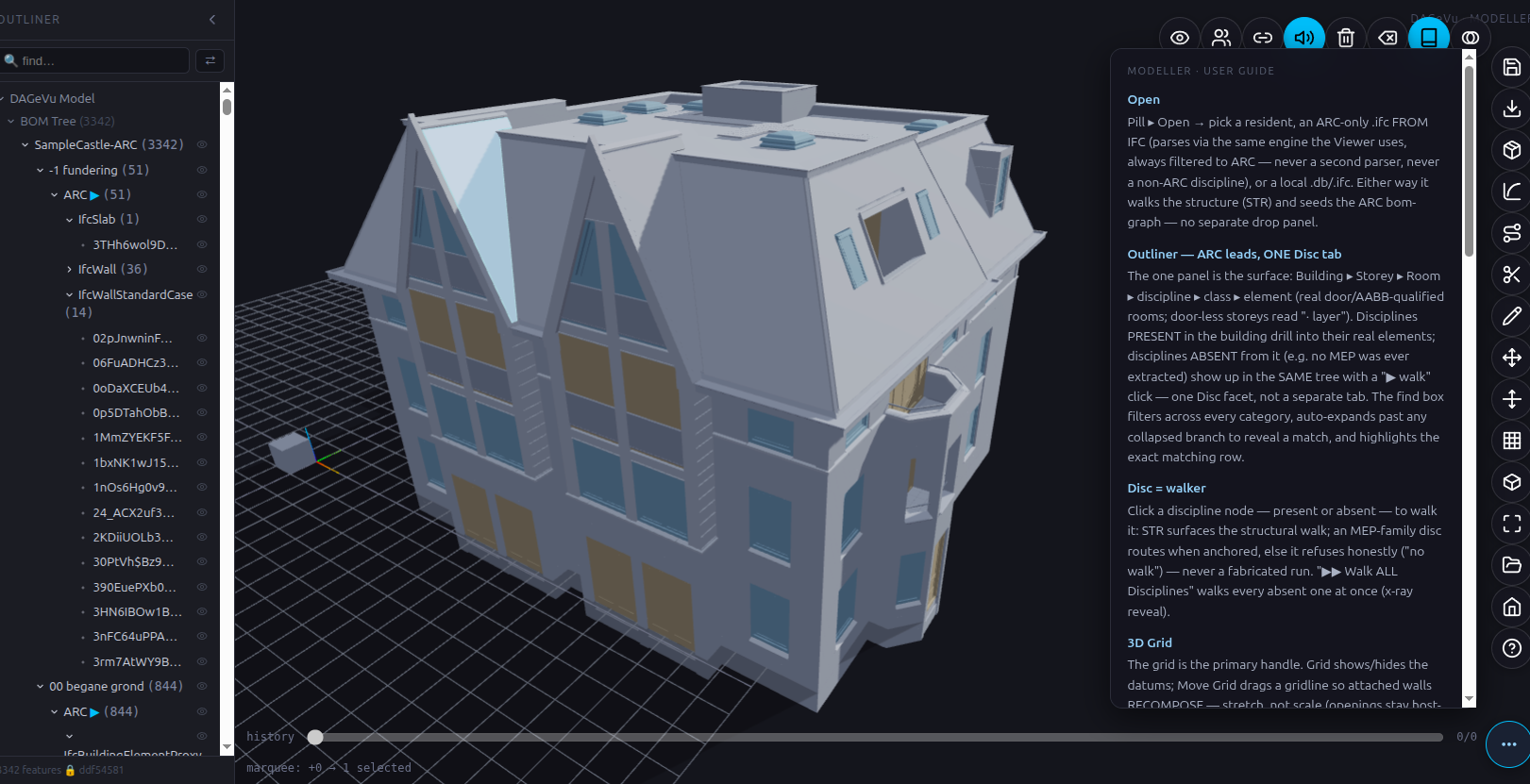
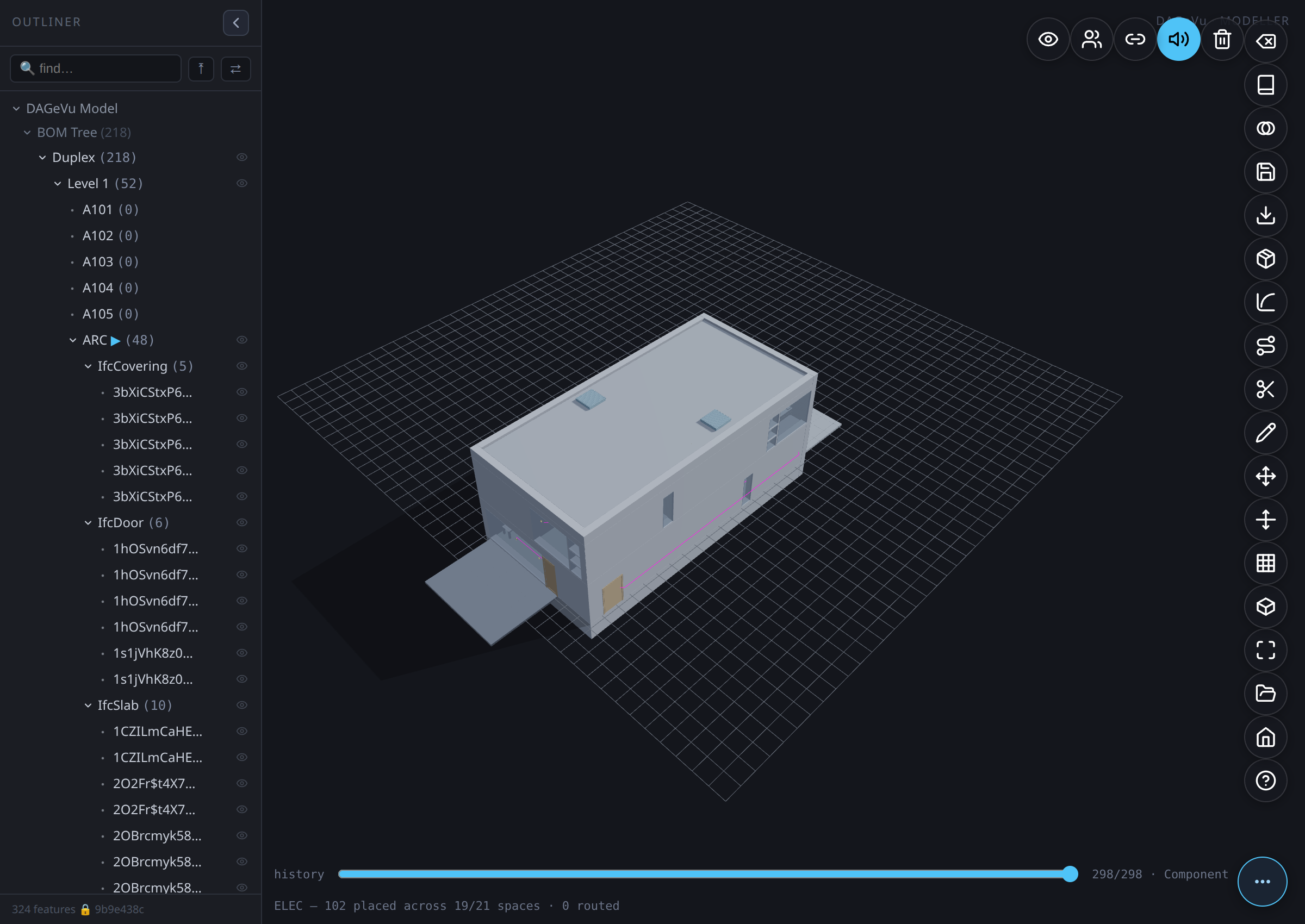
- Outliner (left) — the BOM tree of the opened building (
Building → Level → Room → ARC → element), plus the Walk rows and a live find filter. Collapse it with its chevron to free the canvas. - Canvas (centre) — the 3D building on the construction grid. Click an element to select it; Shift-drag marquee-selects many. Elements cast real shadows onto each other and the ground, so massing and floor-to-floor relationships read correctly at a glance — not a flat, shadowless render.
- Pill toolbar (right edge) — an icon rail. Tap ⋯ (bottom-right) to fan the pills open; hover a pill for its name; ? Help lists every tool + shortcut.
Esccancels any active mode. - History scrubber (bottom) — the signed op-log is the timeline. Drag it to travel through every edit. The status line beneath it echoes what each op did (e.g.
scaled #183 X ×1.50 verify=true).
How to read it: the op-log is the model, the 3D is a fold of it, and the slider is the single honest retreat across every tool below.
Getting started — your first five minutes¶
- Open the app — red1oon.github.io/bim-ootb/modeller/modeller.html (desktop; the B-rep kernel is heavy). Tap ⋯ at the bottom-right to fan the pill toolbar open.
- Open a building — tap 📂 Open and pick a resident building (e.g. Duplex). Its ARC model loads onto the grid and its BOM tree fills the Outliner on the left. You're now editing a real building, not a blank canvas.
- Frame it — press
F(or tap Fit) to zoom the whole building into view. - Select something — click an element (a wall, a door). It highlights; the status line names it. Shift-drag to marquee-select many.
- Do one edit — tap Move, drag an axis arrow, and release. Watch the status line print the signed op
(e.g.
moved #142 Δ(0.50,0.00,0.00) verify=true). That edit is now one fact in the op-log. - Undo it — drag the history scrubber (bottom) one notch left. The edit reverses exactly, because the 3D is a pure fold of the log. Drag right to redo.
That's the whole loop: open → select → tool → commit → scrub. Every tool below is a variation on it. Press
? Help any time for the live list of pills and shortcuts, or Esc to cancel a mode.
Open your own building — straight from an .ifc¶
The resident buildings are there so you can start in one click, but 📂 Open takes your own model too.
Besides a resident, it accepts an .ifc file and a local .db.
- Tap 📂 Open.
- Choose FROM IFC and pick your
.ifc— or pick a local.dbyou exported earlier. - The building lands on the grid the same way a resident does: it walks the structure and seeds the editable ARC substrate, so you can select and edit immediately.
Two things to know. First, an IFC opens filtered to ARC — the architectural model only, the single editable substrate; the other disciplines follow by walking, exactly as they do for a resident. Second, it's parsed by the same engine the Viewer uses — not a second, differently-behaved importer — so a building reads the same in both tools.
Because an IFC carries more than the pre-filtered resident .db does, an IFC-opened building often shows
more ARC elements than the same building opened as a resident. That's the source file being richer, not
a discrepancy.
Outliner — find, focus, and manage what's shown¶
The Outliner is more than a tree of rows — it's the fastest way to find an element and control what the canvas shows, especially on a large building.
- Click a row to select that element and fly the camera to it — this works even for a row with no direct canvas widget of its own; it flies to the element's real position, not a fallback toast.
- Selecting anything expands its ancestors automatically — you never have to manually drill down through Building → Level → Room to see where a selected element sits in the tree.
- The selected element gets a highlighted outline on the canvas, in addition to the existing status-line name — easier to spot on a busy, similarly-coloured floor.
- Type in the find filter and the tree narrows to matches — everything that doesn't match dims on the canvas too, so filtering the list and seeing where those elements actually are happen together.
- Toggle the eye icon on any row to hide or show that element (and its children) on the canvas without deleting it — useful for looking inside a wall or floor you'd otherwise have to work around.
- The tree stays responsive on large buildings — rows render only as you scroll near them, so opening a building with thousands of elements doesn't stall the panel.
Building Parts — Stairway / Lift Shaft / Plant Room¶
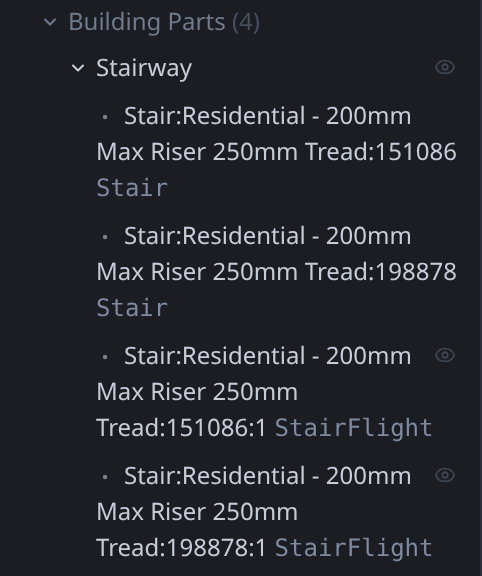
Below the BOM tree, a Building Parts row appears in the Outliner whenever the open building actually contains one of three part types — it's the Modeller-side twin of the Viewer's Find-panel Parts axis (same building, same categories, same underlying match rules), so a building looks the same way in both tools. Each category is independently gated: a building with stairs but no lift shows only Stairway; a small house typically shows Stairway and, if the ARC data has HVAC-plant elements, Plant Room — no empty categories, no clutter.
- Stairway — every
IfcStair/IfcRampelement. - Lift Shaft — elements named for a lift/elevator (works across a few languages — e.g. "liftdeur").
- Plant Room — HVAC-plant elements (ducts, fans, air-handling units, dampers, chillers, pumps).
Click Building Parts to select and zoom to every real element across all three categories at once, which also expands the tree to show them; click Stairway (or Lift Shaft / Plant Room) the same way to zoom to just that category; click one specific item inside a category to fly the camera to that exact element, same as any other Outliner row.
Realistic glass¶
Windows render as real glass now — see-through, not a solid opaque panel the same colour as the wall
around them. The Modeller reads each element's real material transparency (the same material_rgba alpha
value the Viewer already used) and renders it faithfully: an element with real glass data gets a
transparent material at its true opacity, everything else is unaffected.
What a wall is made of¶
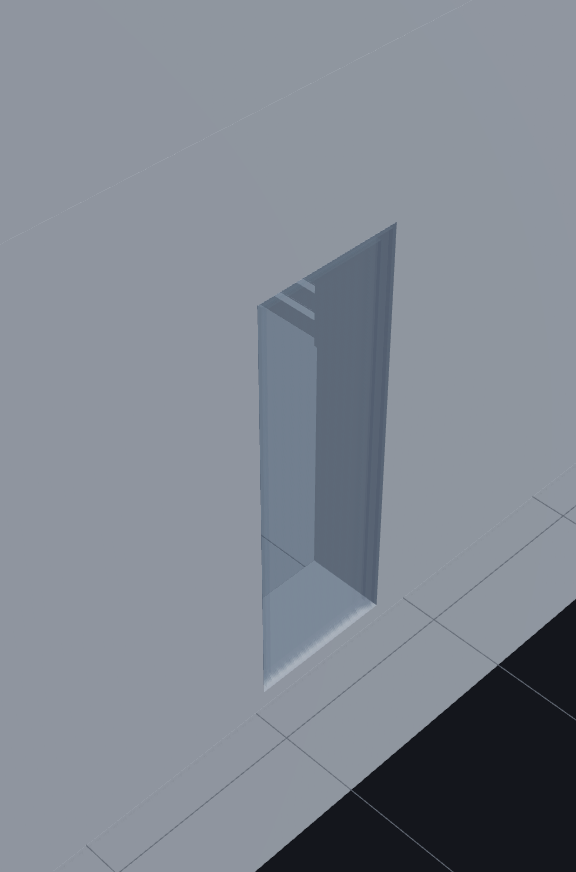
A real wall is not one solid lump — it is a stack of layers. Take the party wall between two Duplex
units (2O2Fr$t4X7Zf8NOew3FKRH): it is built from 7 layers — plasterboard (16mm), metal stud (41mm),
block (193mm), an air gap (50mm), block again (193mm), metal stud (41mm), plasterboard (16mm), 550mm in
all. The source file draws that wall as one outer shape and keeps the 7 thicknesses in a side list
("this shape is made of, in order..."). The Modeller reads that list and draws the wall as 7 real
slabs, one per layer, each at its own measured thickness.
Two of the Duplex party walls (2O2Fr$t4X7Zf8NOew3FNbT and its twin 2O2Fr$t4X7Zf8NOew3FKRi) show
5 slabs, not 7 — and that is correct. The source file itself trims off the neighbour-side stud and
plasterboard, because those belong to the wall on the other side. The Modeller draws the 5 layers that
are really there (493mm) and makes up nothing for the 2 that aren't.
On Duplex, 50 of its 57 walls draw as layer stacks this way. The other 7 are not authored with more than one layer, so they stay one plain box — which is exactly what their source says. Floor slabs and coverings carry layers too.
No layers, no stand-in. If an element is authored with several layers but its layer slabs can't be found, the Modeller does not draw a plain box in its place — it leaves that element out and reports it by name in the browser console.
Only Duplex, for now. Duplex is the only resident that ships its layer data today. The other residents still draw each wall as the one outer shape its file gives — real geometry at the detail the file authored, not a placeholder.
Why the Viewer looks richer on the same building. Open Duplex in the Viewer and you'll see far more going on — because the Viewer loads everything the Modeller deliberately doesn't: pipes, ducts, and other services (904 extra parts). The Modeller is scoped to architecture + structure by design.
Assemble & draw¶
Insert — assemble from the catalog¶
Commits GEOM_INSERT.
The fastest way to build is to assemble, not draw.
- Tap Insert (the cube pill) to open the BOM catalog on the left.
- Search or filter (All · Structure · Openings · Furniture · Sets), then click a component — or a whole Set (an assembly that drops its entire recipe at once).
- Aim on the grid (press R to rotate, set Elev for storey height) — a ghost previews the landing — then click to place.
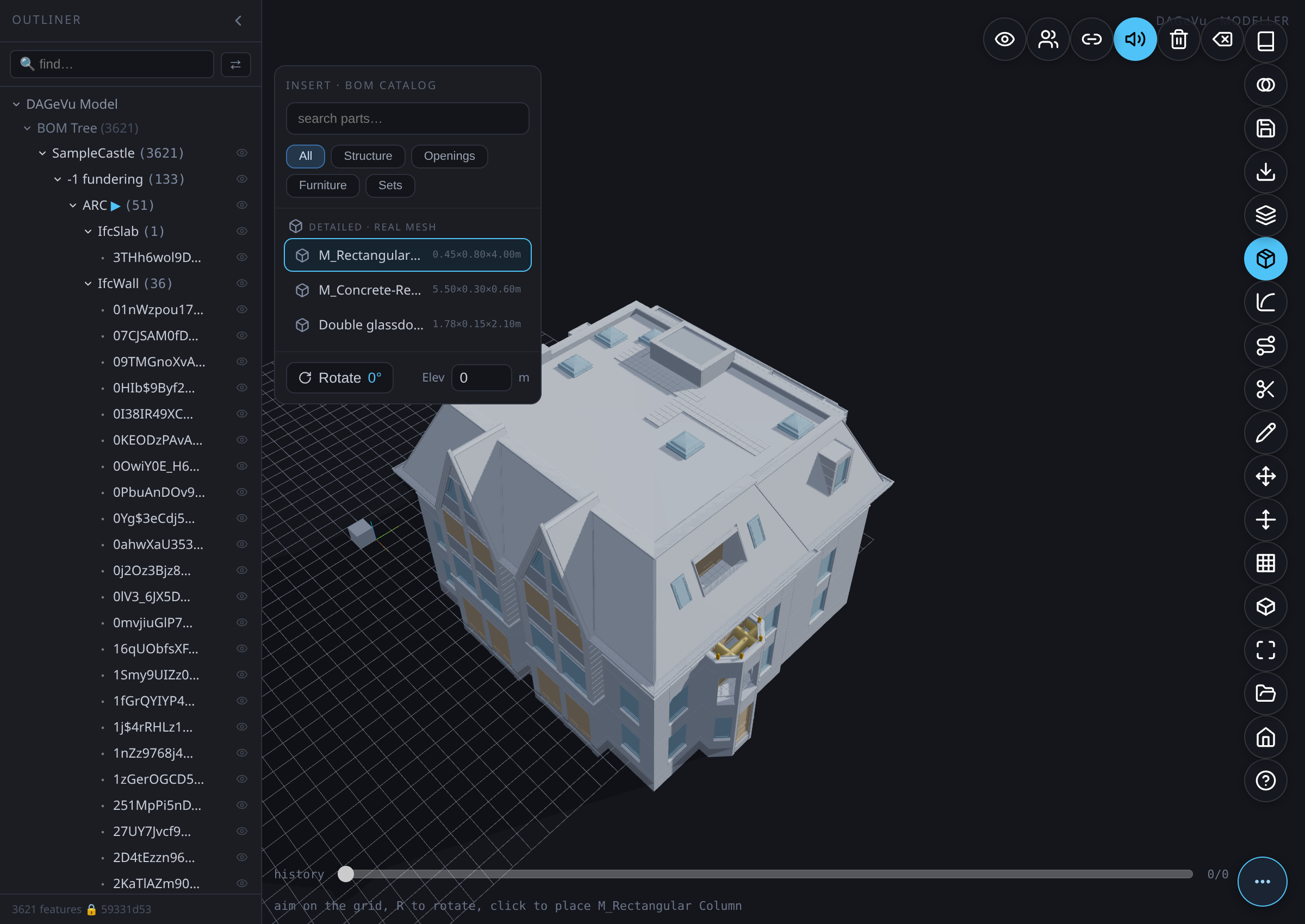
The component lands as one signed GEOM_INSERT (a LOD-200 box that lazily refines to its real library
mesh). An assembly drops as one grouped op of N seated, oriented parts — a door takes its host wall's
facing automatically. Undo removes it exactly.
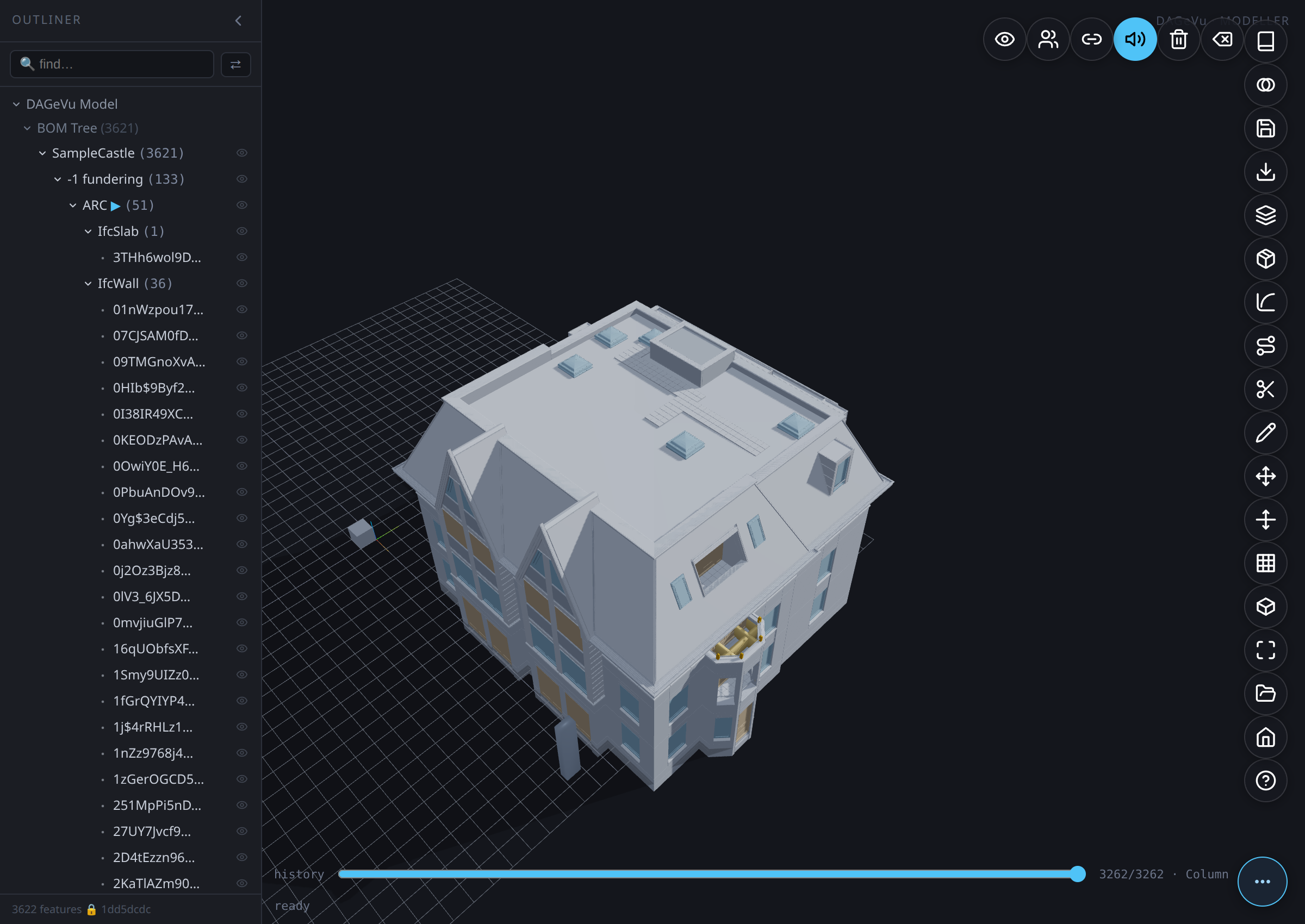
Sketch → Extrude — draw a wall¶
Commits GEOM_EXTRUDE_POLY (a real occt B-rep solid).
- Tap Sketch and click ≥3 points on the grid to lay a closed profile.
- Set the depth, then tap Extrude.
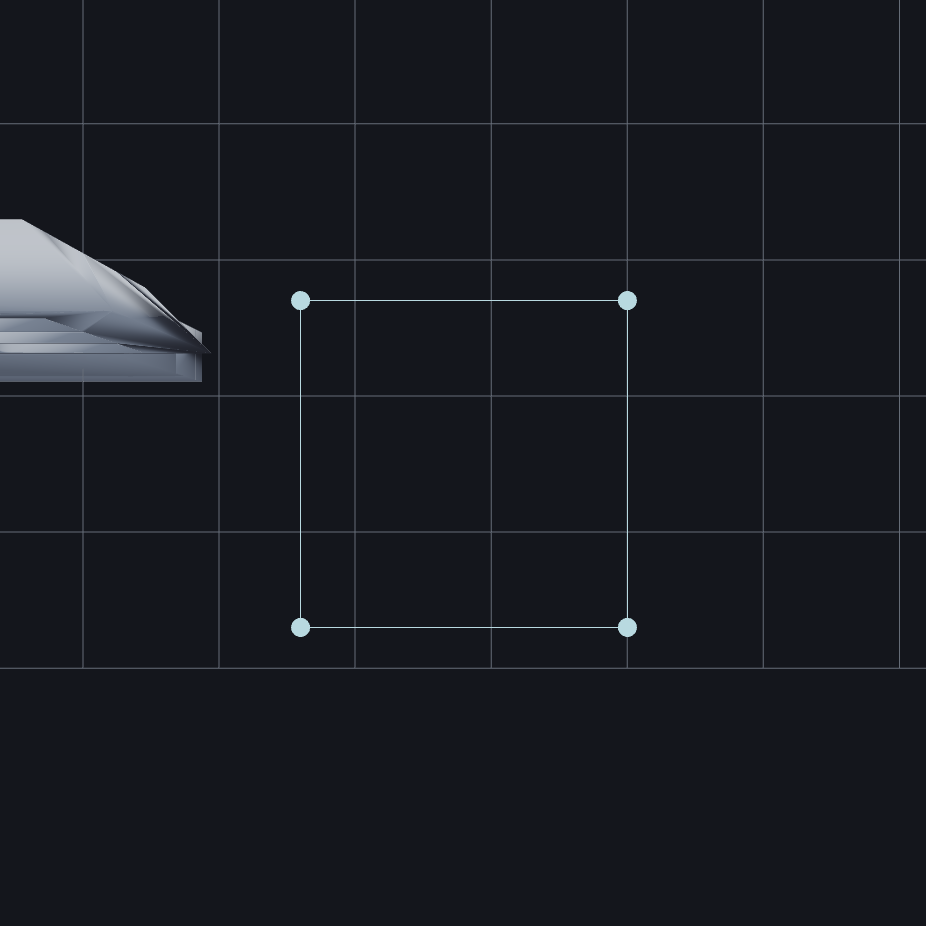
The solved polygon is swept to depth and committed as one signed operation.
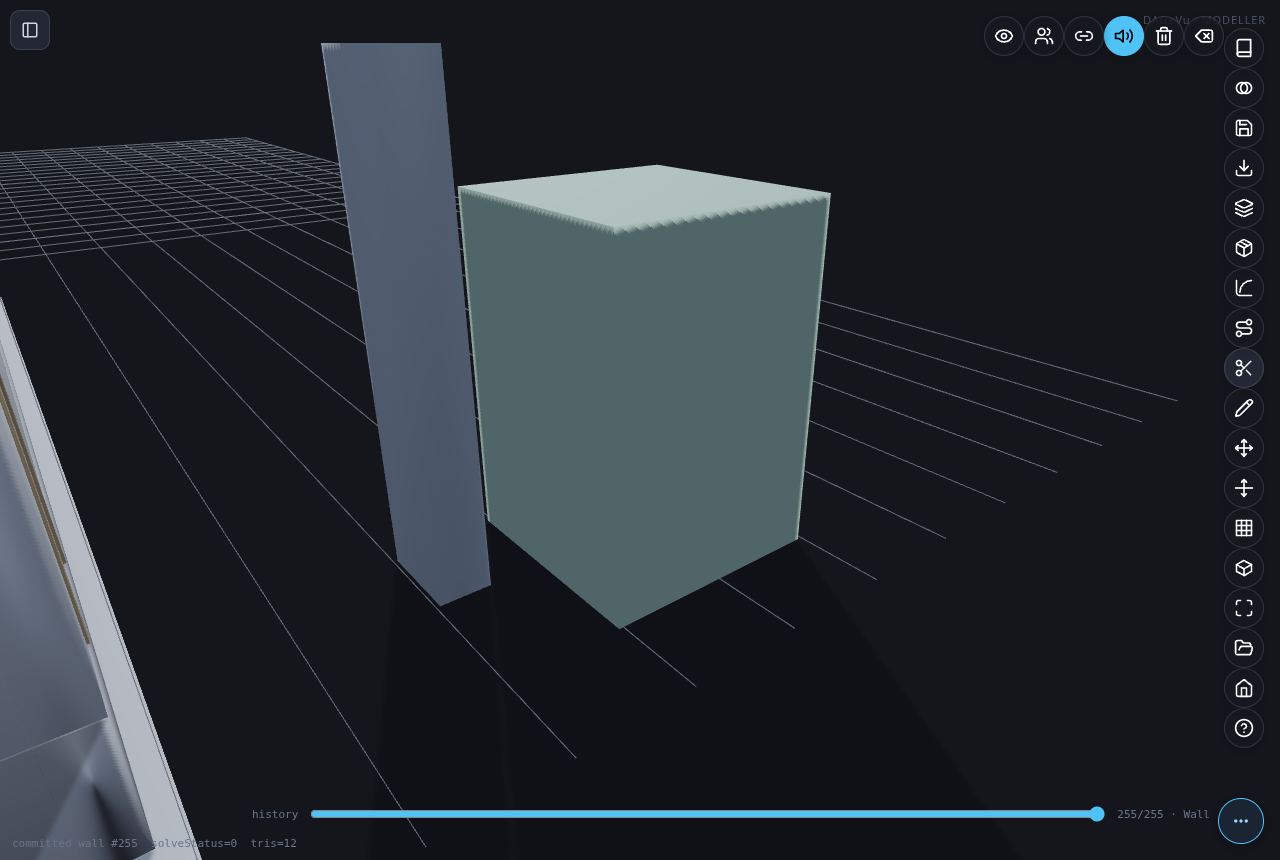
Type an exact dimension (rect / square)¶
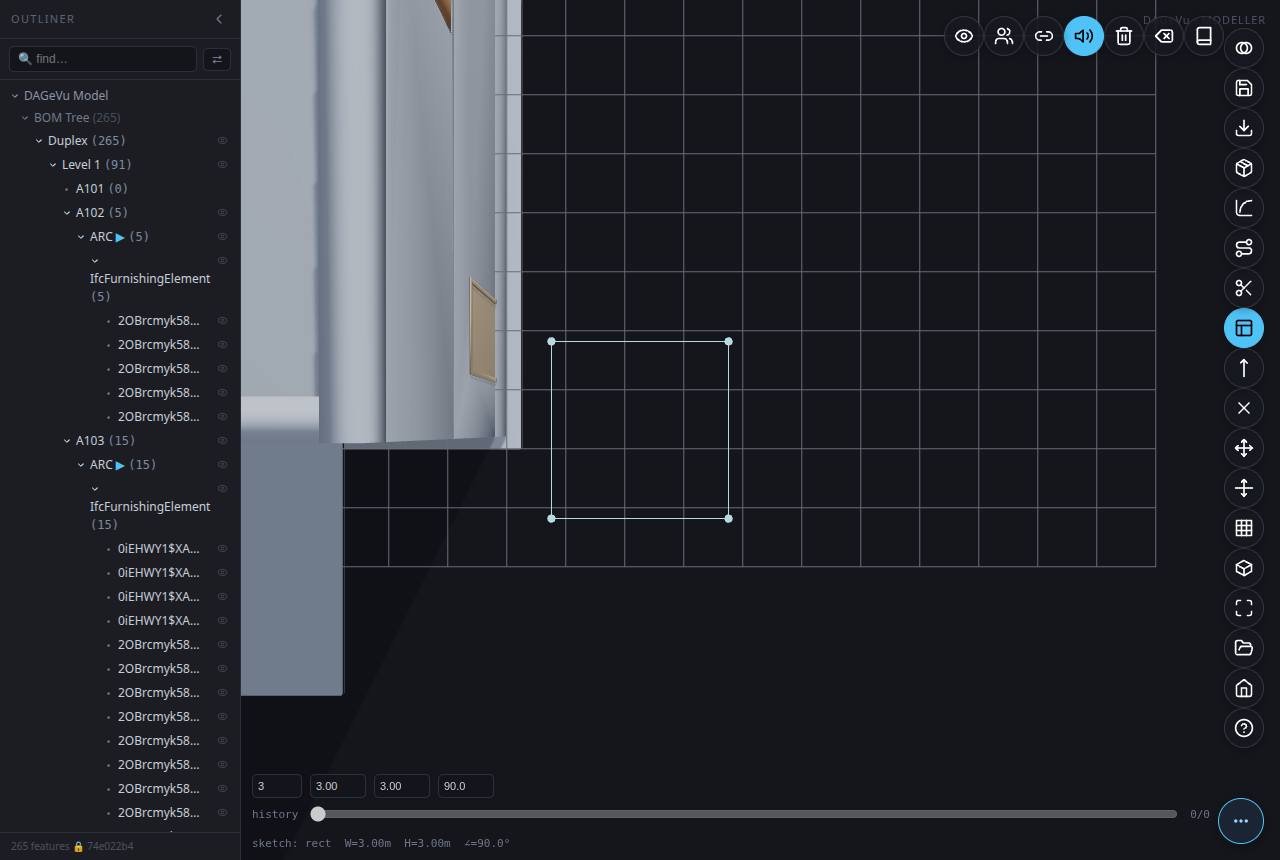
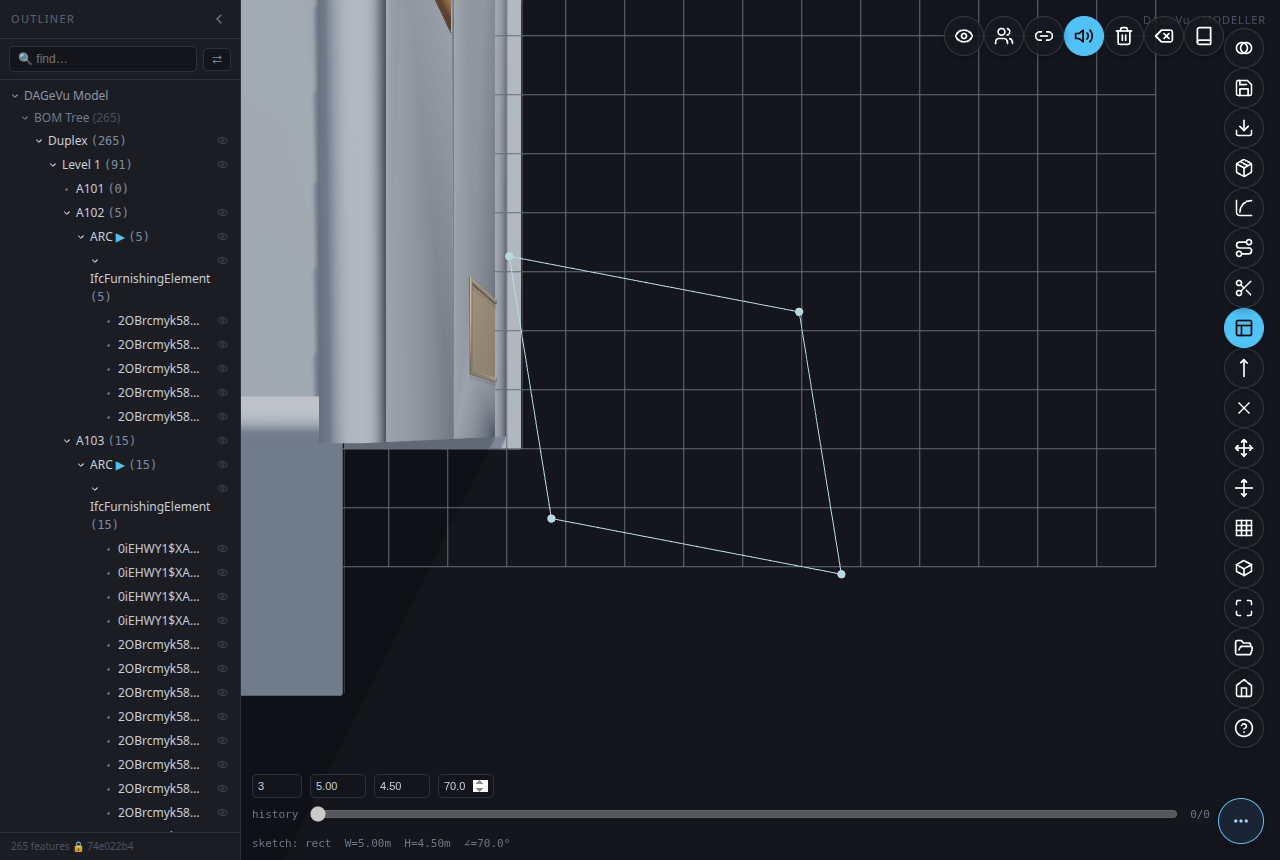
Cycle Axis to Rect or Square before or during your 4 clicks — once the profile closes, W / H / ∠ fields appear showing the sketch's current width, height, and corner angle. Type a new number into any of them and press Enter: the WHOLE profile re-solves from that one value, not just the one edge — a rectangle at 90°, or a true parallelogram at any other typed angle.
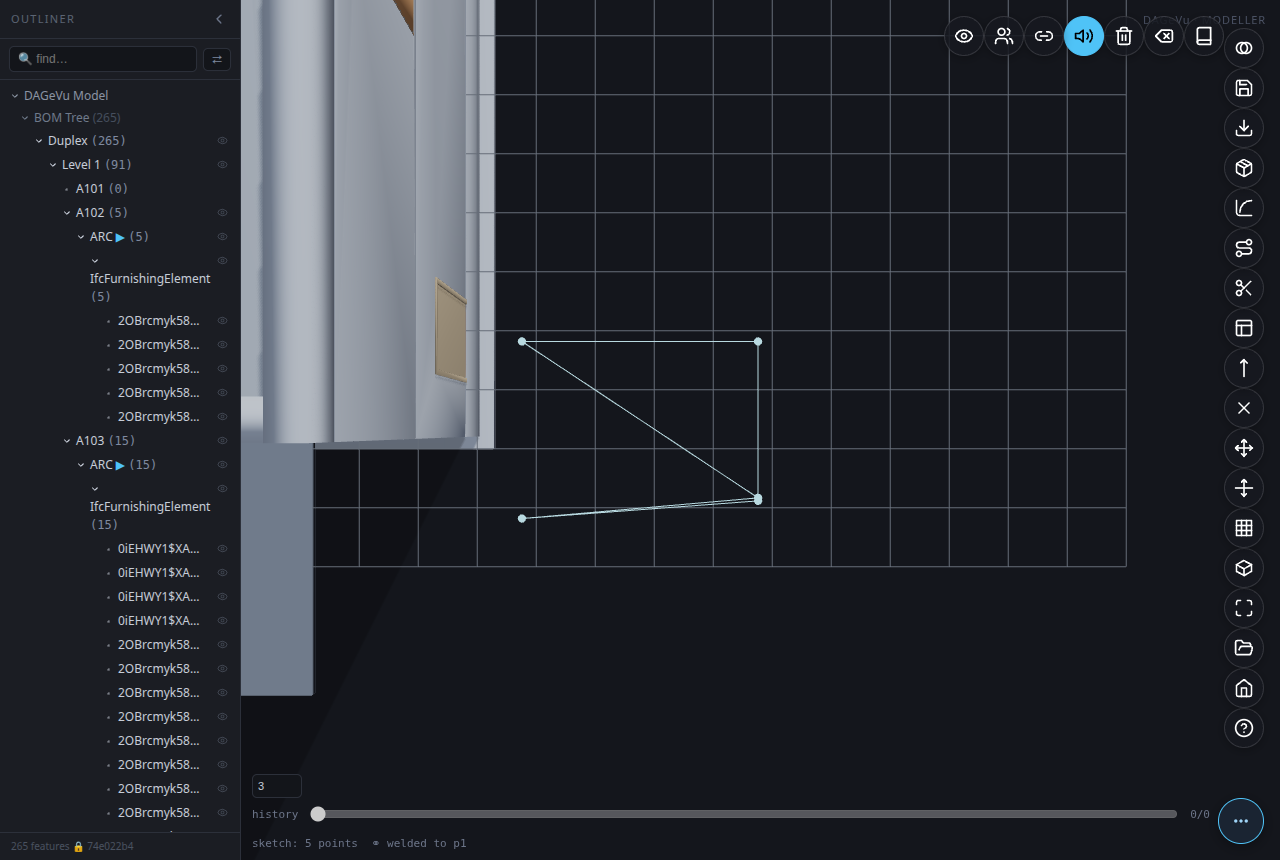
A click that lands near an earlier point in the same sketch welds the new point exactly onto it
(the status line reads welded to p«N») instead of adding a near-duplicate point a few centimetres off —
useful for closing a hand-drawn polygon precisely back onto its own start.
Circle → Extrude — draw a cylinder¶
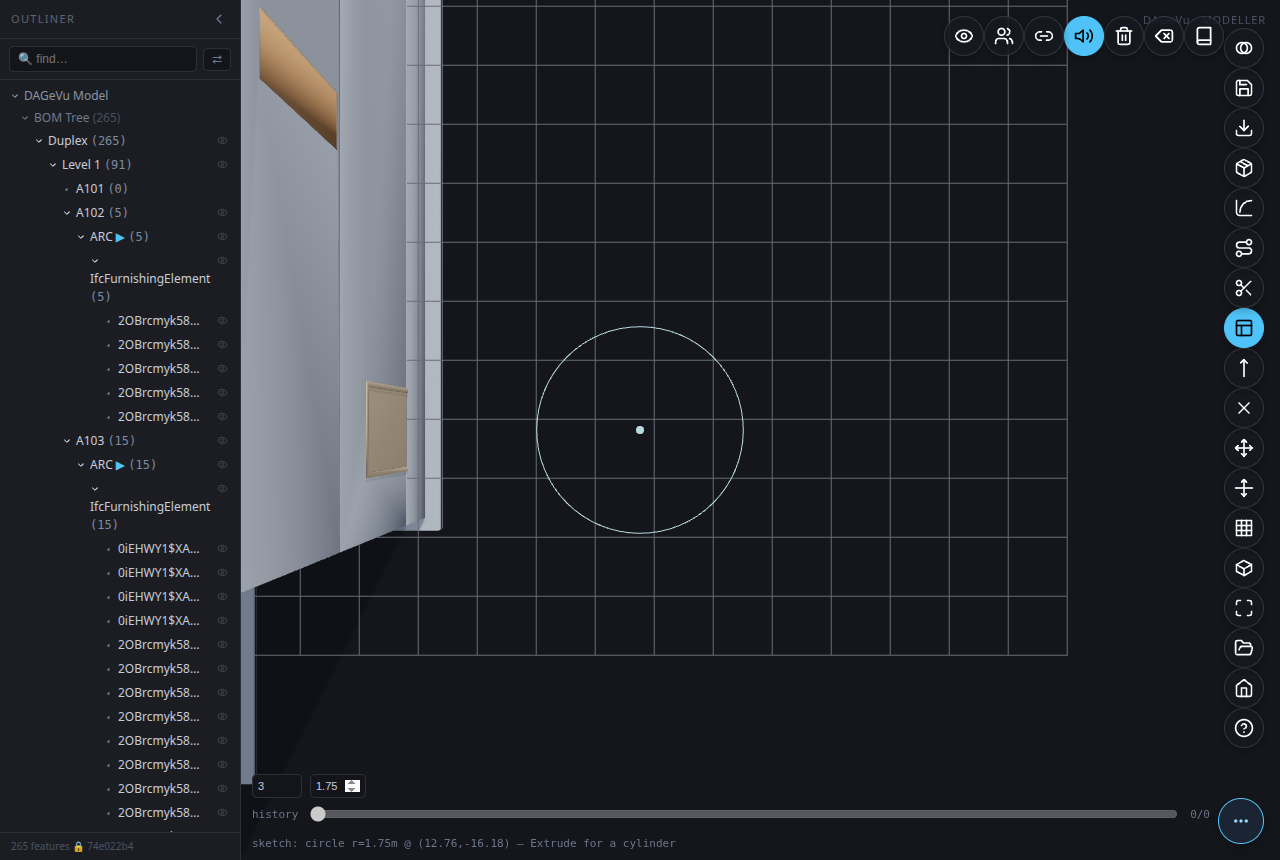
Commits GEOM_EXTRUDE_POLY with a circle profile (a real occt cylinder, not a tessellated polygon).
- Cycle Axis to Circle.
- Click a centre point, then click a second point to set the radius — or type an exact radius into the field that appears.
- Set the depth, then tap Extrude.
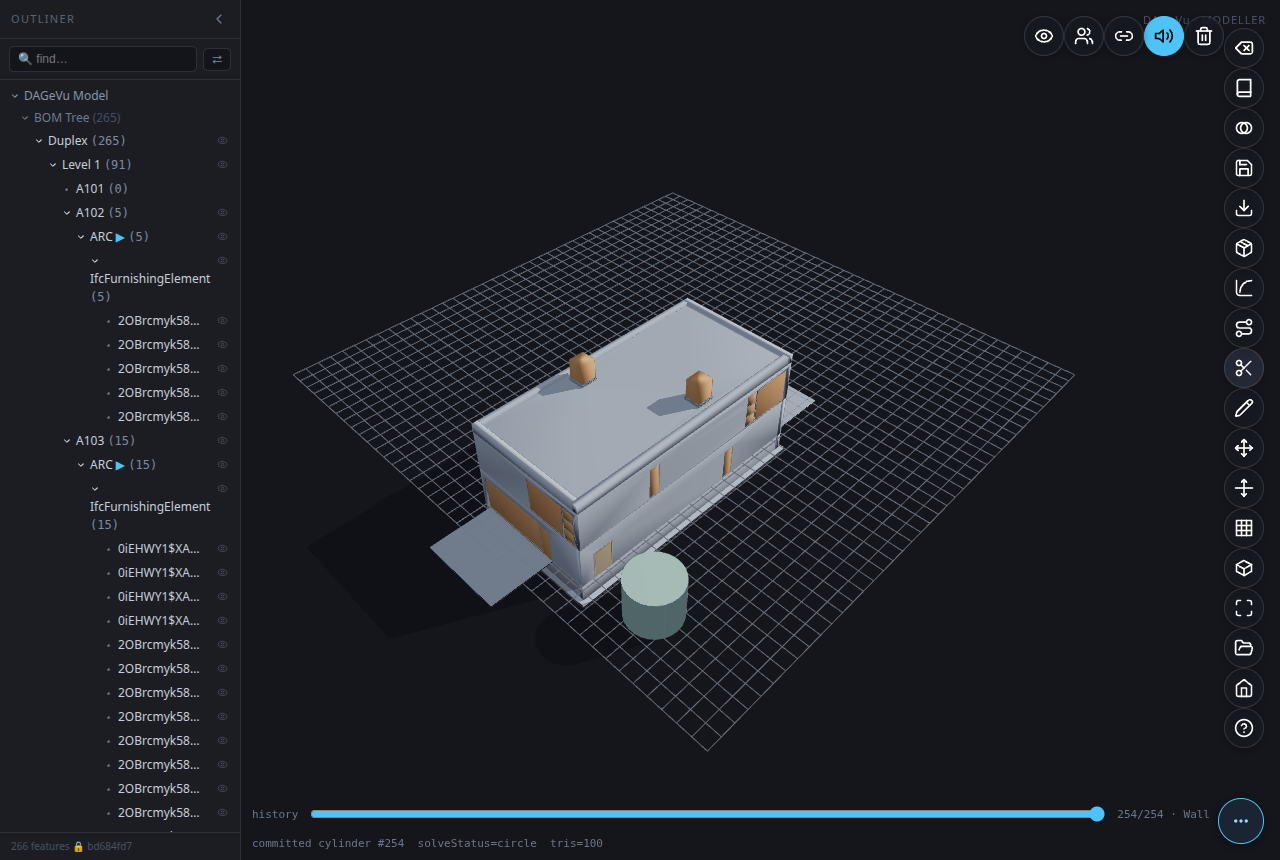
The circle sweeps into a genuine cylindrical solid (makeCircleEdge → a real curved B-rep face), the same
signed-op path as a polygon extrude.
Route → Sweep-Run — lay a run / duct¶
Commits GEOM_SWEEP.
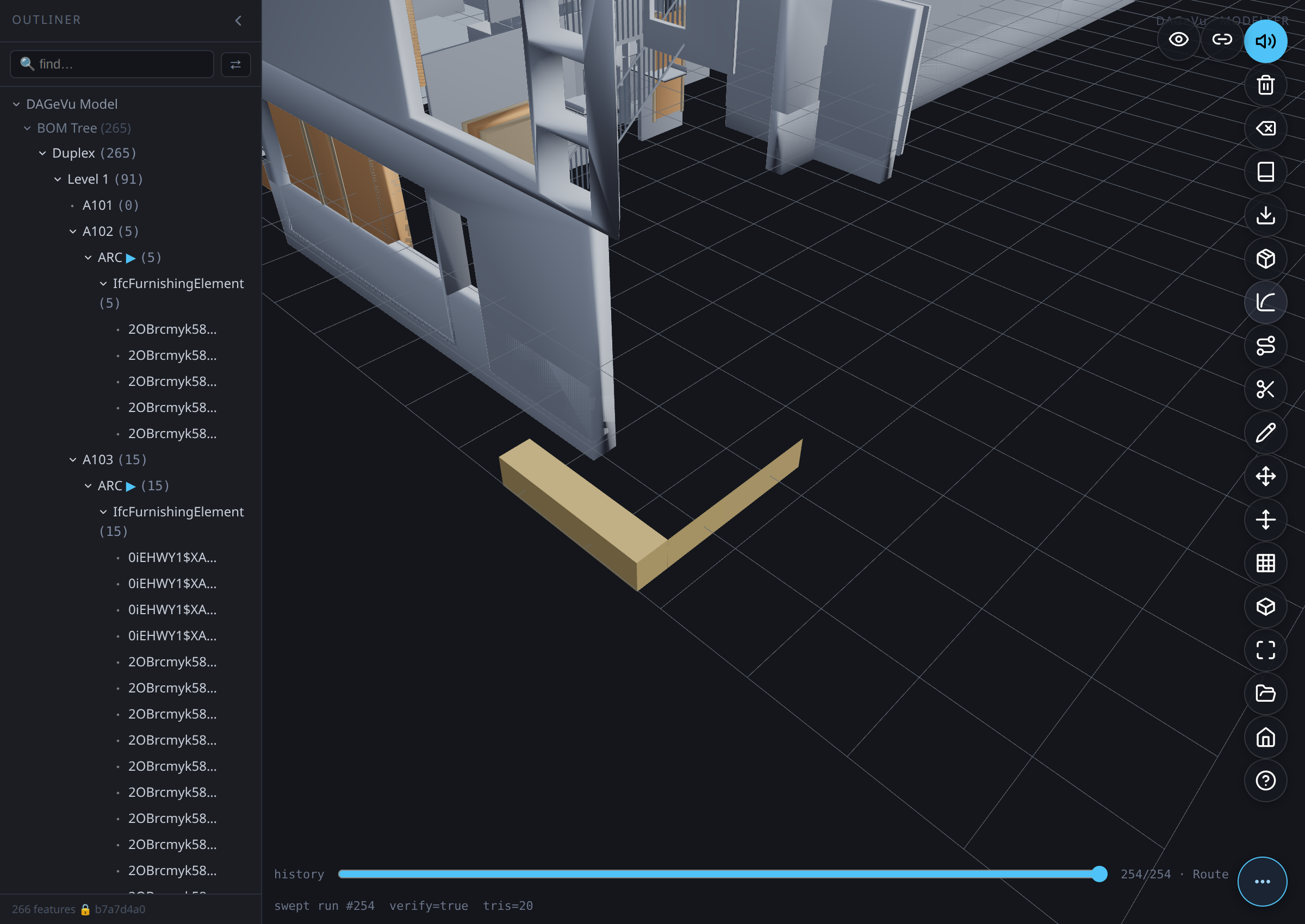
- Tap Route and click ≥2 points to lay a spine.
- Set the profile size, then tap Sweep-Run.
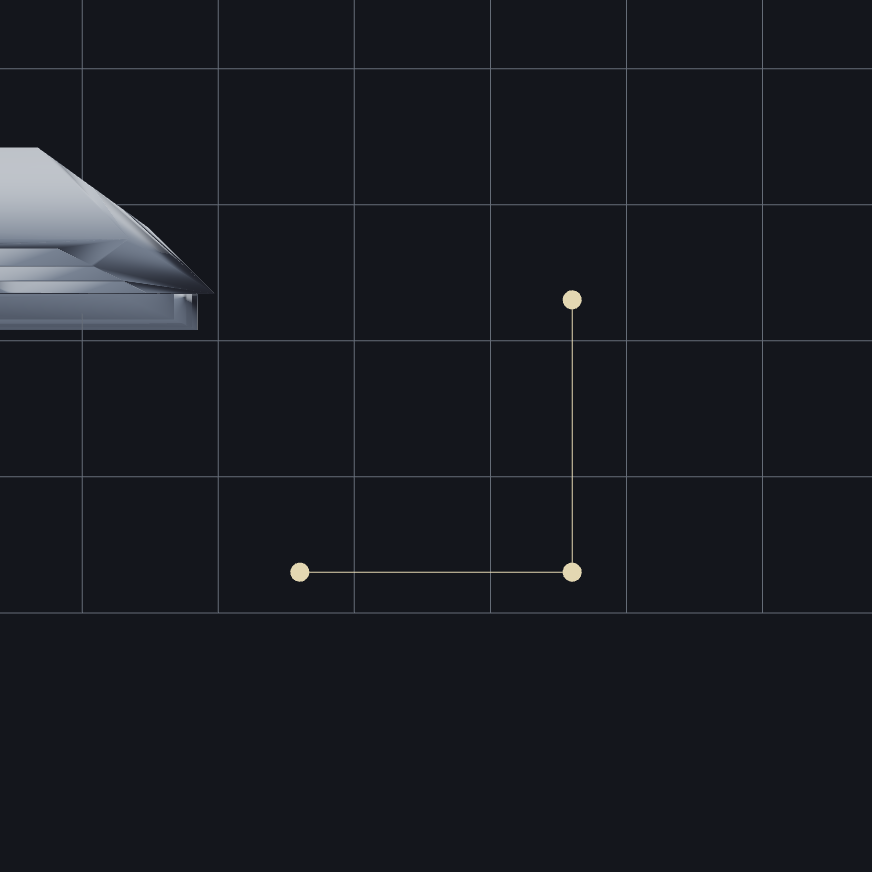
The profile is swept along the spine (an occt pipe) as one signed op — the way MEP runs are authored.
Cut — open a wall¶
Commits GEOM_CUT (a child of the selected wall).
- Click a wall to select it.
- Tap Cut — a window void is derived from the wall and subtracted.
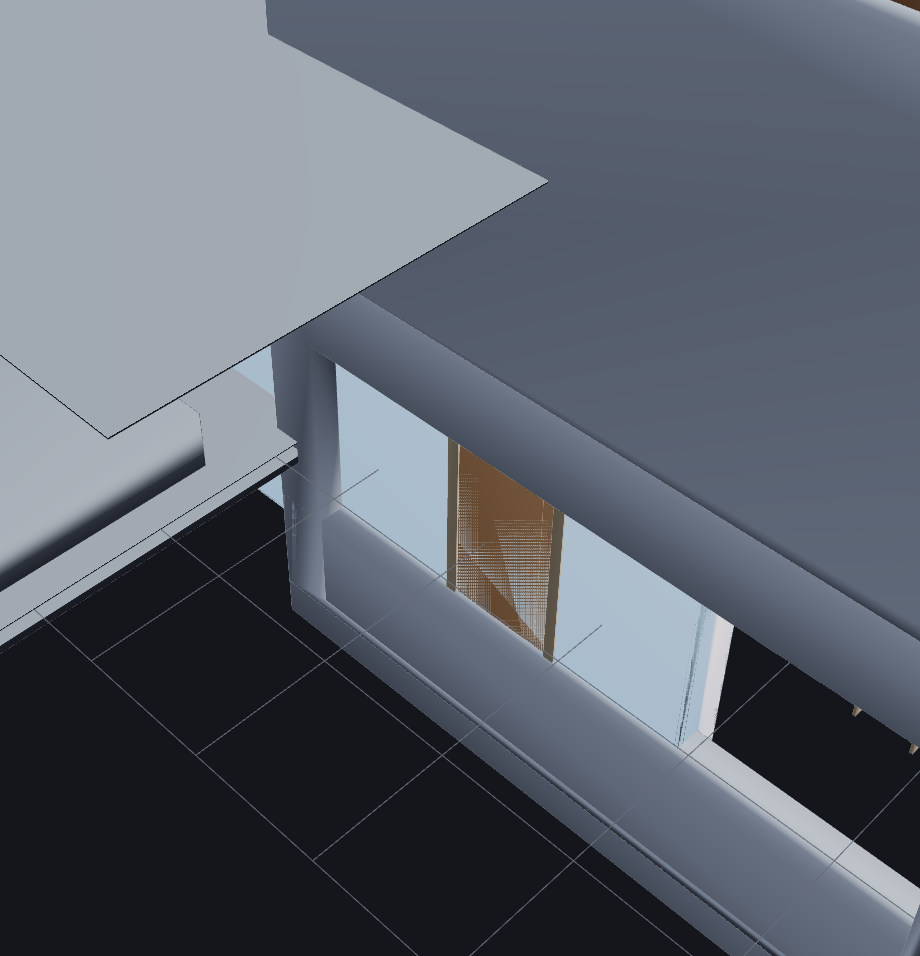
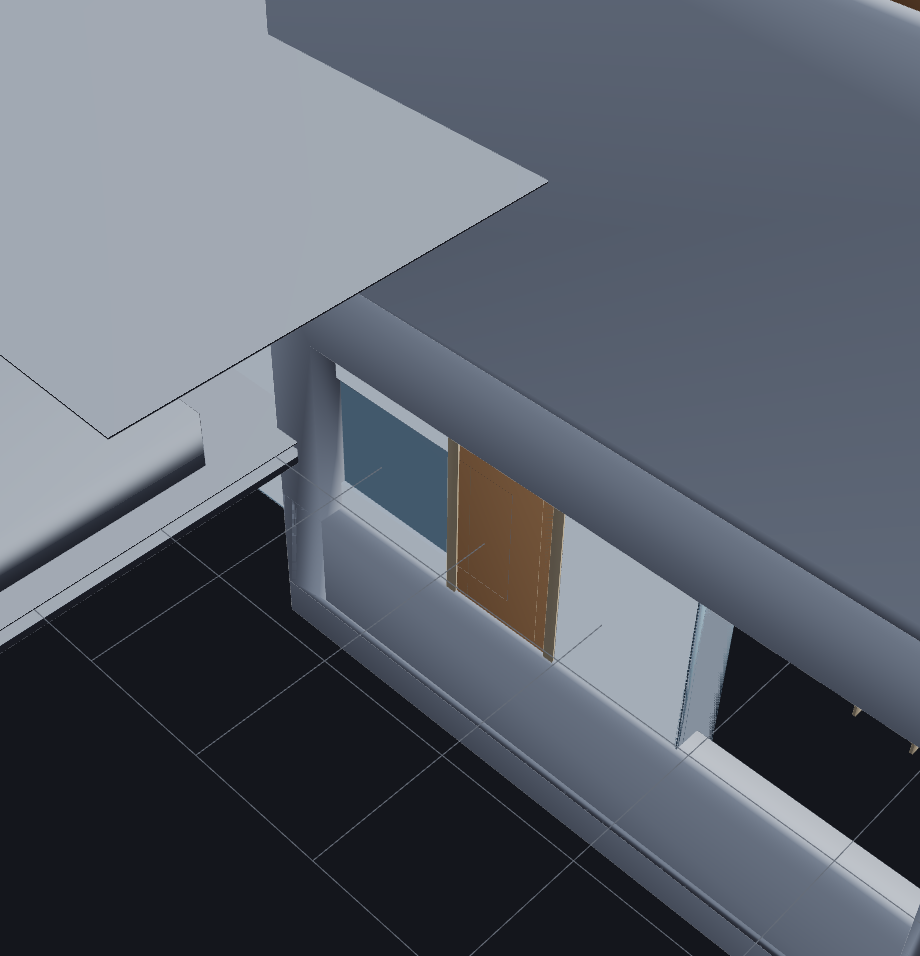
The opening shows immediately; undo closes it to the exact original frame. (Cutting a seeded ARC wall promotes it to a B-rep just-in-time — from its measured box, or, on a layered wall, from its real layer slabs — so it is never approximated. See What a wall is made of.)
Fillet — round a solid's edge¶
Commits GEOM_FILLET.
- Select a B-rep solid and tap Fillet — its edges become pickable markers.
- Click an edge (or several), set the radius, then tap Apply.
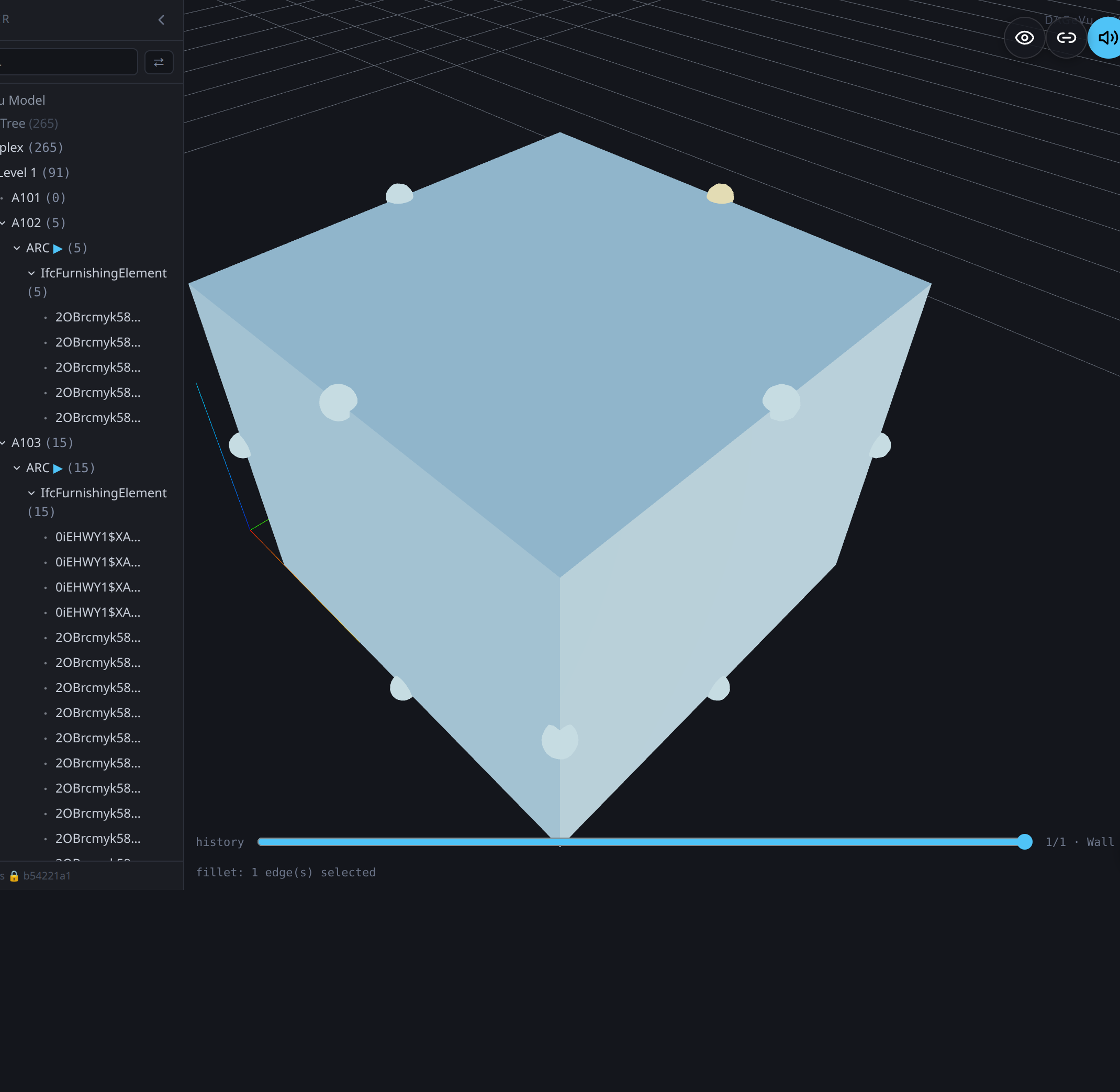
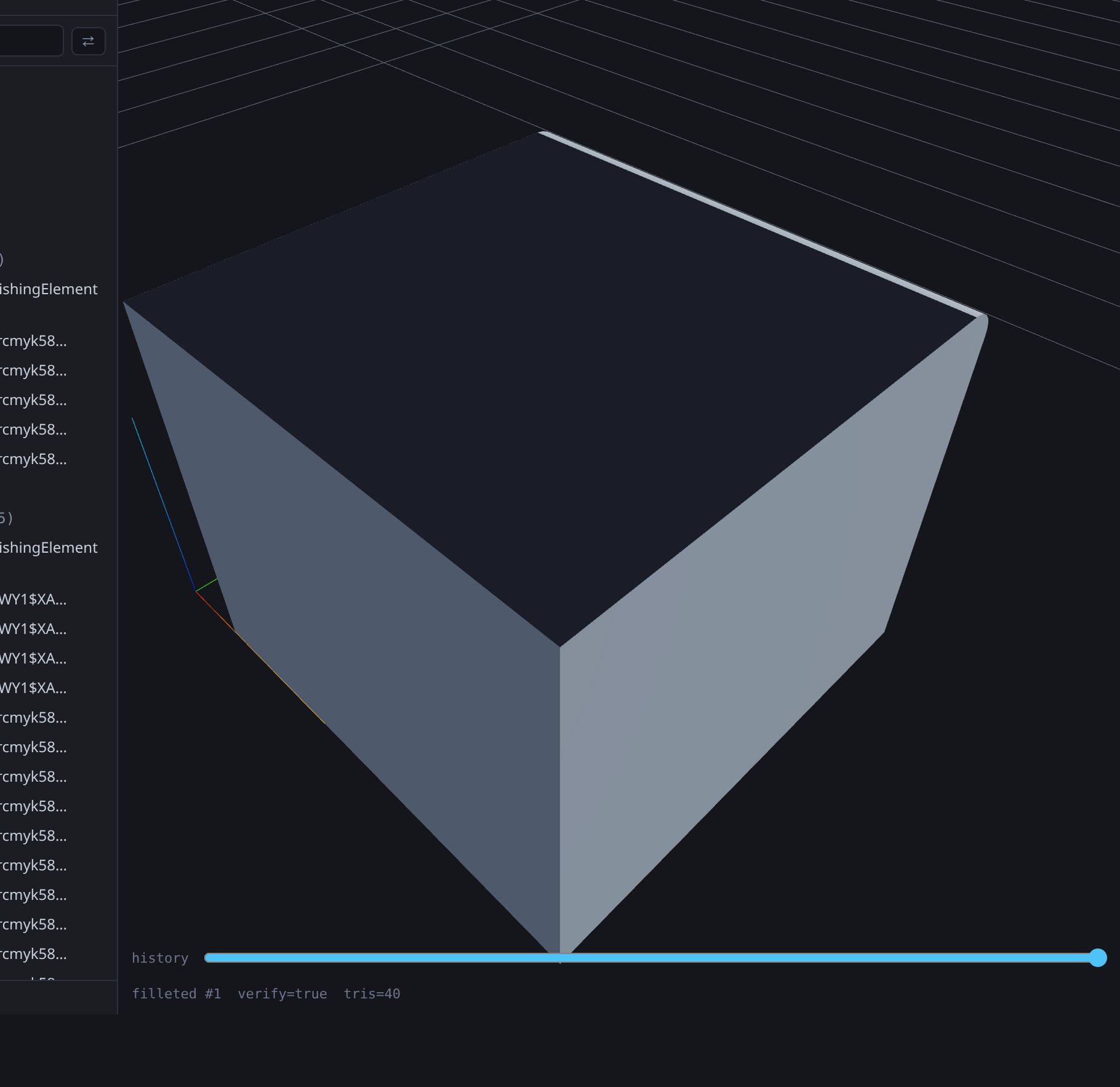
The picked edge is rounded in place (the wall's triangle count grows exactly where the round lands); undo restores it.
Transform¶
Every transform below — move, scale, rotate, grid-stretch, delete — commits as one signed operation in the same tamper-evident log that drives undo/redo/history-scrub, and a move or stretch is checked against the building's own recovered relationships before it settles: a hosted door rides its host wall rather than divorcing from it, and a delta-based conformity gate flags only what the edit actually broke (RED) or softly disturbed (ORANGE) — never a pre-existing condition the building already shipped with. That combination — open a complete, real, production IFC and safely edit part of it — is what a Bonsai/FreeCAD-style direct editor doesn't do.
Which elements touch which is worked out from each element's real shape, where it actually sits — not from a rough box around its insertion point, which could land up to about 0.4 m off. (Before this was fixed on 18 September 2026, a gridline drag on a real building could leave its walls where they were.)
Full dated disclosure: Event-Sourced Geometry & the Graph-Cascade Conformity Layer.
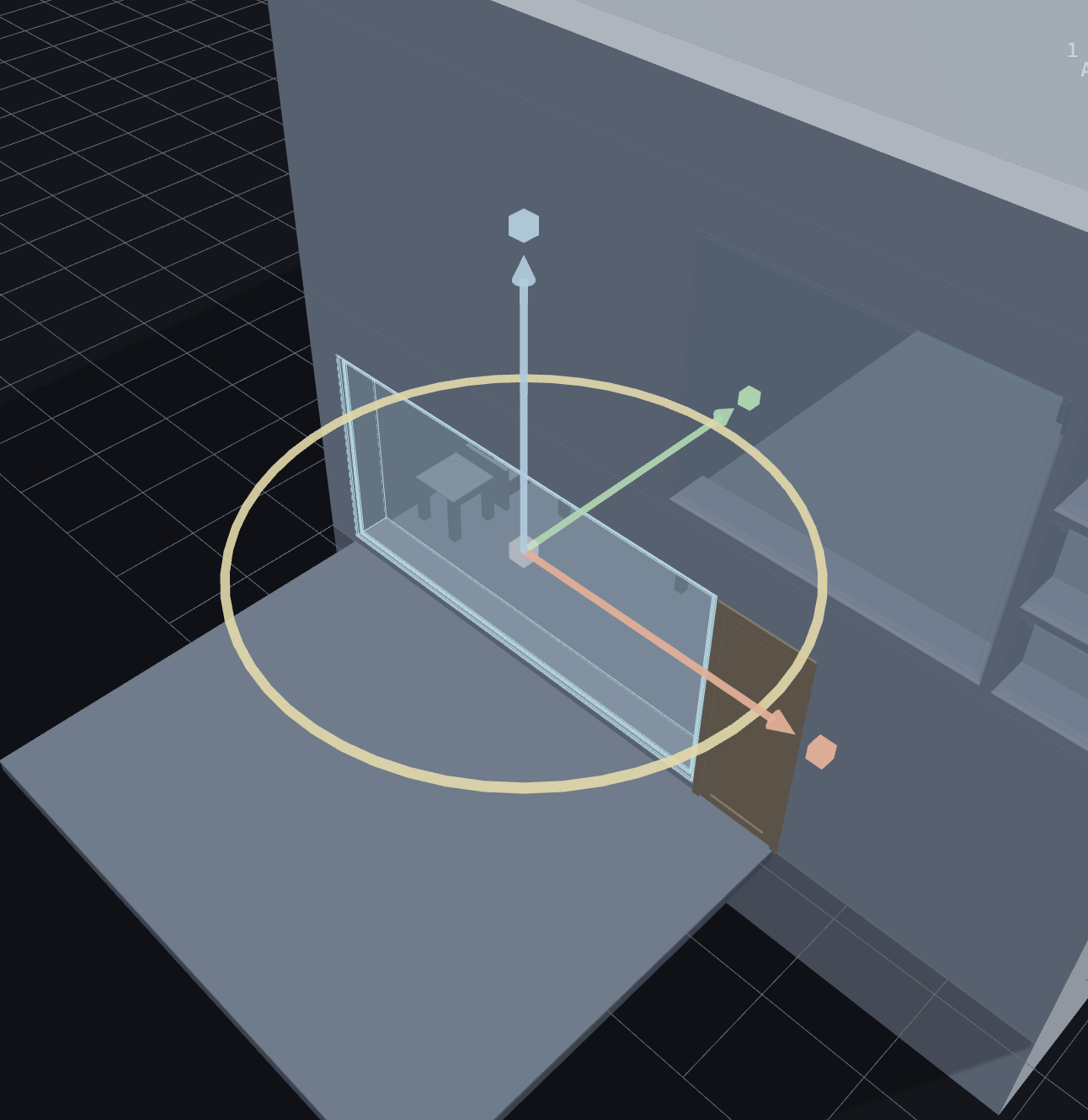
Select an element and tap Move to raise the transform gizmo — the shared handle for moving, scaling and rotating.
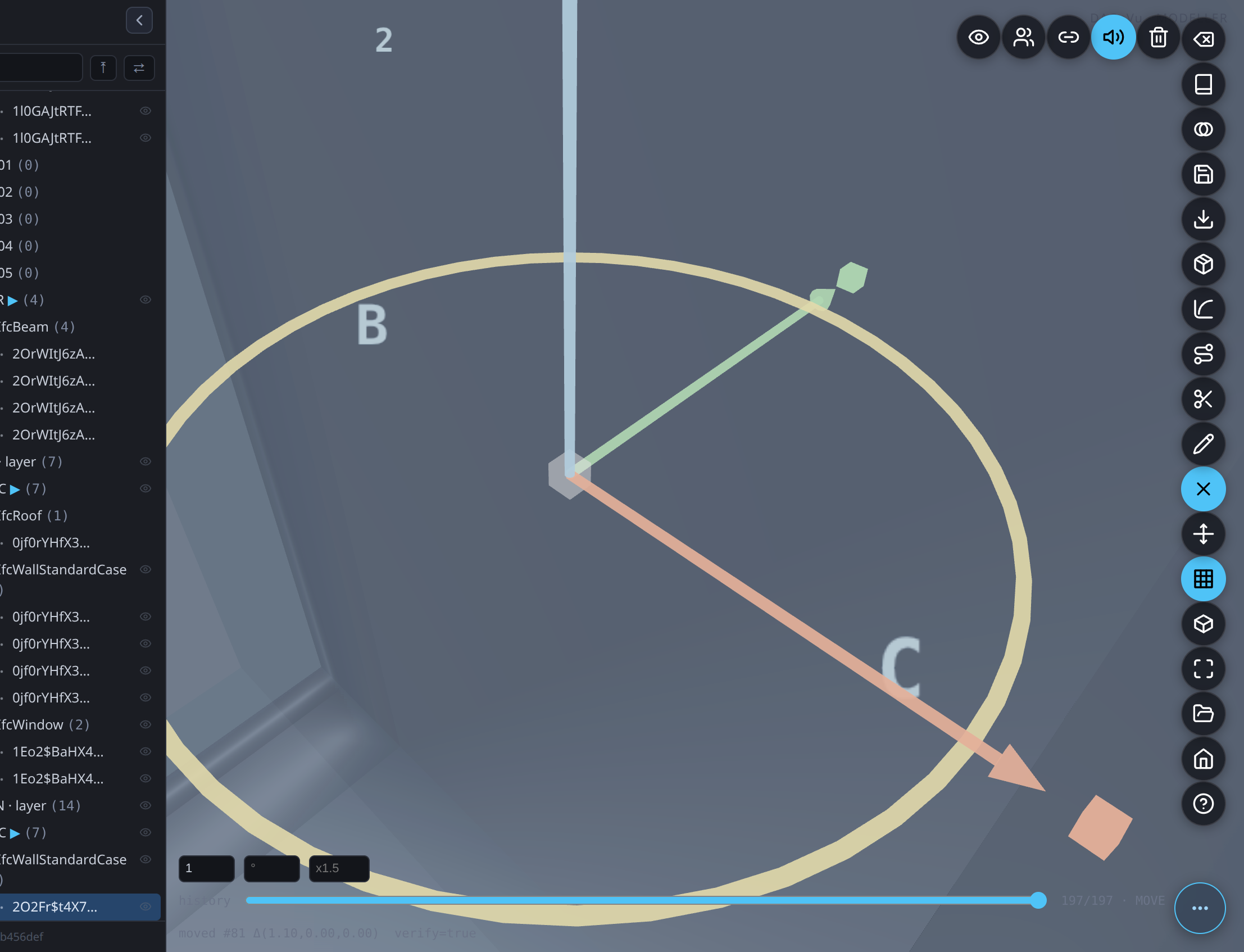
While you drag any handle, a floating readout follows your cursor showing the live delta (distance moved, scale factor, or degrees turned) — the same number the status line prints on release, just visible mid-drag instead of only after.
Move¶
Commits GEOM_MOVE {dx,dy,dz}.
- Select an element to raise the transform gizmo.
- Drag an axis arrow (X/Y/Z, grid-snapped) — or nudge with the arrow keys for a free move.
- Release to commit. A moved host drags its hosted fillings (a door rides its wall); undo is exact to the micron.
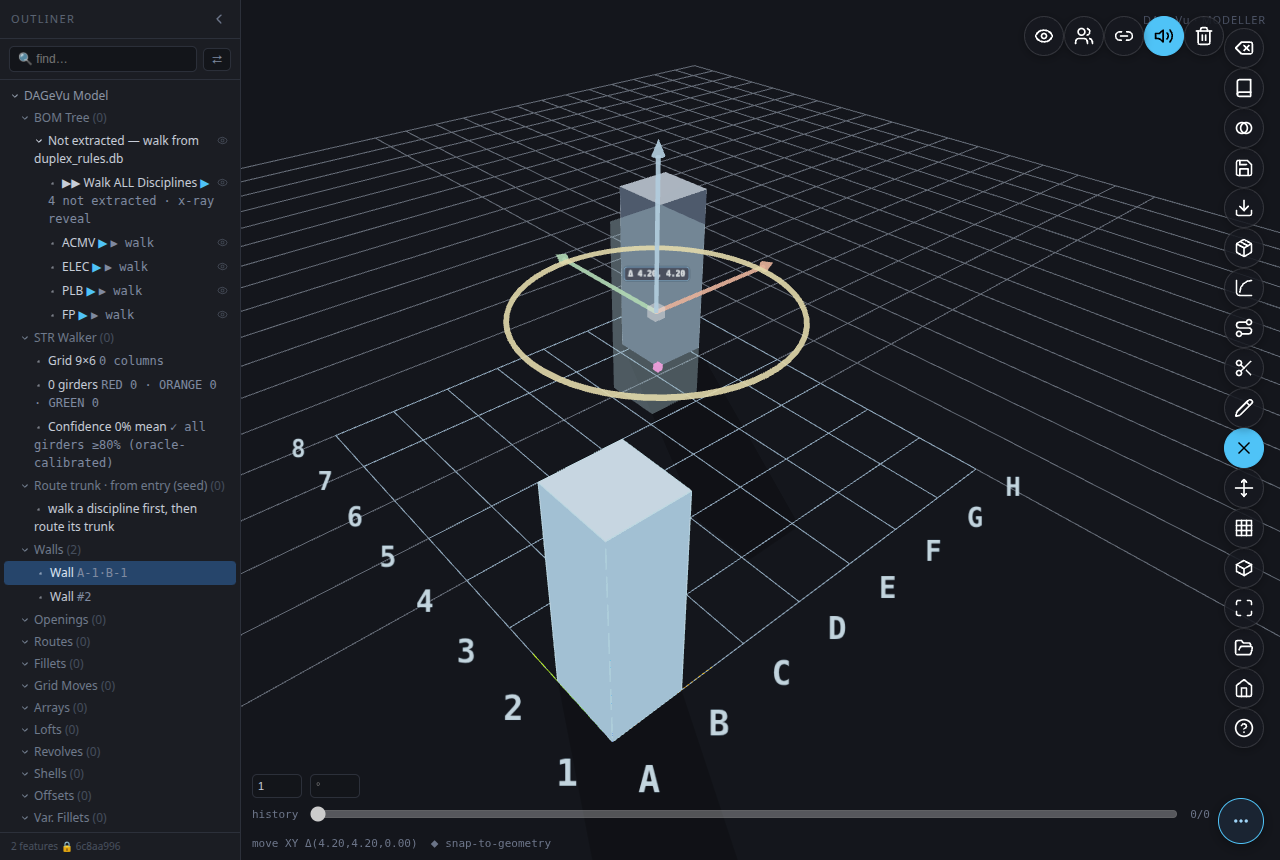
Snap-to-geometry¶
While dragging the ground-plane hub (not a single axis arrow), the handle also snaps to nearby
vertices, edge-midpoints, and face-centers of OTHER elements — not just the grid. A small marker
appears at the candidate point, and the status line reads snap-to-geometry; releasing commits the exact
snapped coordinate, read from the other element's own real bounding box (never invented).
Multi-select¶
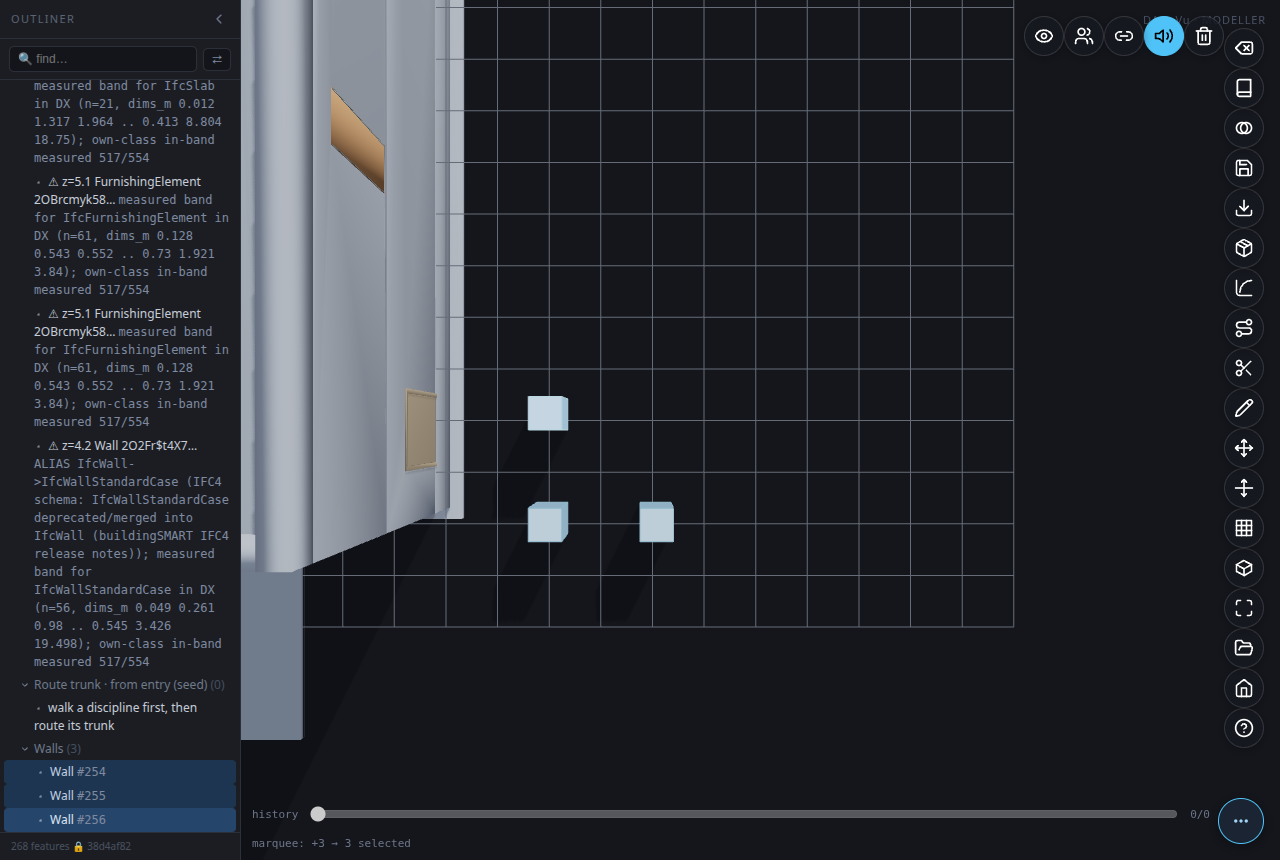
Shift-drag an empty-space marquee to select every element whose on-screen footprint falls inside the box (shift-click adds/removes one at a time). The transform gizmo then acts on the WHOLE set — a group move/rotate/scale commits the same delta to every selected element about their shared centre.
Scale¶
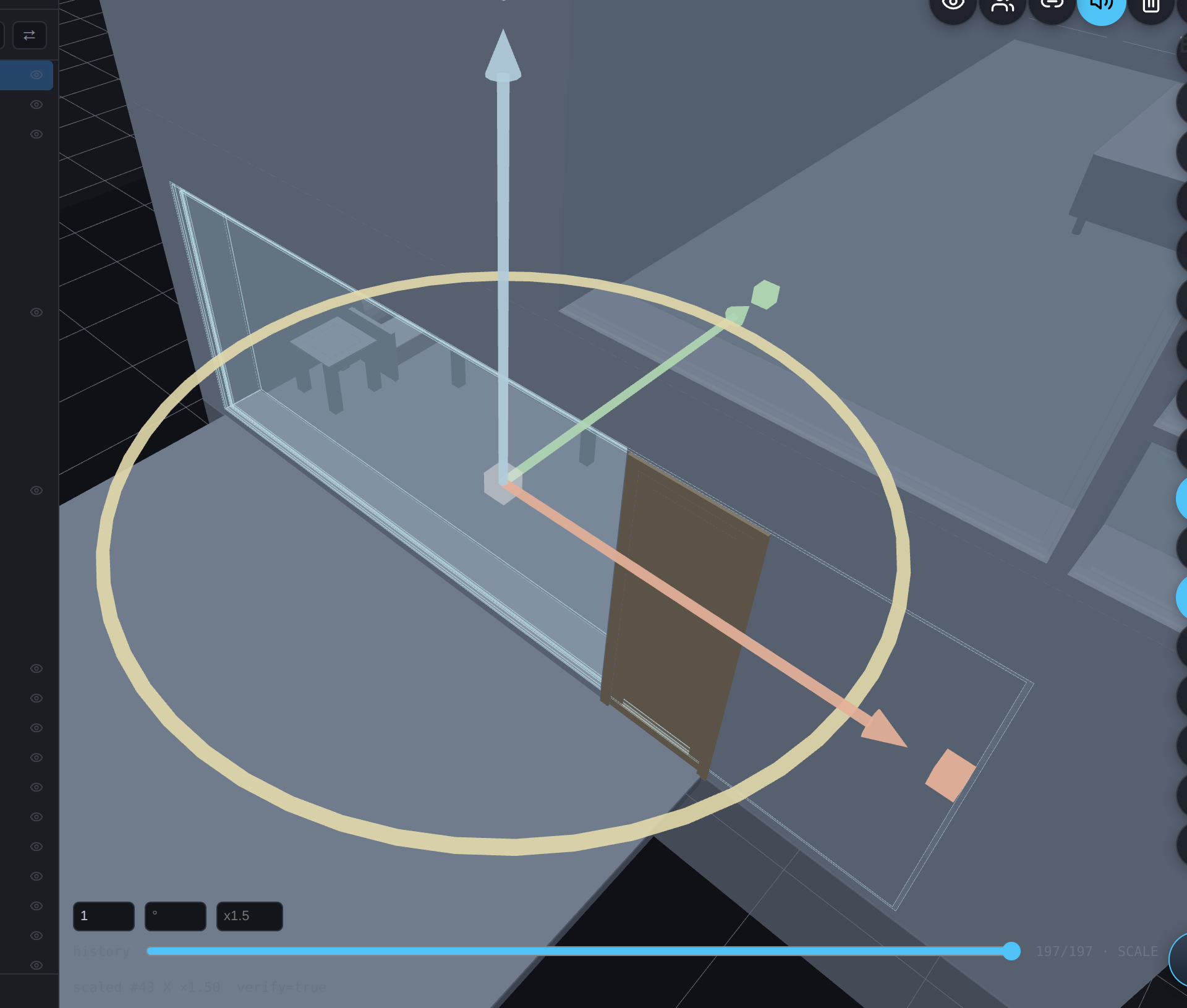
Commits GEOM_SCALE {fx,fy,fz}.
- Select a single component to raise the gizmo.
- Drag a cube handle to stretch that axis — it's edge-anchored, so the opposite face stays put. The preview follows the element's own local axes (not the world grid), so a rotated element previews and commits identically — no snap-back or mismatch on release.
- Release to commit. The rendered extent grows by exactly the committed factor (the status line reads the signed factor).
Rotate¶
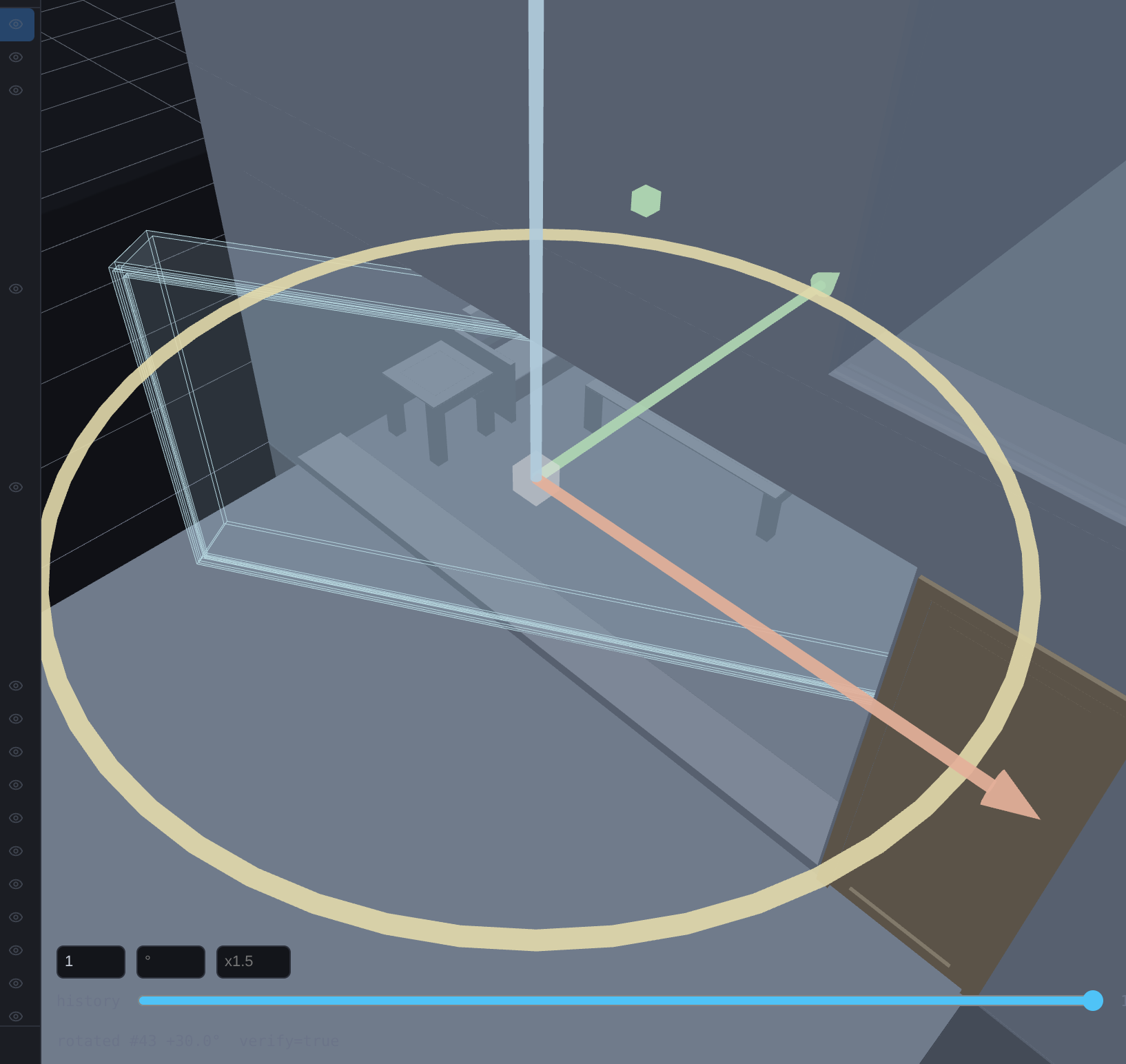
Commits GEOM_ROTATE {drot}.
- Select an element to raise the gizmo.
- Drag the yellow yaw ring to spin the selection about its centre — 15° snap, hold
Shiftfor a free angle. - Release to commit. The rendered footprint turns by exactly the committed angle.
Keyboard-arm a handle (T / S)¶
With an element selected, press T to arm the rotate ring or S to arm the scale cubes directly
— no need to first tap Move and then find the right handle. Arming is a pure affordance: the armed handle
lights at full opacity while the rest of the gizmo dims, and dragging it commits through the exact same
GEOM_ROTATE/GEOM_SCALE path as clicking the handle normally would. Press the same key again (or Esc)
to disarm. R is reserved for Insert, so it doesn't arm anything here.
Grid-Stretch¶
Commits GEOM_GRID_MOVE.
- Tap Move Grid.
- Drag a gridline.
- Release to commit. Walls attached to that line recompose — a span stretches, an attached wall translates — as one signed operation. A hosted door or window holds its position by default rather than stretching or divorcing from it, same as Move.
What that recompose actually does, in plain terms:
- Walls fill the gap, never leave one. Every wall on the dragged gridline is classified against it first — a wall that only touches the gridline translates with it, a wall that spans across to another gridline stretches, with its far end staying anchored on that other gridline. Either way the wall keeps meeting the gridline; it can't detach or overshoot.
- Only the grabbed bay moves. The edit is scoped to the walls actually connected to the dragged gridline — a wall elsewhere in the building that happens to sit at the same coordinate, but belongs to an unrelated room, is left alone.
- Hosted doors and windows are ANCHORED by default, never distort. A filling keeps its own size and its own world position while its host stretches around it — zero induced move. Ctrl+click an opening before dragging to opt it into Ride instead, where it keeps its proportional position along the host and moves by its own share of the stretch. Either mode, it never scales and never divorces from its host.
- Furniture and fixtures stay put. They aren't part of the grid at all — a couch sitting in a room doesn't drag when the room's wall stretches.
Anchor vs. Ride is not a guess about what looks hosted. It follows the authored host↔opening↔filling chain recovered verbatim from the building's own IFC, so a door is only ever held or ridden against the wall its designer actually put it in — and where a building's author never declared that relationship, the modeller says so rather than inventing one. In practice that means the relationship is exact on SampleHouse (all 7 hosted openings) and Duplex (36 of its 38), and partial on SampleCastle, whose window-frame walls are consumed by their own openings and so aren't separate things to hold or ride.
Since 18 September 2026 four more residents carry it too, so a door or window there holds or rides its wall the same way:
| Resident | Doors & windows that hold or ride their wall |
|---|---|
| HHS Office | 99 |
| Clinic | 302 |
| Hospital | 506 |
| HospitalGarage | 36 |
Terminal is the one exception. Its source file never says which door or window sits in which wall, so there is nothing real to hold or ride — the Modeller leaves it that way rather than guessing.
A carved hole comes along too. If the held or ridden opening has a real cut-through void (a door or
window opening actually subtracted from the wall, not a catalog frame sitting in front of it), the hole
itself is kept in sync with it — its centre never drifts off the door under a stretch, its width is held
exactly (not silently widened by the stretch's own scale factor), and it survives the host wall being
rotated a multiple of 90° after the cut. The status line names it directly: N hole(s) held, with a
(Δw ±x.xxm) suffix only on the rare axis this can't correct (the wall's own thickness direction, where
holding the width could stop the cut from reaching all the way through).
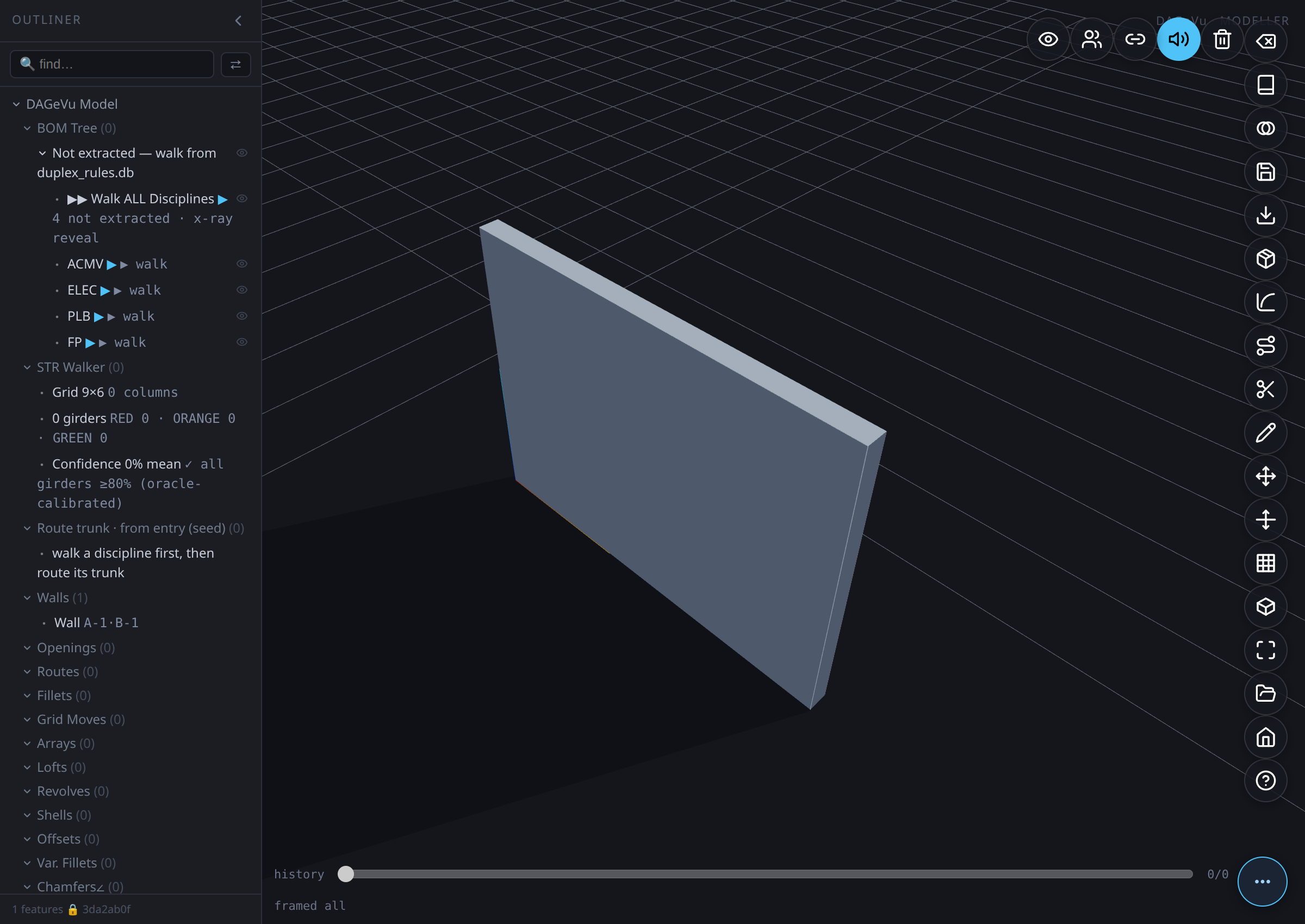
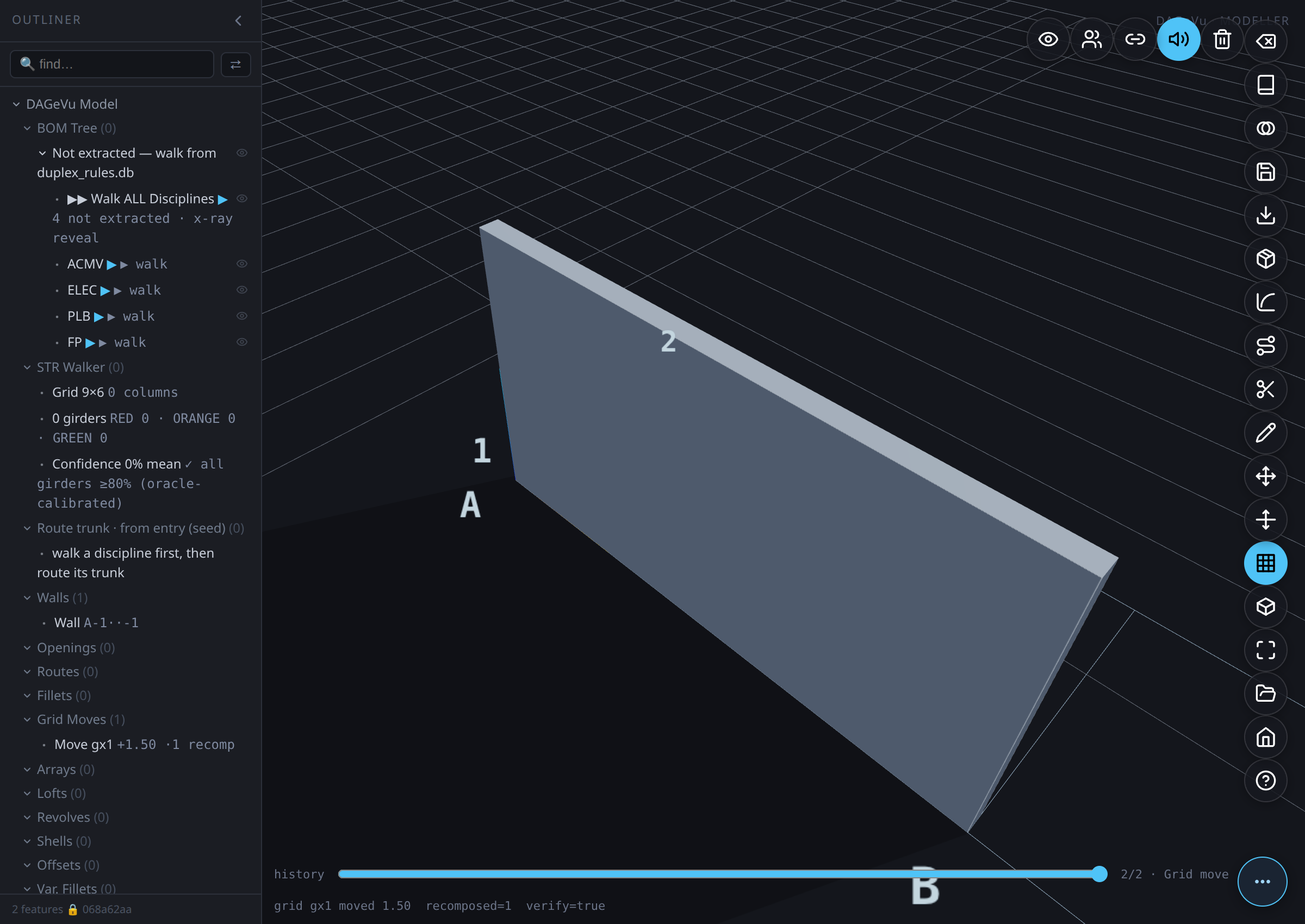
On a real building, not a diagram¶
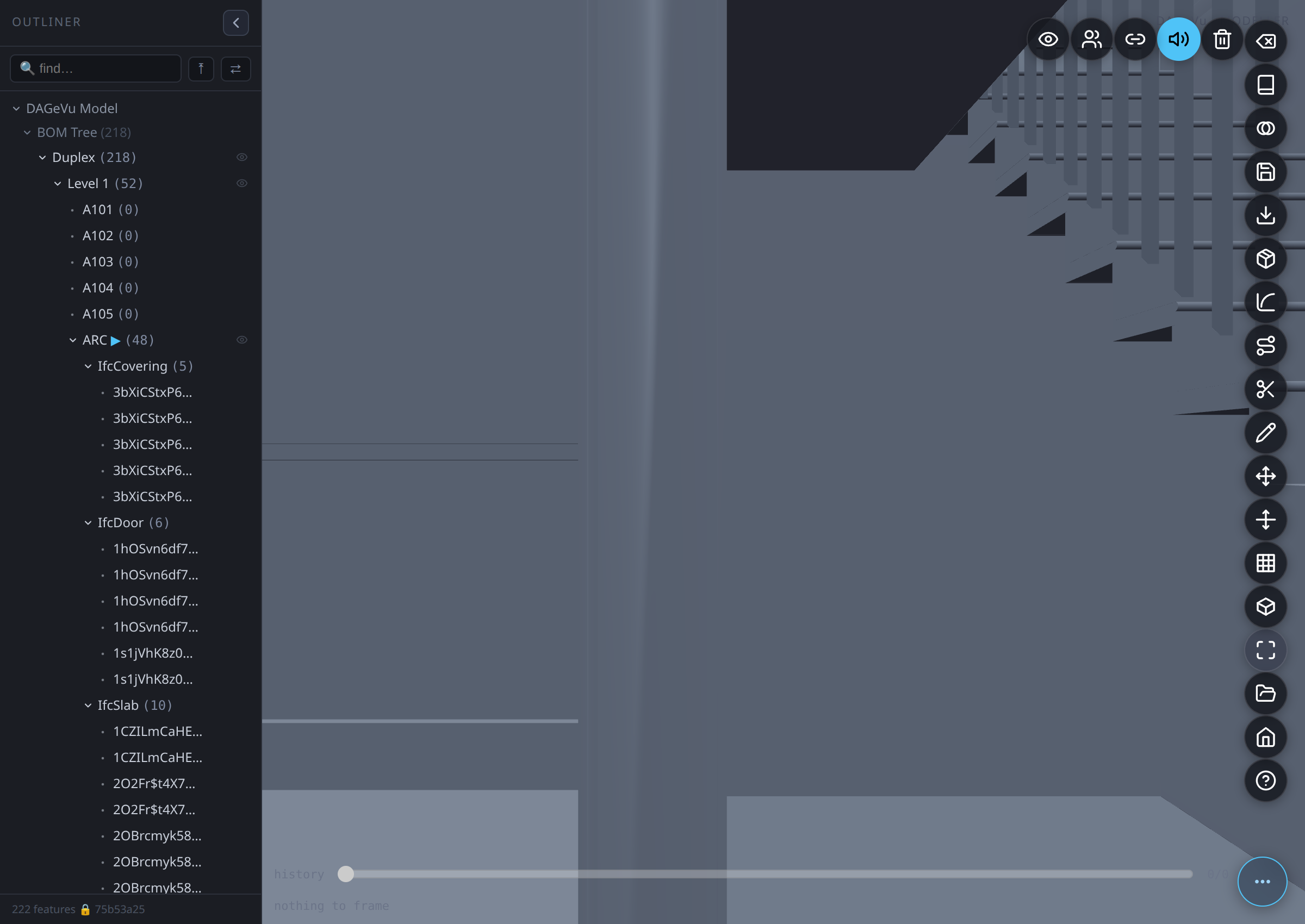
The two frames above are a clean teaching diagram (Move Grid on a synthetic scratch wall). The mechanic works identically against a real, fully-loaded building — no separate mode, nothing cleared first. Here it is on Duplex's own ground floor, near the stair: a column grid aligned to a real wall's own measured edge, then that gridline dragged for real.
Witnessed end-to-end (modeller/tests/witness_e2e_gridmove_real.js, 8/8 assertions green, real
pg.mouse down→move→up, no synthetic shortcuts):
- A real mouse drag on gridline "2" landed at delta = 0.5000 m, folded into 16 real recompose commands. The governed wall's own rendered Y-extent grew from 2.920 m → 3.420 m — exactly the committed op's delta, read back off the live mesh, not assumed from the drag alone.
- Its hosted door — a real
rel_fills_hostedge recovered from the IFC, not a proximity guess — held its position exactly (its centre measured identical before and after): zero induced rider rows, the default Anchor behaviour above, not the older always-proportional-ride this section used to describe. Ctrl+click the door first and repeat the same drag to see it Ride instead. - The gesture landed as one signed
GEOM_GRID_MOVE; a real console line names it exactly —§GESTURE gid=<id> riders=<N> cutRiders=<N> verify=true tris=<N>— whereriderscounts any hosted fillings opted into Ride andcutRiderscounts any carved holes riding along with them (see "A carved hole comes along too" above). One Ctrl+Z undoes the whole group, verified: cursor and wall extent both restored byte-exact. verifyChainheld throughout. The drag-session cache (§SCALE_CHECK_FIX) is built once per gesture and reused every pointermove frame, not rebuilt per frame, cited from its own log line rather than re-profiled.
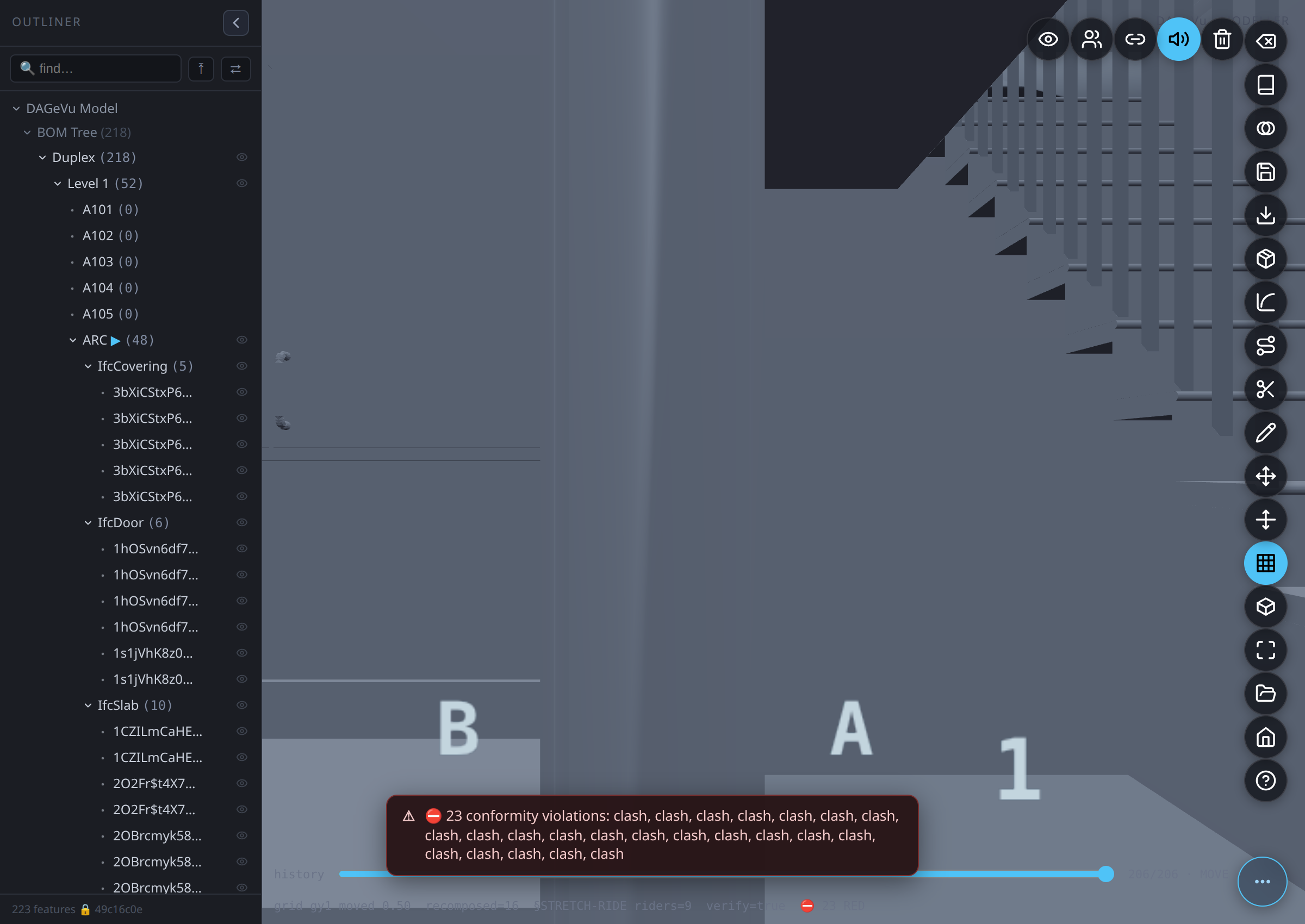
The conformity gate runs on every drag, real building included — it doesn't get a pass because the input is a
big, dense floor plan. If a stretch pushes an element into a real clash against neighbouring structure, the
status line reports it live and by name — ⛔ N RED for a hard violation, ⚠ N ORANGE for something softly
disturbed — rather than silently accepting a bad edit.
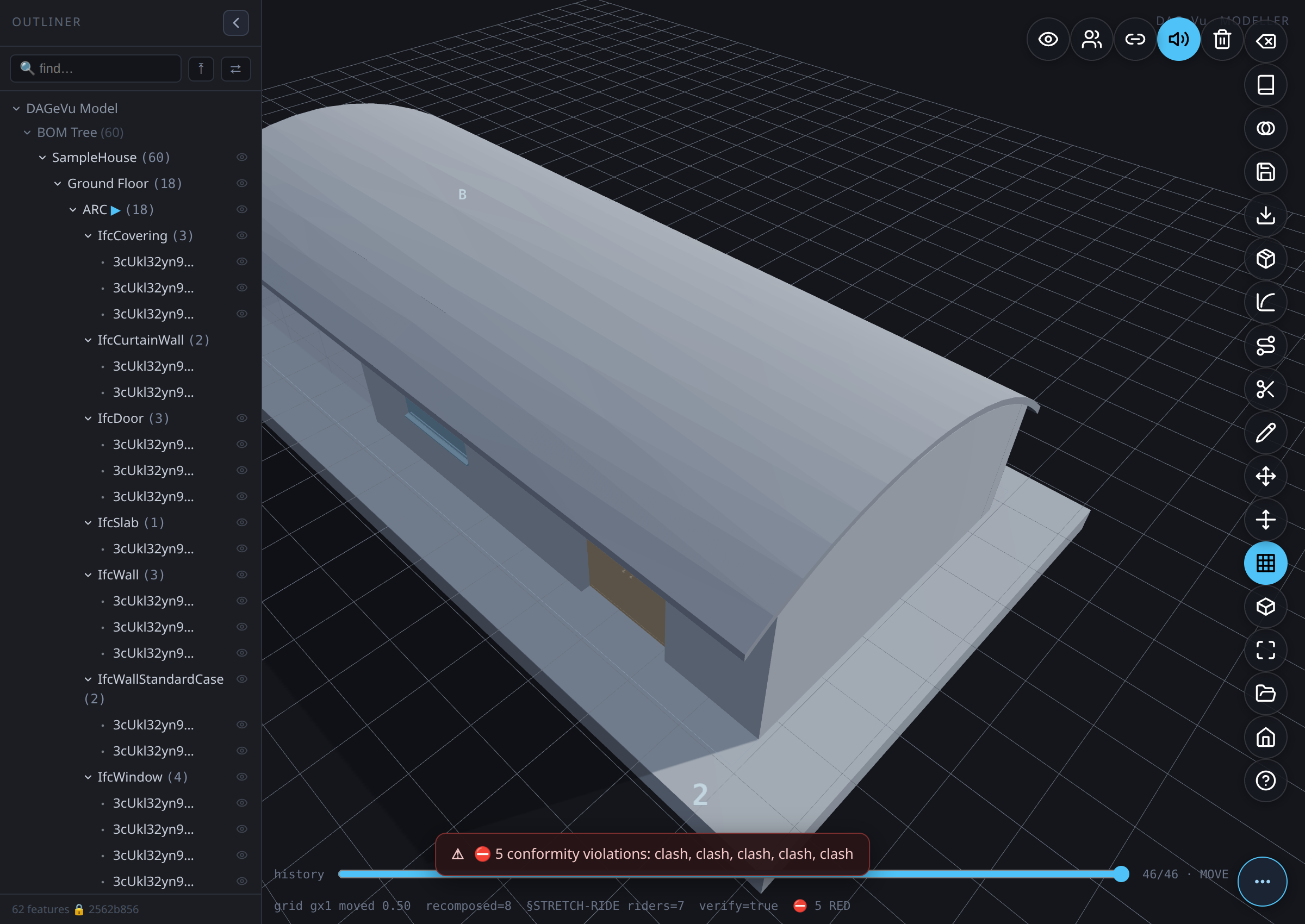
Roofs recompose the same way. SampleHouse's barrel-vault roof spans the two gridlines bracketing the
building; dragging the far one 0.5000 m grows the roof's own rendered X-extent from 14.8410 m → 15.3410
m — exactly the drag, with the near edge held fixed at the other gridline — while the wall it sits on rides
along in the same recomposed group (recomposed=8, §STRETCH-RIDE riders=7). Undo restores the roof's extent
byte-exact. Witnessed end-to-end: modeller/tests/witness_e2e_gridmove_roof.js, 8/8 §-tagged assertions green.
Delete¶
Soft-deletes from the signed log (reversible).
- Select the feature — its children (hosted fillings) come along.
- Tap Delete (or press
Del). - The feature hides from the model — the signed payload is never rewritten, so the chain stays valid. Redo (
Ctrl+Y) brings it back exactly.
Room Move¶
Commits GEOM_ROOM_MOVE {spaceGuid,dx,dy,members[]}.
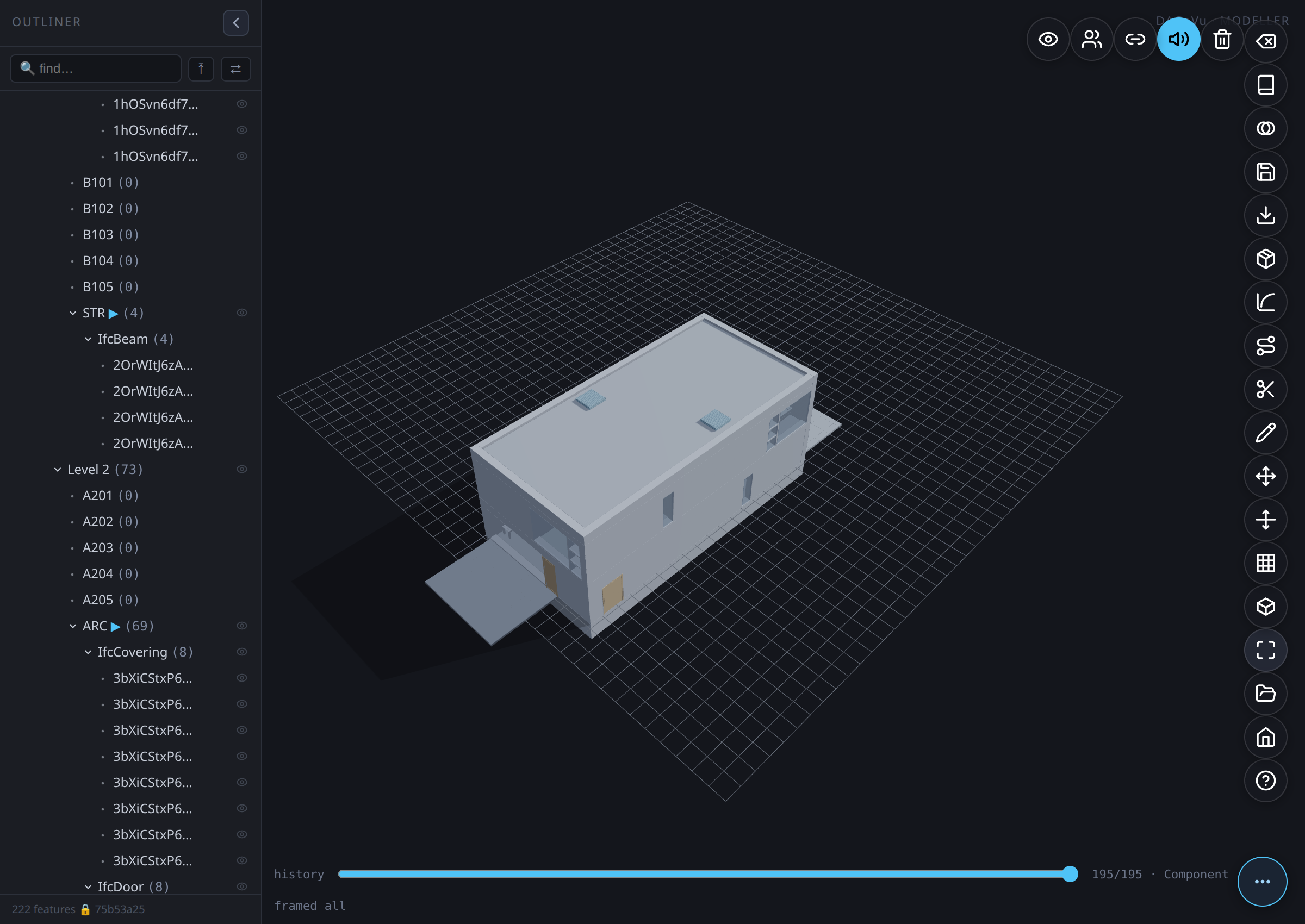
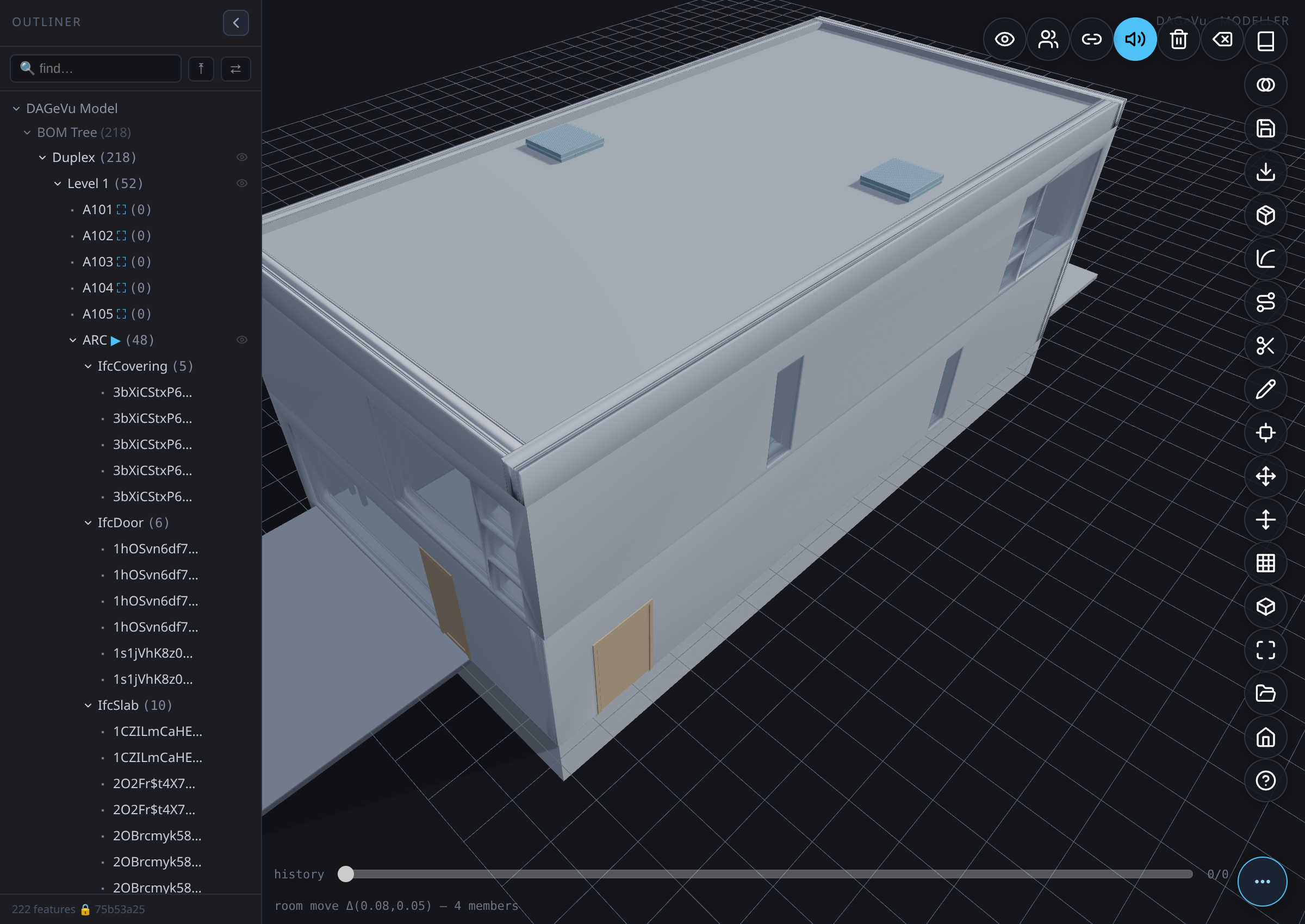
Moving furniture around a room one piece at a time divorces the room from its contents the moment anything gets left behind. Room Move grabs the whole room instead — everything it actually contains, plus anything sitting freestanding inside its footprint, plus any hosted door or window riding a wall that moves with it — and translates it all by one shared delta, as a single signed operation with one-step undo.
- Open the Outliner's BOM Tree and expand down to the room you want (Building → Storey → Room).
An
IfcSpacehas no rendered mesh of its own, so the room's Outliner row — not a click in the 3D view — is the grab target. - Click the ⛶ icon next to the room's name. It enumerates every real member for that room right then (logged to the status line and the console) and arms the drag; a room with nothing honest to move (zero members across every leg) refuses the grab instead of dragging an empty box.
- Drag anywhere on the canvas — it's the ground-plane delta that moves the room, not where inside the room you happened to click.
- Release to commit. Everything the grab found moves together, as one signed operation with one-step undo
(
Esccancels an armed grab before you release).
Membership is never a proximity guess: an element joins the move only because a real recovered relationship says so —
- every element with a real
rel_contained_in_spaceedge into the room, - a bounding wall, if the building's extracted schema carries a real space-boundary edge for it (most don't yet — a room's walls stay put rather than being swept in by nearness),
- a freestanding, non-structural item with no containment edge whose real footprint centre falls inside the
room (tagged
derived-footprintin the op, so it's always visible which leg brought each element in), and - any door/window hosted by a wall that's already a member, carried over the same one-hop host→filling ride Grid-Stretch uses.
Because the whole set shares one rigid (dx,dy) — never a per-member recompute — the room's contents stay in
the same relative arrangement, and the BOM needs zero work to follow: no containment edge changes, so the
same tree replay is valid before and after. The move is in-plane only (a dz is refused outright — moving a
room to a different storey is a bigger, separate decision this tool doesn't make) and it snaps back to
nothing on an empty room (nothing honest to move). Like every other geometry edit, a room move still runs
through the modeller's conformity gate — if the delta pushes a member into another element's real footprint,
the status line names the clash the same way Move or Grid-Stretch would.
Verified on SampleHouse's "1 - Living room" (witness_room_move.js, 10/10): 16 real members — 12 via
rel_contained_in_space, 4 via derived-footprint — move as one GEOM_ROOM_MOVE, every member's rendered
centre landing on the committed delta to within float32 precision (max error 2.4×10⁻⁷ m). Round-tripping
(dx,dy) then (−dx,−dy) (witness_room_move_roundtrip.js, 7/7) returns all 16 members to their exact
starting position — 0.000 mm residual. The Outliner grab-to-drag UI above is verified the same way, with real
pointer input instead of a direct engine call: witness_e2e_roommove_ui.js (9/9, real Duplex) clicks a real
⛶ glyph, drags a real mouse gesture across the canvas, and asserts the committed op's member list is
byte-identical to what the grab enumerated, the moved elements' rendered centres shifted by exactly the
committed delta, and one scrub undoes it exactly.
Item Drag¶
Commits GEOM_MOVE {parent,dx,dy,dz}.
A free single-item drag for one non-structural piece — a fixture, fitting, or loose furnishing — placed by eye onto a real surface rather than nudged axis-by-axis. It's a dedicated tool (its own Drag Item toolbar button), not the Move gizmo from the Transform section above — Move is an ungated axis drag for anything already selected; Item Drag is specifically gated by real product data and a real drop surface, so it stays a separate button rather than silently changing what Move already does.
- Tap Drag Item.
- Click a fixture or fitting in the 3D view to grab it. Two refusals happen before anything can move, and neither ever falls back to a guess:
- No real dimensions, no lift. The drag session looks up the item's real product dimensions before it
starts; with nothing to match, it throws
WalkerGapError, refuses the grab, and the item never leaves its spot — never a placeholder box standing in for a real size. - Not a valid subject. A wall, or an element already hosting a door or window, is refused as a drag subject outright — those move via Grid-Stretch or Room Move instead.
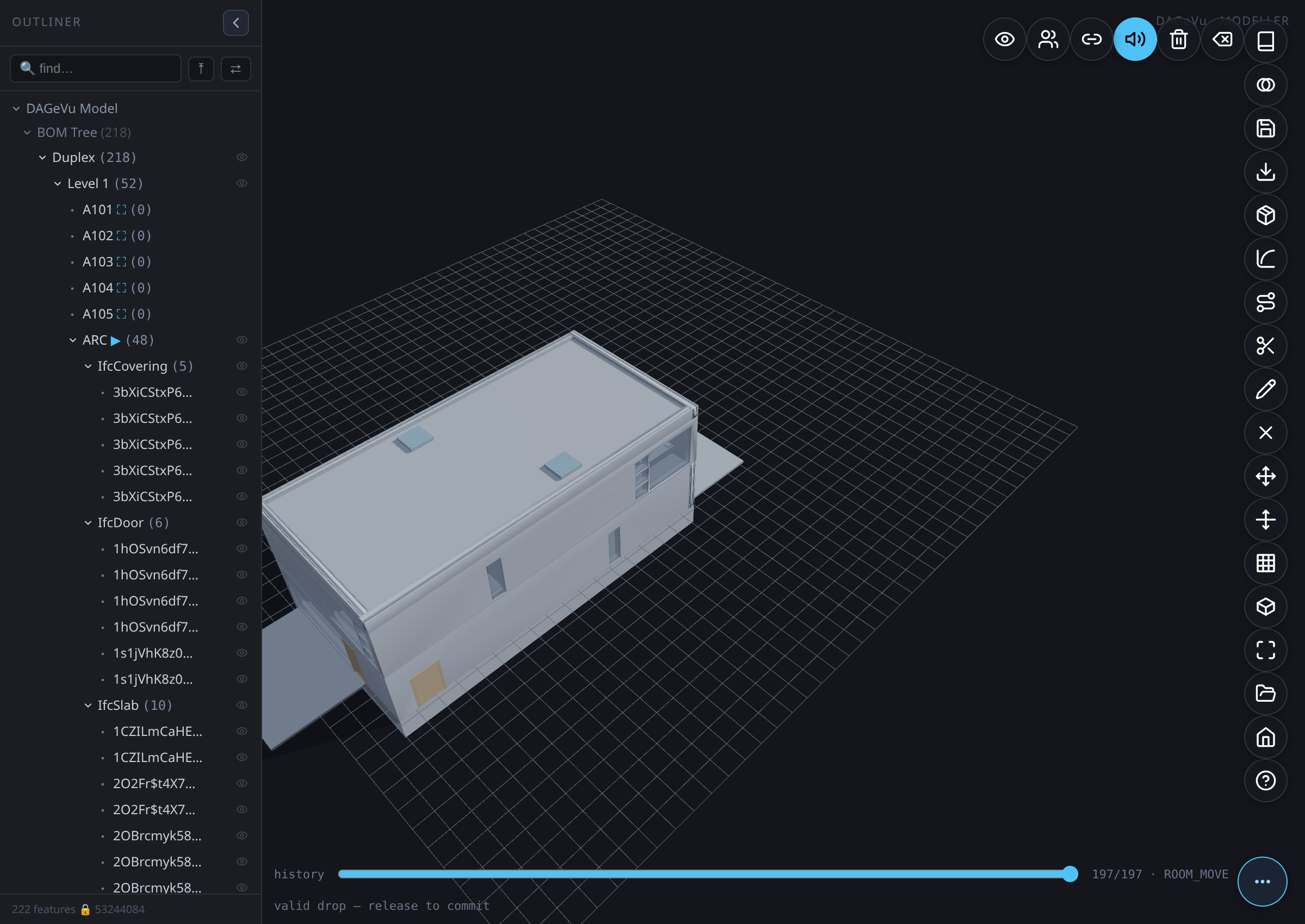
- Drag across the canvas. The preview tints green where the drop would be valid, red where it wouldn't — a wall-mounted item must find an actual wall face under the cursor (a floor item an actual slab, a ceiling item an actual soffit), and a drop that collides with another element's real footprint is refused the same way, with every refusal reporting what it hit.
- Release. A valid drop commits one ordinary
GEOM_MOVE— item-drag introduces no new op type, so it plays back through the exact same fold and undo path as the Move gizmo. An invalid release snaps the item straight back to its pre-drag position, uncommitted (Esccancels an armed grab before you release).
On today's building data, every already-placed fixture in the log honestly refuses at step 2 — the product identity a walker used to place it lives only in a transient value at commit time, never written to the signed log, so there's nothing left afterward for a generic pick to match against. That's not a UI gap, it's the same refuse-don't-fabricate rule the rest of the modeller runs on: a future catalog-drop flow that still holds the product id at drag time reaches the real match/commit path shown below; a plain pick on existing content reaches the refusal path, cleanly, every time.
witness_item_drag_gate.js (9/9, real SampleHouse data) proves both refusals live at the engine level: a
session with no product hint throws WalkerGapError and adds zero rows to the op-log; a matched item (a real
sink, 0.5×0.45×0.2 m from ad_product_dim) that collides with a neighbour is refused with the colliding fids
named and the log length unchanged; the same item dropped against a real wall face commits exactly one
GEOM_MOVE with a snappedPos read off that wall's own geometry. witness_e2e_itemdrag_ui.js (8/8, real
Duplex) proves the UI above end-to-end with real pointer input: a real Drag Item arm + real canvas pick
on existing content refuses cleanly (zero ops); a held product hint reaches a real wall face found by
scanning with the tool's own validity check and commits one GEOM_MOVE, the dragged mesh's rendered centre
landing on the exact committed delta; the same grab dropped onto another element's real box refuses the
commit and leaves the mesh exactly where it started.
Generate — walkers fill the ARC¶
When you open a bare ARC building, the other disciplines fill themselves in. You pick a discipline that is absent — Structure, Electrical, Fire-Protection, Plumbing, HVAC — and the modeller walks it: it places that trade's elements at the measured cadence of a real coordinated building, chains the runs it can, gates the clashes, and honestly refuses when the building has nothing to hang the trade on. Nothing is invented — every placement uses a spacing/clearance rule mined from a real IFC model.
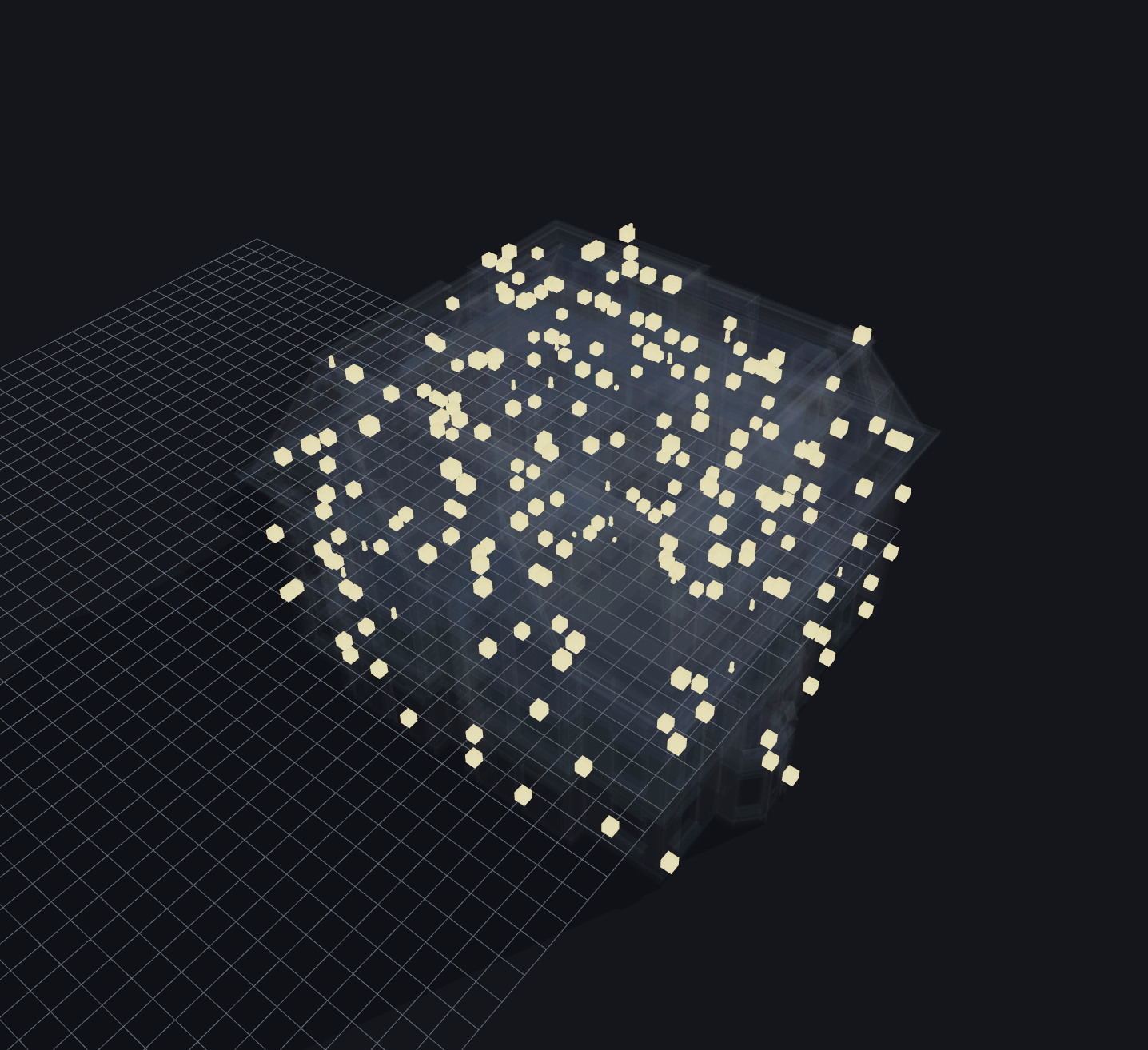
A normal (non-X-ray) view of this same walk is honestly near-empty: a real electrical outlet or light
lives inside a room, not poking through an exterior wall, so from outside the sealed shell it's naturally
occluded — same as it would be in a real building. Tap X-ray (or press X) to see the walk actually
landed, as captured here: structure fades to near-transparent glass and the fixtures glow through it in
their discipline colour, room by room. This is the corrected placement too (2026-07-12): a previous
version of this pipeline had a containment bug where roughly a quarter of placements landed outside the
building's own walls — fixed (mesh-recovered true-midpoint host binding) and independently verified 5
separate ways (containment count, real-oracle walk-back match, measured-pattern conformance, wall-clearance
margin, mirror-symmetry residual on the Duplex's own A/B twin layout).
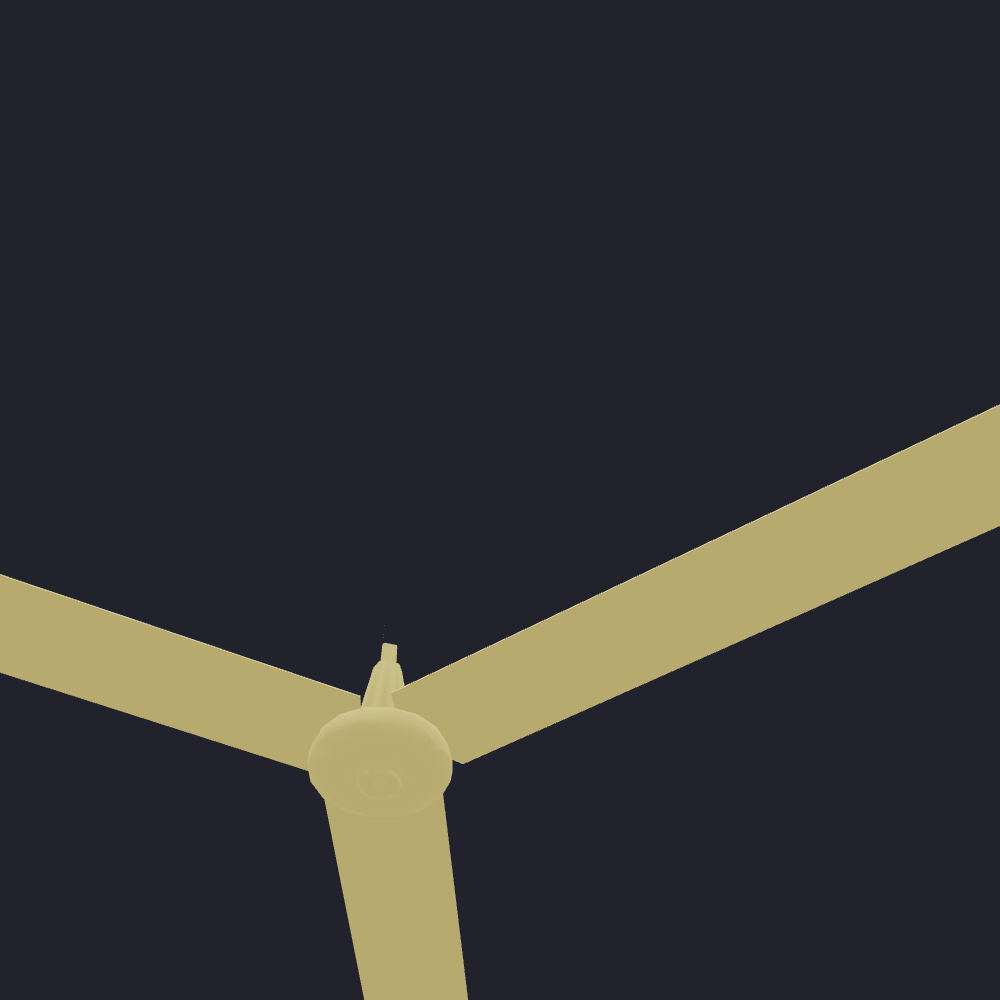
How real is the fixture mesh, up close? It depends on whether the rule-set was mined from this
building. Duplex is the building duplex_rules.db's residential standard was mined from, so its own
walked fixtures resolve to their own real extracted device mesh — a genuine ceiling fan, motor housing and
all, not a box:
SampleCastle walks the same residential rule-set (it's a different building — see the table below), so it has no catalog match for its own fixture classes and falls back honestly to a measured box, sized from that class's real dimensions but not a finished model:

Guessing at a fixture's real shape when no mesh is mined is exactly what this project's non-invent rule forbids — a plain box, correctly sized and positioned, beats an invented model every time.
One engine, two standards. A single walker drives every discipline; the discipline is just a data filter. It carries two measured rule-sets and auto-selects by building class:
| Building class | Standard used | Mined from | Why |
|---|---|---|---|
| House / residential (SampleHouse, Duplex, SampleCastle) | residential (duplex_rules.db) |
the Duplex's own real MEP — 908 elements | tight residential cadence (~0.5 m trade separation) |
| Large / complex (airport, hospital) | large-complex (terminal_rules.db) |
a real airport terminal | sparse, plenum-scale cadence |
On open you'll see §DW-PROV print the standard and its provenance, so you always know which rule-set is
driving the walk. The tables below are the evidence that the walk produces sensible numbers — every
figure traces to a witnessed §-log (no estimates).
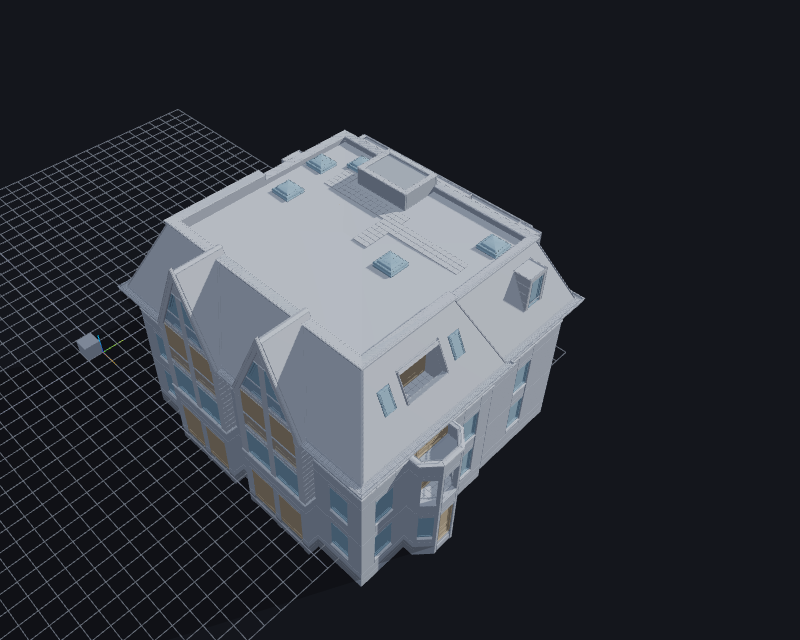
What a walk actually places¶
Status-line results per discipline on the three residential buildings
(build/logs/witness_disc_walk_generalize.log). Placed = elements seated; chains = runs linked
end-to-end; the note is what the walk reported when a trade had nothing to route:
| Building (storeys) | Discipline | Placed | Chains | Honesty note |
|---|---|---|---|---|
| SampleHouse (3) | Fire-Protection | 55 | 0 | — |
| Electrical | 159 | 0 | — | |
| Structure | 30 | 1 | members linked, no measured gap | |
| Plumbing | 6 | 0 | ~no pipes in a small house → honest | |
| Duplex (5) | Fire-Protection | 303 | 0 | — |
| Electrical | 771 | 0 | — | |
| Structure | 162 | 1 | members linked | |
| Plumbing | 10 | 0 | sparse → honest | |
| SampleCastle (7) | Fire-Protection | 2 665 | 0 | — |
| Electrical | 8 123 | 0 | — | |
| Structure | 1 836 | 1 | members linked | |
| Plumbing | 14 | 0 | sparse → honest |
Counts scale with footprint because the cadence is constant — the same measured spacing tiles a bigger floor. Walking an unknown discipline returns REFUSE — no measured rule rather than guessing.
Why the right standard matters — clash collapse¶
The walk gates clashes between the fixtures it placed. Using the right standard for the building class
collapses the phantom clashes a mismatched (too-wide) standard would raise — same layout, only the
clearance standard changes (witness_disc_walk_duplex_generalize.log, gated irreducible residual):
| Building | Residual @ large-complex standard | Residual @ residential standard | Collapse |
|---|---|---|---|
| SampleHouse | 9 | 4 | 56 % |
| Duplex | 32 | 2 | 94 % |
| SampleCastle | 501 | 3 | 99.4 % |
Every residual is flagged, none silent — the walk never hides a clash to make the number look good.
Does the residential standard reproduce a real house's MEP?¶
The residential standard was mined from the Duplex's own MEP, so the acid test is whether it re-grows
that MEP (witness_duplex_rules.log, §DXM-RT):
| Discipline | Verdict | What it means |
|---|---|---|
| Plumbing | ✅ GREEN (4/4 classes) | the bulk of a house's MEP reproduces — segments 0.93, fittings 0.85 |
| Electrical | 🟡 WEAK | fixtures (n = 89) GREEN; the sparse 8-segment conduit is honestly WEAK |
| HVAC | 🔴 RED (n = 2) | a house has ~no ductwork — honest RED, not a failure |
RED/WEAK here are honesty, not breakage: a single-family house genuinely has almost no ducting, so the walk declines to fabricate it.
Does it generalize to a building it never saw?¶
We routed the residential rules (mined from the Duplex) onto held-out buildings and scored each against
that building's own pipes (witness_generalize_curve_*.log, §GC). Precision is the don't-fabricate
score: of the joins the walker drew, how many land on a real pipe touch.
| Building | Type | In/out of domain | Segments | Precision @0.15 m | Fabricated |
|---|---|---|---|---|---|
| Duplex (self-consistency ceiling) | house | — | 358 | 0.969 | 0 |
| LTU_AHouse | house | in-domain | 32 138 | 0.839 | 0 |
| WBDG_Office | office | out-of-domain | 2 241 | 0.749 | 0 |
| Clinic | healthcare | out-of-domain | 4 906 | 0.705 | 0 |
| HHS_Office | office | out-of-domain | 1 380 | 0.620 | 0 |
The model degrades gracefully and never collapses. On every building 0 joins were fabricated and 0 exceeded the gap bound. That table scores the walker against a building's own pipes. On an ARC-only building there are none to join, so the walk generates plumbing instead — see What a walk gives you now below.
Walk them all at once¶
You don't have to pick the trades one at a time. Under Not extracted — walk from … in the Outliner, the first row is ▶▶ Walk ALL Services; its sub-label tells you how many service trades the building is missing (e.g. 4 services not extracted · x-ray reveal).
- Open a bare ARC building.
- Click ▶▶ Walk ALL Services.
It walks every absent service (ACMV, ELEC, PLB, FP) in turn. Structure and roof plates are not part of it: on a large building they are tens of thousands of elements (Terminal's roof alone is 10,584 plates), so they keep their own rows and you walk them only when you want them. It works through exactly the same production path a single click uses — same rules, same gating, same honest refusal when a trade has nothing to hang on. The difference is the presentation: X-ray brackets the whole run so you can watch it land, and each discipline's placements flash amber and settle into their own trade colour just before they're committed, so you can see which trade just filled in rather than watching one undifferentiated wave.
X-ray is restored afterwards even if a discipline refuses part-way. On a very large building the per-element flash is dropped in favour of one batched hold-and-settle — the geometry committed is identical either way, only the reveal animation is coarser.
What a walk gives you now — pipes, one-step undo, and pipes that follow¶
Plumbing is routed, not just placed. Walking PLB on a bare building now also draws the pipe runs
between the fixtures: cold water and waste. It works through the same path as any walk, measured on the real
Open → Walk (W-MEP-OPENPATH):
| Building | PLB fixtures | Pipe runs drawn | Runs signed into the log |
|---|---|---|---|
| Duplex | 18 | 18 | 18 |
| SampleCastle | 84 | 18 | 18 |
| Terminal | 969 | 2,915 | 60 (a size cap; every run is drawn) |
Typical run length is 2–3 m. The pipe sizes are real, measured from the Duplex plumbing model: - cold water 25.4 mm (1″, the mains size; the Duplex also has ½″ branches) - waste 48.3 mm (1½″)
A pipe is never drawn at an invented size. Ducts (ACMV), cable (ELEC) and sprinklers (FP) are placed but not yet routed.
One Ctrl+Z takes the whole walk back. A walk appears in the history as one step, e.g. Walk PLB (45):
the fixtures, the pipe runs and their bend fittings together. Ctrl+Z removes all of it from the model and
the screen, and Ctrl+Y brings it all back (W-WALK-GESTURE).
Move a fixture and its pipes follow. Moving a walked fixture, by dragging it or a gridline, re-routes
that trade's pipes from the new positions (W-MEP-REROUTE: a 1 m move re-routes the Duplex network so a
run ends at the fixture's new spot). Undo the move and the pipes route back. Two limits for now: the re-routed
runs are shown but not signed, and the bend fittings from the original walk are not recalculated.
Seed-Trunk — route a service trunk¶
After walking a discipline, route its service trunk from a real entry.
- In the Outliner, open the Route trunk row for the walked discipline.
- A popup offers the real service entry elements (doors / stairs) — confirm the default or choose one.
- Tap Route ▶.
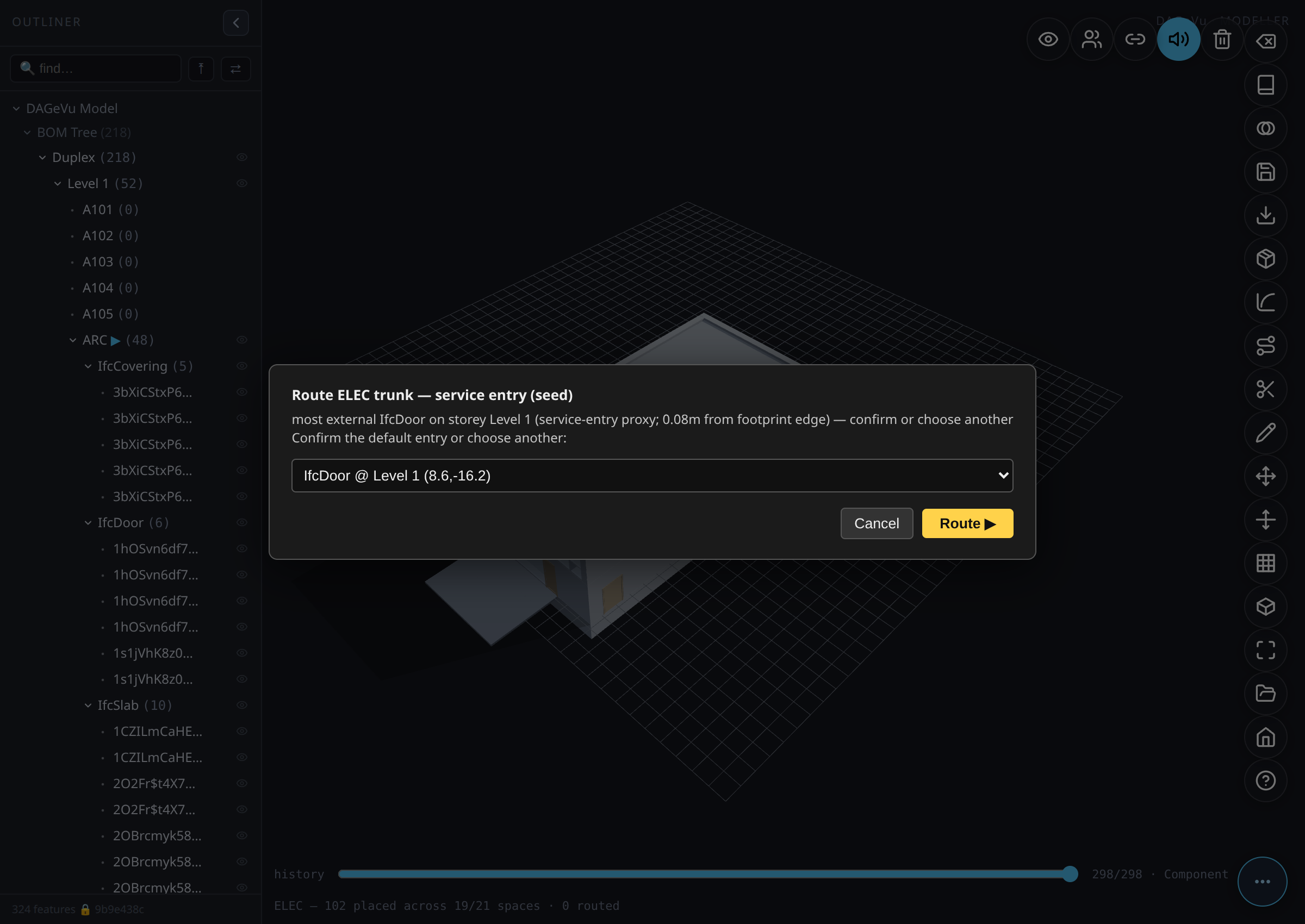
A corridor-aware trunk is routed from that entry through the walked fixtures — around walls, through real doors, up risers between storeys.
Deeper proof. The full mining, round-trip, boundary and generalization analysis lives in the resume cards
prompts/RESUME_DX_MEP_RESIDENTIAL_STANDARD.md,RESUME_TERMINAL_RULE_MINING.mdandRESUME_DISC_WALKER_ENVELOPE_BOUND.md, each backed by the witnessedbuild/logs/set summarised above.
History — the slider is the timeline¶
- Drag the history scrubber back to undo, forward to redo — it scrubs the signed op-log and re-folds the geometry deterministically. It is a strict superset of the keyboard shortcuts.
Ctrl+Zundo ·Ctrl+Y(orCtrl+Shift+Z) redo ·Deldelete selection ·Ffit ·Esccancel mode ·Rrotate a pending insert.- Every retreat is exact because the geometry is a pure fold of the log — there is no separate "undo buffer" to drift out of sync.
Save¶
Clash-check + auto-heal, then write a physical-DB snapshot — blocks on residual RED.
Every edit lives in the signed op-log the moment you commit it, but the op-log isn't a physical-DB snapshot on its own. Save is the gate between the two: it re-verifies the WHOLE building's conformity, tries to heal what it safely can, and only then writes.
- Tap Save.
- If the building is clean (or every finding is soft ORANGE), it auto-heals what it can, re-verifies, and writes a real physical-DB snapshot — the same one Open reads back.
- If a hard RED clash survives healing, Save refuses the write outright rather than persisting a broken state — go fix the flagged clash (the status line names it, same as any other tool's gate) and try again.
Auto-heal is real, but narrow. An ORANGE finding it recognises as a safe abuts-realign (two elements
that drifted apart but were clearly meant to still touch) gets one corrective GEOM_MOVE, re-verified as
gap-closed before the snapshot writes. If that heal itself nudges a third, previously-fine element into
a new soft finding, Save reports that new ORANGE by name rather than chasing it with a second heal pass —
one heal, never an unbounded cascade.
Witnessed end-to-end (modeller/tests/witness_e2e_save.js, 11/11): a real hard clash blocks the physical
write outright (no snapshot written); a real auto-healable pair heals, re-verifies clean, and a real
snapshot lands; a heal engineered to disturb a third element reports that one new finding by name without
touching it further.
Export — .db, IFC, or a BCF issue¶
Tap the Export pill. A small menu offers three things:
- Native .db — the full-fidelity signed op-log, every edit you made. Re-open it later with 📂 Open ▸ local .db.
- IFC (IFC4) — the building as a standard IFC4 file other BIM tools can read.
- BCF issue (.bcfzip) — your current view and selection, as an issue (see below).
IFC — the whole building you opened¶
Export ▸ IFC downloads bonsai_model.ifc. It carries every element of the building you opened, plus
the walls you drew with Sketch → Extrude and the openings you Cut:
- Each element keeps its real class — a door stays an
IfcDoor, a slab anIfcSlab, a stair anIfcStair. A class the exporter doesn't know becomes a genericIfcBuildingElementProxy, never dropped. - Each element's shape is the same triangles you see on screen, written as an IFC4 triangle mesh — not re-computed, not simplified.
- An element whose shape can't be found is left out and counted, never swapped for a plain box.
- The invisible ride anchors some buildings carry (SampleCastle has 65) are left out — they aren't real building parts.
Checked by re-reading the exported file: Duplex's 196 elements come back as 196 products (about 4 MB); SampleCastle's 3,225 come back as 3,225 (about 26 MB).
Not in the file yet: materials and colours, property sets, the storey/space structure, and openings as separate cut objects. It carries the building's real shapes, not yet a fully furnished IFC.
Until 18 September 2026 this export wrote an empty file for any opened building — only drawn geometry went in. If you have an old export of a resident, export it again.
The status line after an IFC export counts walls= only for walls you drew with Sketch → Extrude, so on
an opened building it can read walls=0 even though the file is full — check the byte count it prints
instead.
BCF — share an issue¶
Pick Export ▸ BCF issue to export your current view as a BCF 2.1 file (.bcfzip) — the open
buildingSMART format for exchanging issues between BIM tools. The export carries your live camera
viewpoint and the real IfcGuids of whatever's selected, so the file opens correctly in Navisworks,
Solibri, BIMcollab, Revit (via plugin), or Trimble Connect — never a synthetic ID that only means
something inside this app. See Clash Detection §8.5 for exporting a
whole batch of detected clashes as one topic set.
Toolbar — icon index¶
The toolbar is a ⋯ pill rail at the right edge: tap ⋯ to fan the pills, hover for a name, and open
? Help for the live registry (icon · name · shortcut). Esc always cancels the current mode.
| Icon | Does |
|---|---|
| ⋯ Toolbar | Fan the pills open / closed |
| Home | Back to the Matrix landing |
| 📂 Open | Load a resident building, a local .db, or your own .ifc — filtered to ARC, walked + BOM-graphed |
| Fit | Zoom to fit — the selection, or the whole scene (F) |
| Iso | Cycle the view: Iso ⇄ Top |
| Grid | Show / add a construction grid |
| Move Grid | Drag a gridline — attached walls recompose (GEOM_GRID_MOVE); hosted openings hold or ride (see Grid-Stretch) |
| Move | Transform gizmo — move / scale / rotate the selection (M) |
| Drag Item | Free single-item drag for a fixture/fitting, gated by real product data and a real drop surface (see Item Drag) |
| Sketch | Start a 2D sketch |
| Extrude | Push a sketch profile into a solid (GEOM_EXTRUDE_POLY) |
| Axis | Set the constraint intent the solver enforces on the sketch (Rect / Square / Circle) |
| Cut | Cut an opening in the selected wall (GEOM_CUT) |
| Route | Lay a spine to sweep a profile along (e.g. an MEP run) |
| Sweep Run | Sweep the profile along the route (GEOM_SWEEP) |
| Fillet | Round a selected solid's picked edges (GEOM_FILLET) |
| Apply | Commit the pending fillet / chamfer |
| Insert | Insert a library component — assemble, don't draw (GEOM_INSERT) |
| LOD 200 | Refine the last-placed component's level of detail (same signed row) — appears once you enter Insert, not on the resting rail |
| Export | Export menu — Native .db (the signed op-log), IFC4 (the whole opened building), or a BCF 2.1 issue (see Export) |
| Save | Clash-check + auto-heal, then write a physical-DB snapshot — blocks on residual RED (see Save) |
| History | World History — the cross-page timeline shared with the Viewer, iDempiere, and Gravity |
| Guide | A short in-app user guide — how to Open, walk, edit & export |
| ? Help | Toolbar & shortcuts — the live pill registry |
| Delete | Delete the selection (Del) |
| Clear | Empty the scene |
| Sound | Toggle authoring sound feedback |
| Connect | Connect Scene — share selection / timeline with the Viewer & ERP (opt-in) |
| Teams | Mount the Teams presence overlay — design branches, a spatial merge gate, who-dots (see Collaborate) |
| X-ray | Reveal — structure goes glass so routed MEP glows through in its discipline colours (X) |
| Undo / Redo | Undo (Ctrl+Z) · Redo (Ctrl+Y) |
Troubleshooting¶
Each row below is a real behaviour the tool suite exercised (and, where it was a defect, fixed) — not a hypothetical. If you hit something else, ? Help lists every tool and shortcut, and the history scrubber is always a safe retreat.
| Symptom | Why | What to do |
|---|---|---|
| A pill looks stuck in the top-left corner and won't click | A mode-revealed pill (Extrude, Sweep-Run, Apply) is shown only after you start its mode; the rail lays them out on reveal. | Start the mode first (e.g. finish the Sketch before reaching for Extrude). The rail re-positions the pill as it appears — if one still looks stranded, toggle the ⋯ rail closed and open. |
| Cut / Scale seems to do nothing on a wall from an opened building | A seeded ARC wall is a baked mesh, not a B-rep. Cut promotes it to a B-rep just-in-time — from its box, or on a layered wall from its real layer slabs; an insert that is neither a plain box nor layered is refused up-front (logged) rather than approximated. | Nothing to do for a normal axis-aligned wall — the op commits and renders. If a specific insert is refused, it can't be cut exactly; sketch the void instead. |
| A Walk seems to hang on a big building | A discipline walk places hundreds of fixtures; they commit as one batched signed group, so a large walk takes a couple of seconds, not a frozen minute. | Wait for the batch — the status line reports the result when it lands (e.g. ELEC — 267 placed across 5 storeys · 0 routed). Scrub the slider back to clear them. |
| I want to "make an opening" but there's no Opening tool | Opening is not a separate authoring tool — the real "cut a window/door" is the Cut tool (GEOM_CUT). |
Select the wall, tap Cut. GEOM_OPENING is only a legacy sample primitive, never a user action. |
| Fillet won't pick an edge | Fillet needs a B-rep solid; a seeded ARC insert has no worker edges to round. | Author a solid first (Sketch → Extrude), select it, then Fillet — its edges become pickable markers. |
| An edit didn't land the way I expected | Every edit is a signed op; nothing is silently applied. | Drag the history scrubber back one notch to undo it exactly, then retry. There is no separate undo buffer to drift out of sync. |
Collaborate on the design — the Teams overlay¶
The Modeller shares one signed op-log with the Viewer and the Kernel-ERP, so the same Teams overlay rides on it: git-style design branches ("you build that wing, I build this"), a spatial merge gate that flags where two branches clash, identity-coloured who-dots on elements, and the tabbed Outliner (Tree / Chat / Dashboard). Off by default, pixel-identical until you toggle it on. → Teams Overlay guide (with screenshots).
Part of BIM OOTB. Copyright (c) 2025–2026 Redhuan D. Oon. MIT Licensed.