BIM Tools — User Manual¶
← Back to the User Guide · Home
Small, single-job IFC tools for the chores your own BIM app won't do. Drop an IFC file; the tool runs. No account, no upload, no AI — your file is read inside your own browser (or on your own computer, for the command-line kit) and the result is saved next to it.
Open it: red1oon.github.io/bim-ootb/bim.html
Download the toolkit (zip) for your desktop: bim.html?kit=1 — tick the tools, choose your system, press Create zip. See §4.
| Key | Tool | What it does | Runs |
|---|---|---|---|
| U | Upgrade to IFC4.3 | Converts an IFC2X3 or IFC4 file to IFC4X3_ADD2 | in the background |
| E | Extract items | Pick elements in the 3D model, save them as their own IFC | opens your model |
| K | Split by storey | One IFC file per building storey | in the background |
| 6 | Health report | Counts what your model has and what it is missing | in the background |
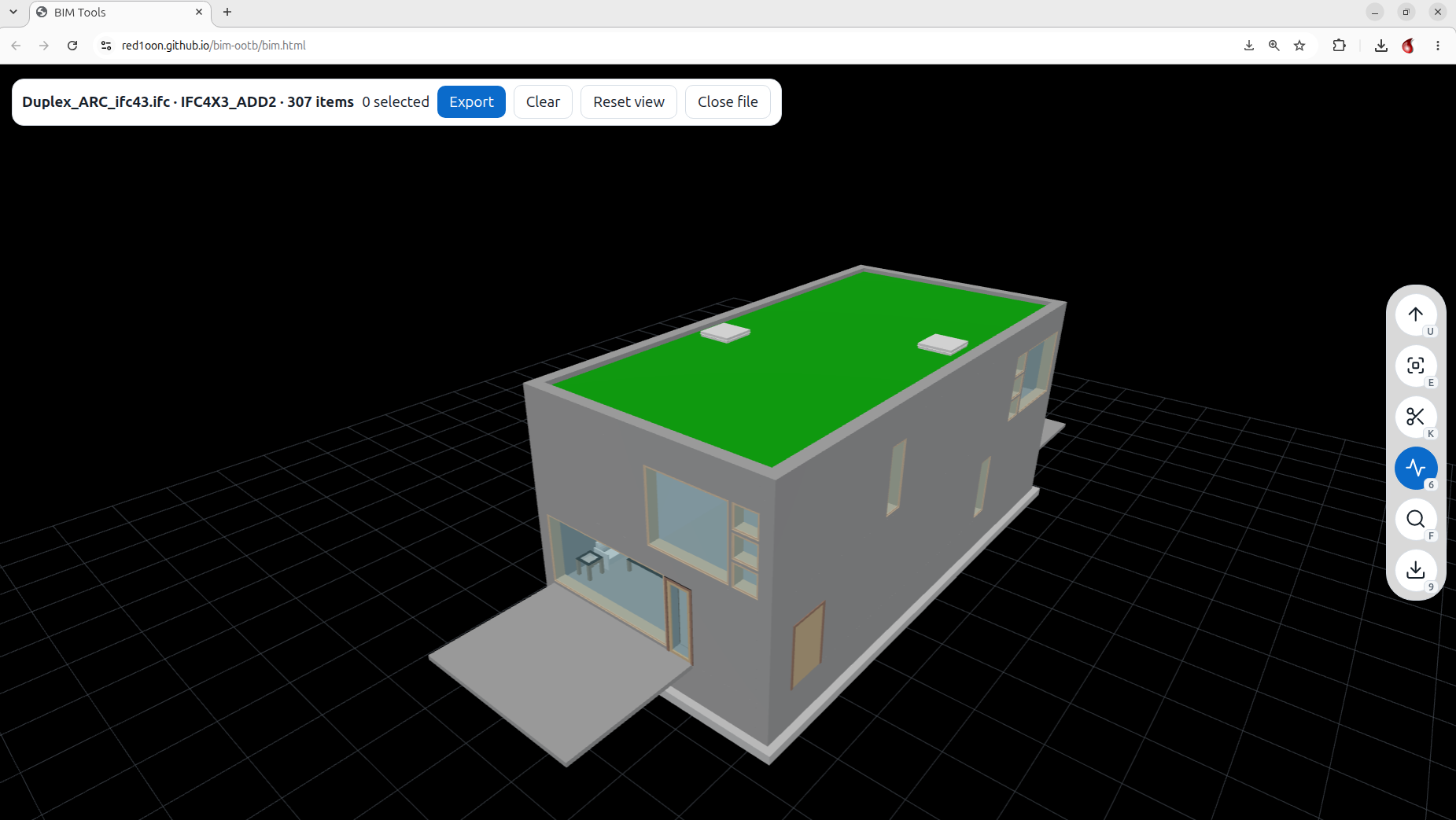
A model loaded: the label at the top-left names the file, its schema and item count; the buttons down the right edge are the tools (U upgrade, E extract, K split, 6 health report, F search, 9 toolkit zip). At the bottom-right, out of this shot's way, a faint light bulb opens this manual and a red-and-blue pill leads to the Red Pill page, where BIM Tools comes from.
Other keys: F search · O show / hide the model · 9 download the toolkit zip · ? list the keys · Esc close a panel.
1. The 30-second version¶
- Open the page. On the right edge is a column of round buttons — one per tool. Nothing is lit when you arrive (a refresh clears it too), so nothing runs by surprise.
- Click a tool (or press its key). The lit button is the tool that will run. Click it again, or press Esc, to clear it.
- Drop an
.ifcfile anywhere on the page. With a tool lit, it runs straight away; a one-line message tells you what happened, and the result downloads beside your other downloads. With nothing lit, the file just opens and the page tells you which keys to press. The loaded model stays on the canvas while background tools run.
Your original file is never changed.
2. The tools¶
U — Upgrade to IFC4.3¶
Drop an IFC2X3 or IFC4 file. You get yourfile_ifc43.ifc, schema IFC4X3_ADD2.
- Every attribute is carried across by name from the official buildingSMART schemas, so nothing shifts position.
- Your GlobalIds, properties, materials, quantities and geometry are kept.
- Things IFC4.3 no longer has are handled, and counted in the message — never silently dropped:
- Colour/style groupings that no longer exist are folded into the item they styled.
- An item whose required new field has no value in your file cannot be written validly, so it is left out and counted. Example: a "virtual" room boundary that points at no building element (IFC4.3 requires one).
- A file that is already IFC4.3 is left alone, and the message says so. Other schemas are not supported yet.
How we know it is right: in tests on two sample buildings the upgraded file had no more validation errors than the original, lost no GlobalIds, and the Health numbers (below) were identical before and after.
E — Extract items¶
Press E (or click its button) with a model dropped. The model opens in 3D.
- Hover an element: a tip shows
Class · Name — click to select. - Click to select it (click again to deselect). Selected items turn amber. Drag to orbit — a drag is not a click.
- F opens the search panel (and brings the model back if a background tool had hidden it). Type a name, class (for example
ifcdoor) or GlobalId. Click a row to select it — the view does not move, so you never lose your place. A selected item is drawn on top, so you can see it even behind a wall. Click the ⌖ button on a row to fly the camera to that item when you want to. Select all matches adds everything in the list. - Moving around: drag to orbit (all the way over the top and under — there is no stop), right-drag or two-finger drag to pan, scroll to zoom toward whatever the pointer is on (aim at a selected item and you can zoom right up to it, even through walls). Reset view puts the camera back where it started. The model stands upright on a faint ground grid.
- The file you have loaded is named at the top-left of the canvas, for example
Duplex_ARC.ifc · IFC2X3 · 307 items. Close file empties the page. - Press E again, or the Export button, to save
yourfile_extract.ifc. If nothing is selected, the page tells you what to do.
What goes into the new file: the selected items with their geometry, type, properties and materials; the building → storey chain they sit in (so the file stands on its own); and the openings of any selected wall. A door or window you did not pick is not included. GlobalIds are kept, so your other software can match them back to the originals.
K — Split by storey¶
You get one file per storey, named yourfile_<StoreyName>.ifc. Your browser may ask permission to download several files at once — allow it. Elements that sit outside every storey (for example site-level items) are not in any storey file.
6 — Health report¶
You get a short message and yourfile_health.json. Counts only — it does not grade you. It reports: schema, number of elements, whether the Project → Site → Building → Storey chain is complete, storeys, spaces, and the share of elements that have classification, property sets, a material and a type; quantity sets; space boundaries; orphans (elements not placed in any storey or space); duplicate GlobalIds; and whether the site has a georeference value.
3. If you reload the page¶
The page keeps your last file and your selection inside your browser, so a refresh brings them back and shows the model. A refresh never re-runs a tool or saves files again. Press Close file to clear it. (If your browser blocks storage — a private window, for example — you simply start empty.) To clear it, drop a different file.
4. Use it without a browser — the toolkit zip¶
Open bim.html?kit=1 (or press 9 on the page), tick the tools, choose Windows / macOS / Linux, and press Create zip. The zip holds plain, readable JavaScript, one launcher per tool, an installer, a README.txt, and a SHA256SUMS.txt so you can check nothing was altered. It never connects to the internet.
You need Node.js 18 or newer (nodejs.org).
Install it once (recommended). Unzip, then run INSTALL.bat (Windows) or install.sh (Linux / macOS). It:
* copies the tools to a permanent folder (Windows: %LOCALAPPDATA%\BIM Tools; Linux: ~/.local/share/bim-tools; macOS: ~/BIM Tools),
* puts one icon per tool on your Desktop (Windows and Linux), and on Windows also in right-click an .ifc → Send to (Linux: file-manager Scripts menu).
After that, drag .ifc files onto a Desktop icon, or right-click an .ifc → Send to → the tool. It changes nothing else on your computer; delete the folder and icons to remove it. You can skip installing and run the launchers straight from the unzipped folder.
Windows
1. Right-click the downloaded .zip → Properties → tick Unblock → OK. Then extract it.
2. Run INSTALL.bat once (or skip this and use the launchers where they are). Then drag one or more .ifc files onto the BIM_upgrade icon (or the one for another tool).
3. The result appears next to each file. The launcher also tries to show a desktop notice when it is done (not yet confirmed on a real Windows desktop).
4. If Windows shows "Windows protected your PC": More info → Run anyway. The scripts are unsigned; read them first if you want to be sure.
macOS
1. The first time, right-click install.sh / the launcher → Open → Open (or System Settings → Privacy & Security → Open Anyway).
2. macOS cannot take a file dropped on a launcher, so it gets no Desktop icons; the installer prints the Terminal line for each tool: "$HOME/BIM Tools/BIM_upgrade.command" yourfile.ifc
Linux: ./install.sh (if needed, chmod +x install.sh BIM_*.sh first), or run ./BIM_upgrade.sh yourfile.ifc directly.
Command line (all systems)
node bim-cli.js upgrade  model.ifc            # → model_ifc43.ifc
node bim-cli.js split    model.ifc            # → model_<Storey>.ifc …
node bim-cli.js health   model.ifc            # → model_health.json
node bim-cli.js extract  model.ifc --class IFCDOOR [--name TEXT] [--storey NAME] [--guid ID] [--fillings]
node bim-cli.js open     model.ifc            # opens bim.html on your own computer with the model loaded
§ and exits with 0 on success, so you can use it in scripts. Add --json for machine-readable output, --out-dir DIR to choose where results go.
Desktop shortcuts¶
- Drag a button out of the browser window onto your desktop. In Chrome/Edge this is meant to drop a shortcut that opens the page with that tool already selected (the file it hands over is tested; dropping it on a real desktop is not yet). Hold Shift while dragging to drop the launcher file instead (it needs
bim-cli.jsbeside it). - Right-click a button → Download launcher gives you that one tool's launcher file.
5. Limits — what to know before you rely on it¶
- Source schemas: IFC2X3 and IFC4 are upgraded. An IFC4.3 source is left alone.
- Size: the whole file is read into memory. Files over about 100 MB have not been tried.
- The 3D view needs WebGL. On a computer without it, the page tells you and gives you the search list instead — you can still pick and export.
- Opened straight from disk (
file://) the 3D view and the zip builder cannot work; use the web address, ornode bim-cli.js open model.ifc. - What the tests cover: the tools were checked on two sample buildings, on Windows, macOS and Linux test machines, with an independent IFC validator. They were not checked by a person on a real Windows or Mac desktop: dragging a file onto an icon in Explorer / Finder, the SmartScreen and Gatekeeper prompts, and a real graphics card, and the Desktop / Send-to icons on a real machine (the installer is tested with every target redirected to a temporary folder) are still open. Tell us what you find.
6. Troubleshooting¶
| You see | Do this |
|---|---|
| Nothing happens when you drop a file | Check it ends in .ifc and is a text (STEP) IFC. The page says "Not an IFC (STEP) file" if it cannot read it. |
| "3D view is not available on this computer" | No WebGL. Use F search to pick items, then E. |
| "The launcher closed…" | You started the page with node bim-cli.js open and that window ended. Exports now download as normal files. |
| Windows warns about the downloaded zip | Unblock the zip (Properties → Unblock) before extracting. |
Launcher says node is not recognised |
Install Node.js 18+, then open a new window. |
INSTALL.bat says it could not create shortcuts |
Run it again from a normal (non-restricted) account; or skip installing and use the launchers in the unzipped folder. |
| Upgrade message says items were left out | See §2 U — they are counted, with the reason. |